Media Alternatives for Audio Elements
The following criteria are taken from the checklist:- For audio files conveying information, an equivalent text alternative exists.
People with hearing impairments cannot perceive audio content at all or only with difficulty. They are dependent on a reproduction of the content in text form (transcription). This must be found directly next to the corresponding audio element or be accessible via a descriptive link.
Creating Transcripts
Creating Transcripts manually
- Comprehensible reproduction of the content (not necessarily verbatim)
- Subdivision into logical paragraphs
- Indication of who is speaking, for example: 'Tom: Hello, how are you?, Lili: Very well, thank you!
-
Relevant non-speech-related sounds
- without speaking: Description of the sounds
- between spoken content: in italics, with spaces at the beginning and end, written in brackets, for example: “( a plate falls down and breaks )"
Creating Transcripts automatically
- AIKO : App for Apple devices that converts speech into text using artificial intelligence
- Riverside : In the free version, two hours of audio or video material can be automatically transcribed per month (for Apple and Windows).
- Restream : Free online tool for getting spoken content from audio files in text form. However, speakers or background noises must be added manually.
Markup of transcriptions
If you use several audio elements, you should label or number them. Mention this name or number in the title of the transcription.
Insert Transcription as Text
-
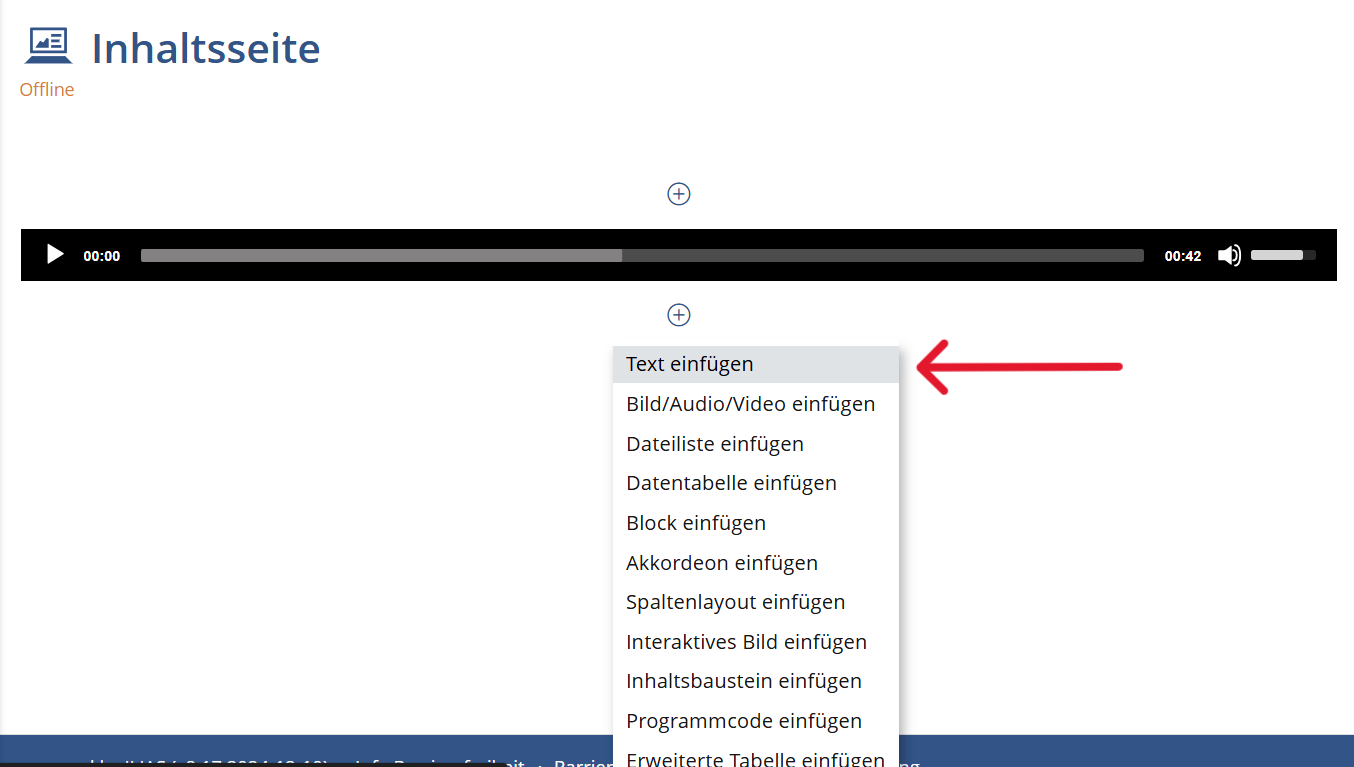
Click on the plus sign and select "Insert text".
-
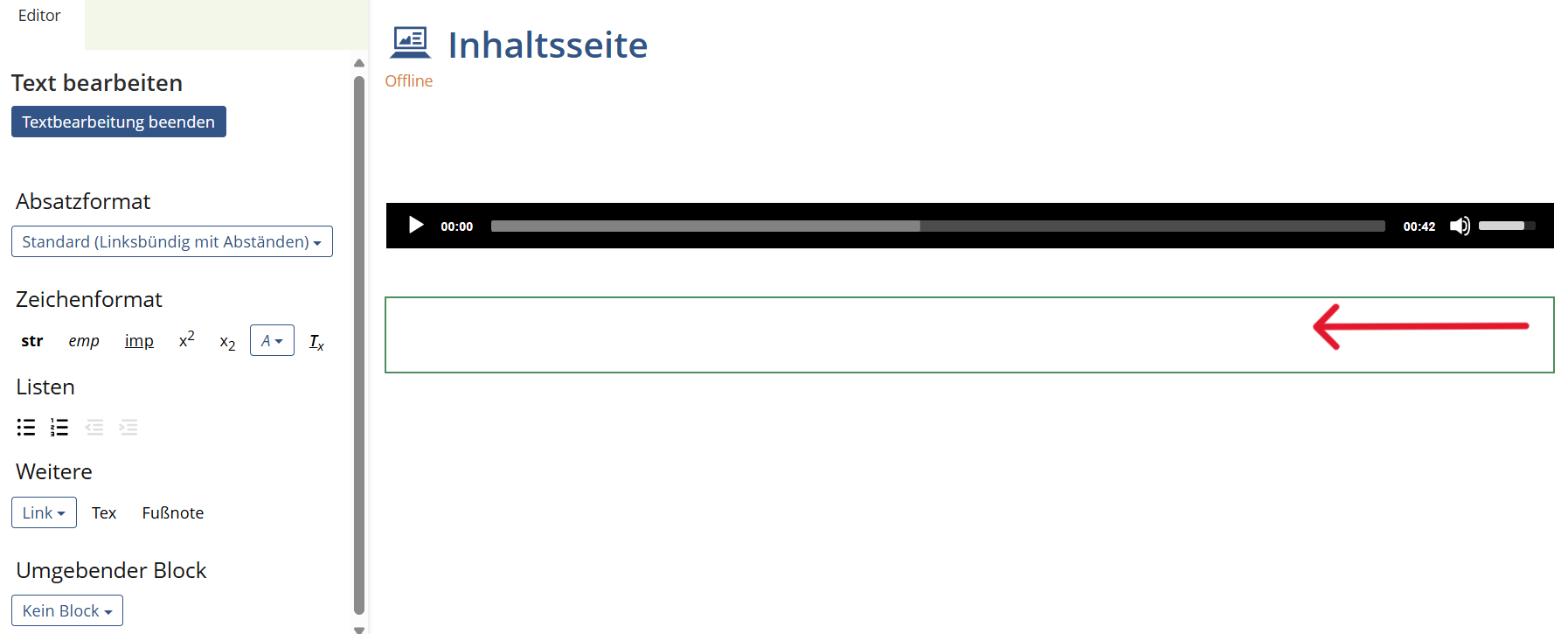
Write or copy your transcript into the text field and then click on "Finish text editing".
Insert Transcription as Link
-
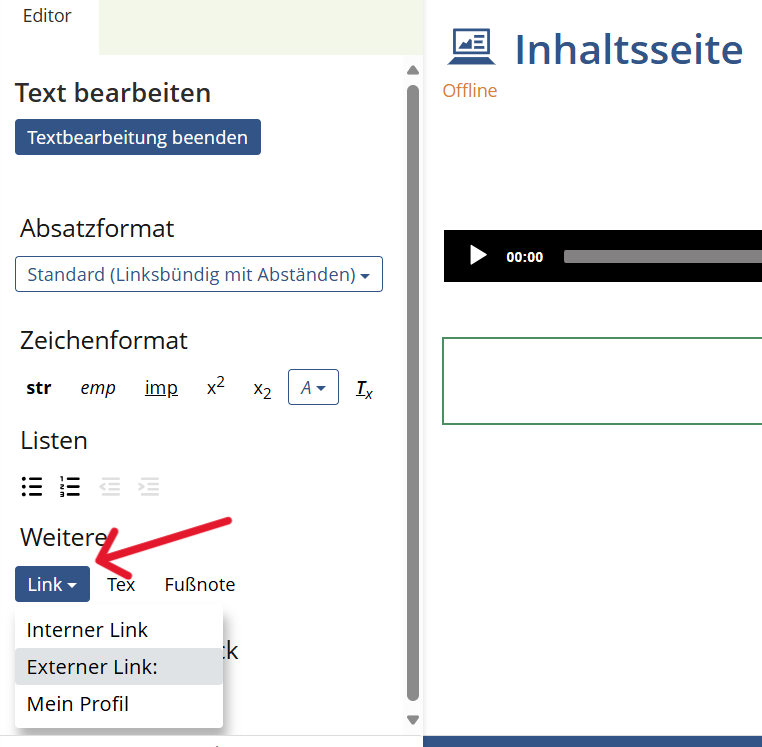
In the "Edit text" area, go to "Link" and select the type of link you want.
-
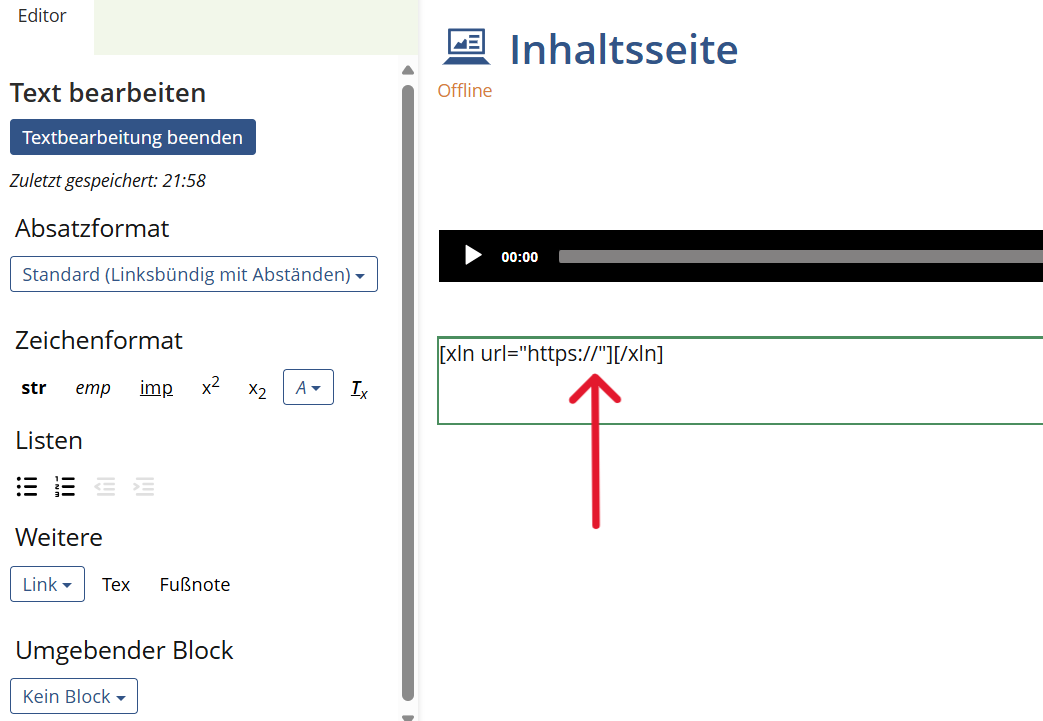
For external links, write the address after https://.
Insert Transcription as Text
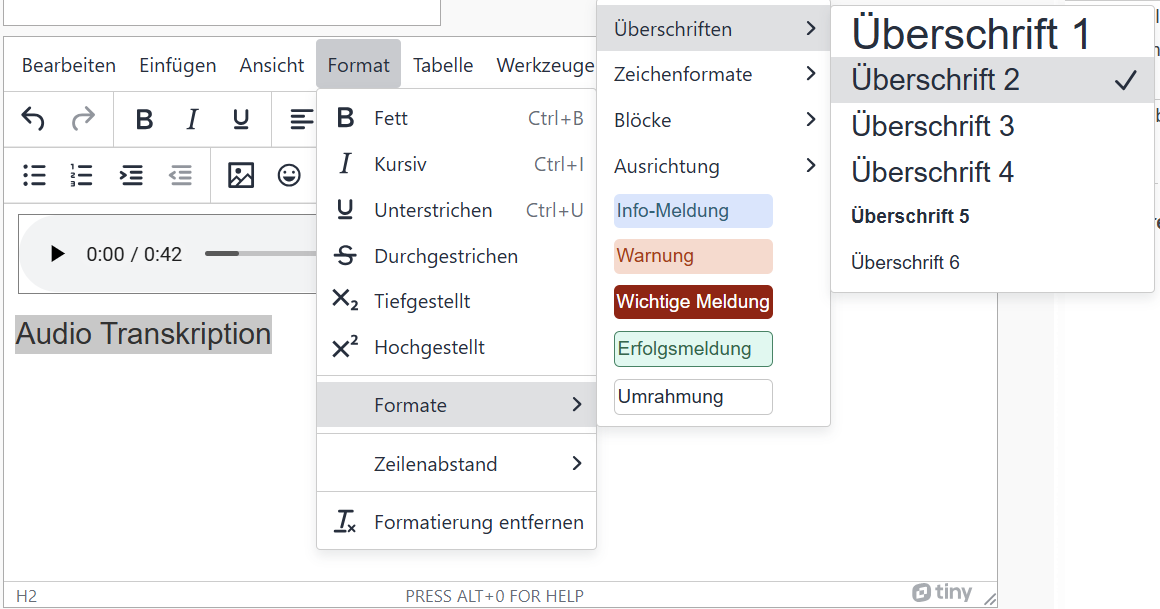
Write the transcript directly below the audio. Mark out the corresponding level of the transcript heading as follows:
Format > Formats > Headings > Heading level number
Insert Transcription as Link
-
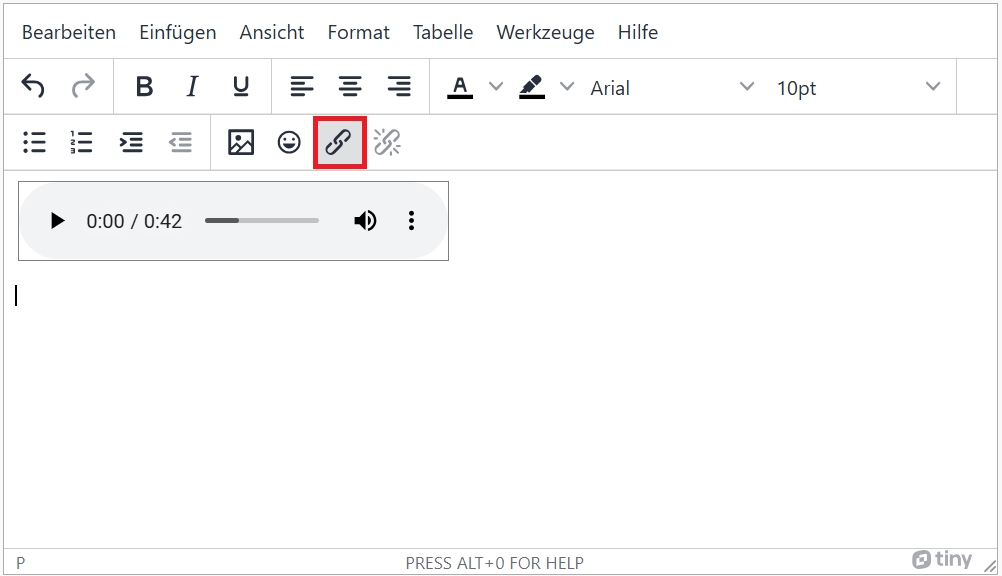
Select the chain icon in the toolbar.
-
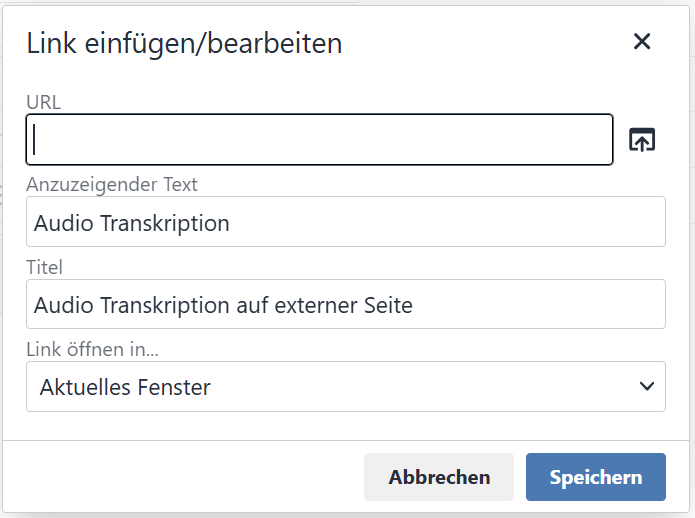
Insert your URL, enter the title of the transcription (for example Audio Transcription) and then click Save.
Create manually
- Create a text file in a text editor (e.g. Notepad or Editor)
- First Line: WEBVTT
- Time periods for caption sections: 00:01.000 --> 00:05.000
- Insert captions directly below
- Blank line between sections
- Save as: "videoname-languagekey.vtt", for example myvideo-en.vtt
Realization of the criteria
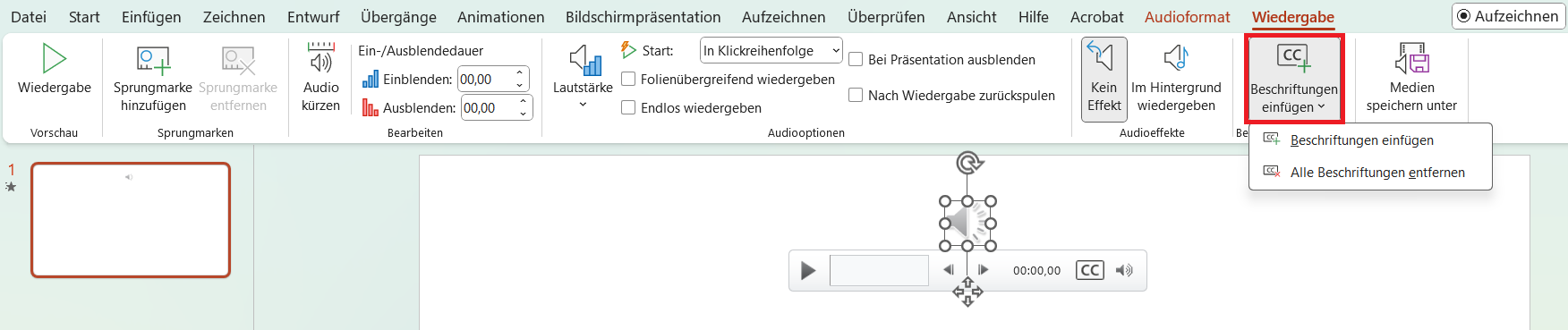
Menu bar: Playback > Caption Options > Insert Captions > Insert Captions
                    <audio src='' controls></audio>
                    <p> Audio number one contains the following speech: ... </p>

                    or

                    <audio src='' controls></audio>
                    <a href="https://example.com/transcript.txt"> Transcription for Audio 1 </a>