Paragraphs
The following criteria are taken from the checklist:
- Paragraphs and highlighted sections are marked as such.
- Text should be used to present information directly, rather than through images containing text.
Paragraphs divide text into smaller units, making it easier to understand. These must be structurally labelled so that assistance systems can move through content paragraph-by-paragraph or choose a different presentation. Similarly, assistance systems can only capture visual highlights if they are created with the appropriate structural elements or styles.
Markup of Paragraphs
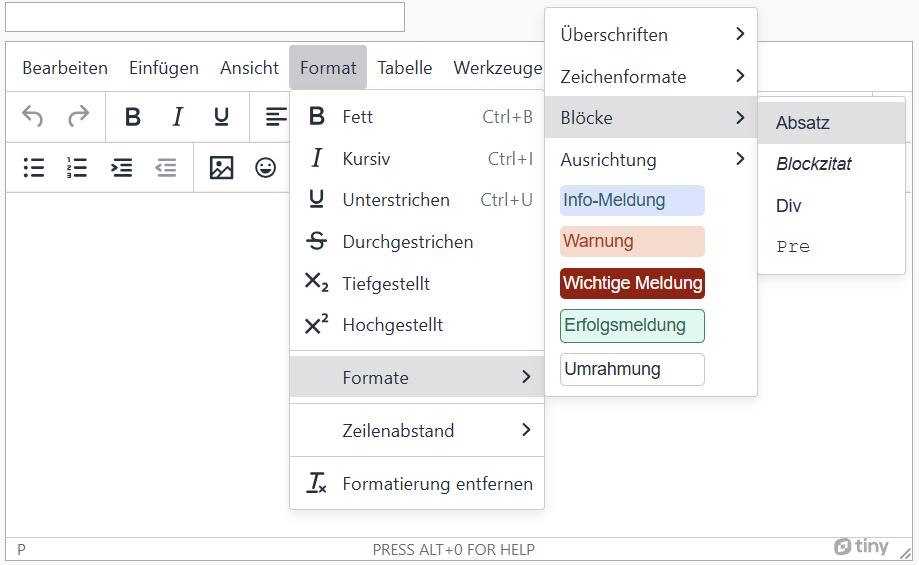
OPAL editor:
Paragraph: Menu bar: Format > Formats > Blocks > Paragraph
Bold: Menu bar: Format > Bold
Italic: Menu bar: Format > Italic
Keyboard shortcuts
Windows:
Paragraph: Shift + Alt + 7, Bold: Ctrl + B, Italic: Ctrl + I
macOS:
Paragraph: Ctrl +
+ 7; Bold:
+ B; Italic:
+ I
The following criteria are taken from the checklist:
- Paragraphs and highlighted sections are marked as such.
- Text should be used to present information directly, rather than through images containing text.
Paragraphs divide text into smaller units, making it easier to understand. These must be structurally labelled so that assistance systems can move through content paragraph-by-paragraph or choose a different presentation. Similarly, assistance systems can only capture visual highlights if they are created with the appropriate structural elements or styles.
Realization of the criteria
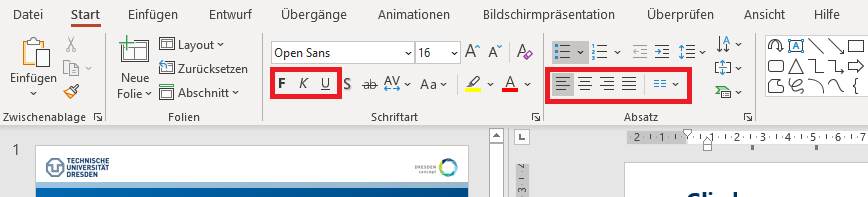
Paragraph: Menu bar: Home > Paragraph
Highlights:
Menu bar: Home > Font > Bold/Italic/Cursive
Additional Information
The following criteria are taken from the checklist:
- Paragraphs and highlighted sections are marked as such.
- Text should be used to present information directly, rather than through images containing text.
Paragraphs divide text into smaller units, making it easier to understand. These must be structurally labelled so that assistance systems can move through content paragraph-by-paragraph or choose a different presentation. Similarly, assistance systems can only capture visual highlights if they are created with the appropriate structural elements or styles.
Markup of Paragraphs
HTML tags:
Paragraph: <p>, Bold: <strong>, Italic: <em>
Example code of paragraph
<p>This is an <strong>important</strong> paragraph.</p>
The following criteria are taken from the checklist:
- Bold (str), italic (emp), and underline (imp) are not used.
Bold (str), italic (emp), and underlined (imp) emphasis are not properly marked and therefore cannot be recognized by non-sighted people.
Add Paragraph
-
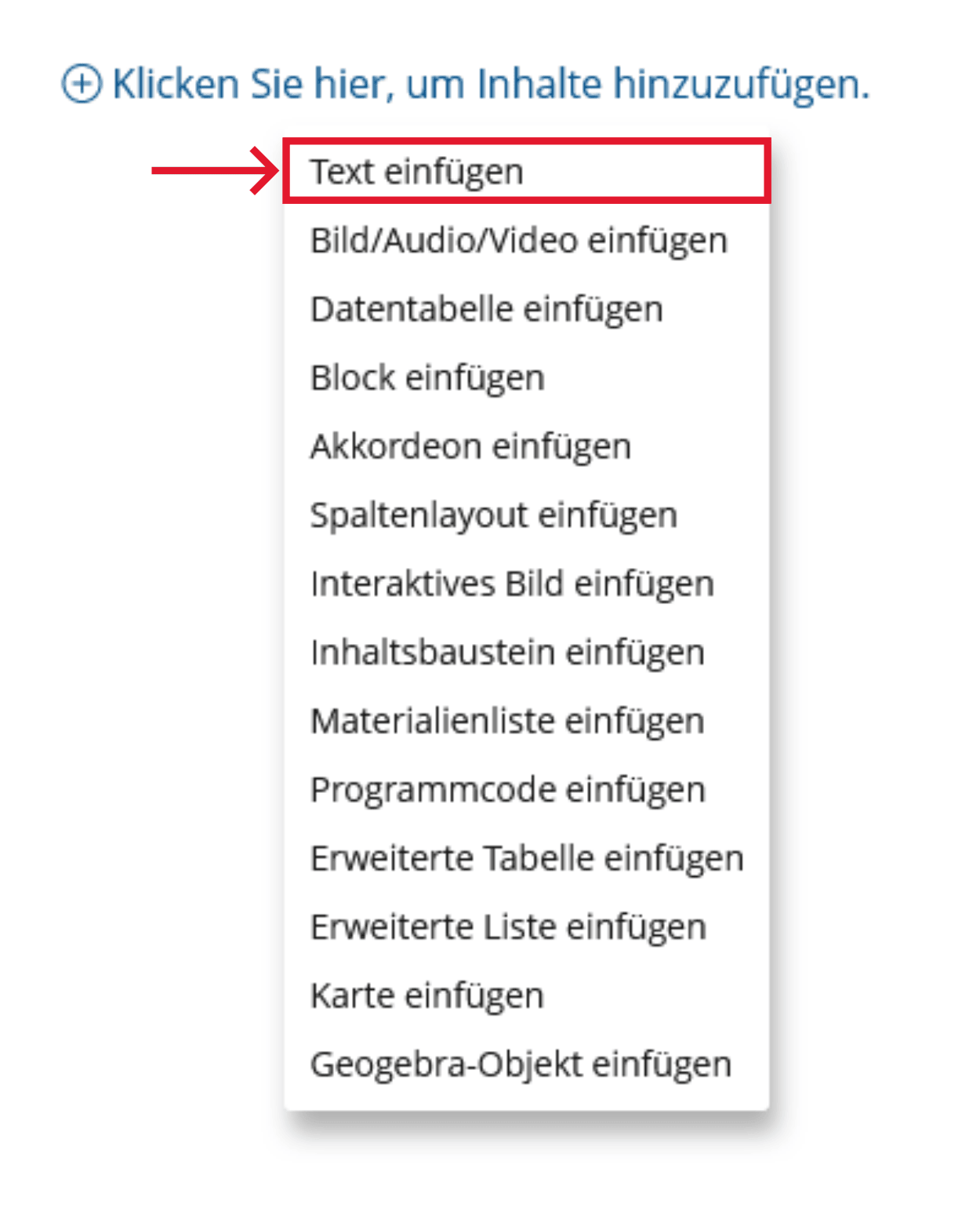
Click the plus sign and choose "Insert Text".
-
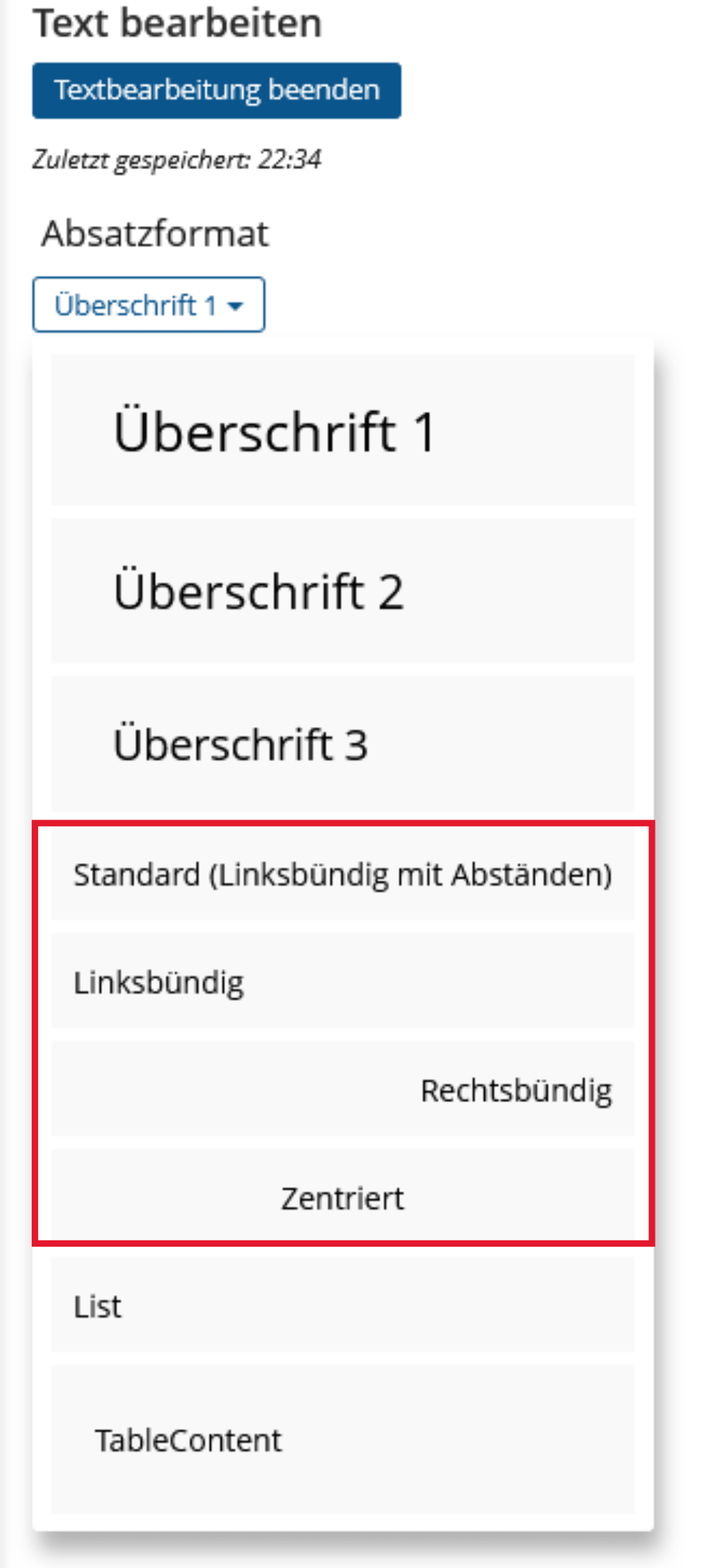
Under "Paragraph Formatting", choose a style and type your text. Finally, go to "Finish Text Editing".
The following criteria are taken from the checklist:


- Text paragraphs are marked as such. They are tagged using a <P> structural element.
Paragraphs divide text into smaller units, making it easier to understand. These must be structurally labelled so that assistance systems can move through content paragraph-by-paragraph or choose a different presentation. Similarly, assistance systems can only capture visual highlights if they are created with the appropriate structural elements or styles.
Markup of Paragraphs
Microsoft Word: Menu bar: Home > Styles > Select Normal
Bold: Menu bar: Home > Font > Bold
Italic: Menu bar: Home > Font > Italic
Underlined: Menu bar: Home > Font > Underline
Microsoft Word: Menu bar: Home > Styles > Select Normal
Bold: Menu bar: Home > Font > Bold
Italic: Menu bar: Home > Font > Italic
Underlined: Menu bar: Home > Font > Underline
The following criteria are taken from the checklist:
- Text paragraphs are marked as such. They are tagged using a <P> structural element.
Paragraphs divide text into smaller units, making it easier to understand. These must be structurally labelled so that assistance systems can move through content paragraph-by-paragraph or choose a different presentation. Similarly, assistance systems can only capture visual highlights if they are created with the appropriate structural elements or styles.
Markup of Paragraphs
LaTeX does not currently support automatic tagging, so the correct tags must be added in post-processing.
See Guidebook: „Example PDF Tags“ for help with tagging.