Guidebook
Generator of an Accessibility Statement
LMS Check
  • Text Content
    • General Information on Texts
    • Headings
    • Paragraphs
    • Quotations
    • Lists
    • Tables
    • Cross-references
    • Links
    • Formulas
    • Code
  • Color
    • Use of Color
    • Contrast of Texts
    • Contrast of Buttons and Graphics
  • Images and Graphics
    • Informative and Functional Images
    • Decorative Images
  • Audio Elements
    • Formatting Audio Elements
    • Media Alternatives for Audio Elements
    • Mediaplayer
  • Video and Animation
    • Videoplayer
    • Caption
    • Audiodescription
    • Full-Text Alternative
    • Embed Video
  • Interactive Elements
    • Accordeon
    • Interactive Image
    • Map
    • Buttons
    • Form Fields
    • Custom Elements
    • JSX-Graph
  • PDF
    • Export PDF Document
    • Post-Processing with Adobe Acrobat Pro
    • Accessibility Check
  • Course layout
    • Stylesheets (CSS)
    • Scripts (JS)
  • Accessibility Testing
  • Upload Accessibility Statement to LMS
    • Create
    • Update

General Information on Texts

The following criteria are taken from the checklist:
  • Text passages in a different language are appropriately marked.
  • Text can be magnified to 200% without loss of content and functionality.
  • Text spacing is adjustable without loss of content and functionality.

Text sections in other languages need to be tagged so that screen readers can pronounce them correctly. Visually impaired people can also improve the readability of text by using tools to adjust the spacing between lines, paragraphs, characters and words. Although this requires more space, text should be displayed in full.

Marking up text content: Mark up your content with appropriate HTML tags or use the style sheets of your editor. Further information on marking up text content can be found in the following entries.
Avoid Text in Images: If possible, avoid using images to display text. Text in images cannot be read by screen readers and does not scale well with zoom or responsive design. If it cannot be avoided, reproduce the image content in the alternative text.
Simple and Clear Language: Try to use simple and clear language. Avoid using complex sentences and jargon, unless absolutely necessary. This is particularly important for people with cognitive disabilities and non-native speakers.

Markup of Texts

OPAL editor: Mark up text sections in other languages using the source code tool
Labeling of text sections in other languages
  1. Where available, select the following: Menu: Tools > Source code
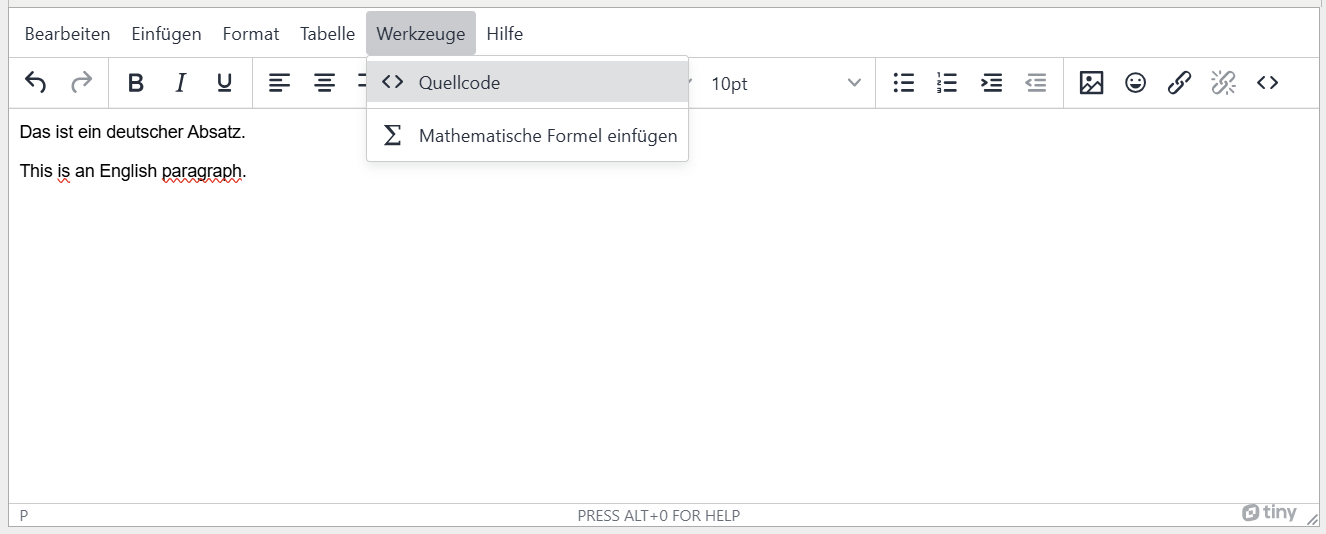
  2. Add lang='language abbreviation' in the <p> tag of the text section which is not in the main language of the document.
                
                  <p lang="de">Das ist ein deutscher Absatz.</p>
                  <p lang="en">This is an English paragraph.</p>


BITV-Guidelines

  • Sections and words from other languages are marked
  • Text can be scaled up to 200%
  • Text spacing customizable
The following criteria are taken from the checklist:
  • No text sections in other languages are used.

Text sections in other languages need to be tagged so that screen readers can pronounce them correctly. Visually impaired people can also improve the readability of text by using tools to adjust the spacing between lines, paragraphs, characters and words. Although this requires more space, text should be displayed in full.

It is not possible to markup text in other languages using the Ilias page editor. Text sections in other languages should therefore be avoided if people with screen readers are using the course.

BITV-Guidelines

  • Sections and words from other languages are marked
  • Text can be scaled up to 200%
  • Text spacing customizable
The following criteria are taken from the checklist:
  • The presentation has a document title.
  • The document language is specified.
  • Text passages in a different language are appropriately marked.
  • A slide layout is used for the placement of content.
  • The reading order of slide contents is correct.

Give your presentation a document title. Also specify the document language so that assistive technologies such as screen readers select the correct pronunciation. For the same reason, text sections in other languages must be labeled with the correct language.

Use the slide layouts provided to position your content. This is the only way to ensure that the slide headings are correctly labeled. Also avoid using blank lines to place the content, as these are also read out by screen readers.

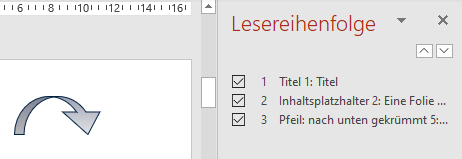
The order in which screen readers read out the slide content does not automatically correspond to the visible order. Check this order using the accessibility checker.

Realization of the criteria

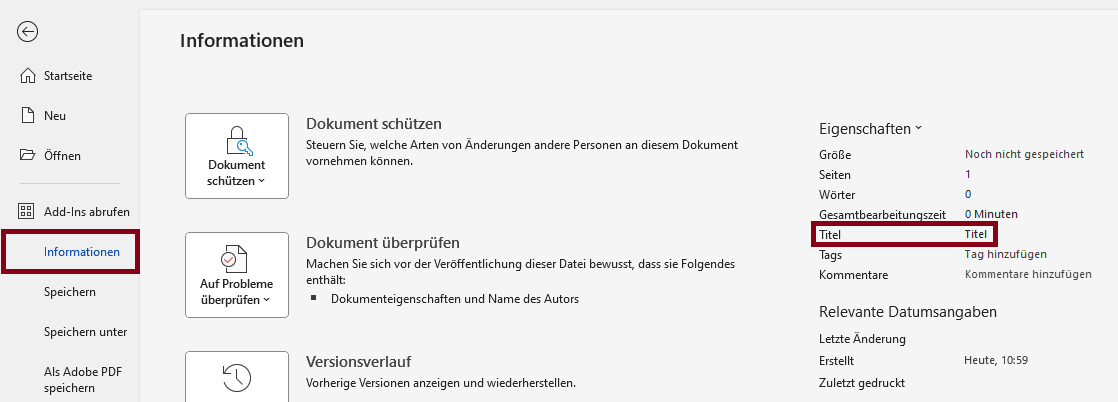
Specification of the title

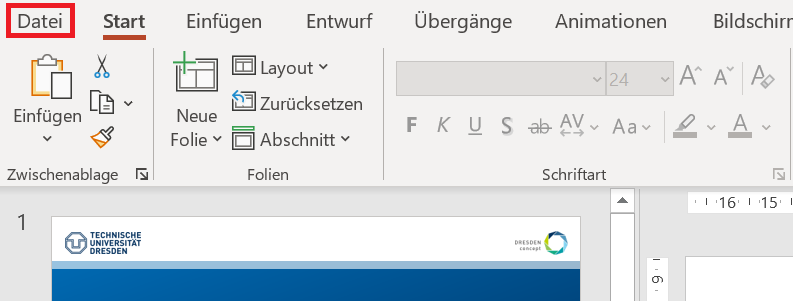
  1. Go to "File" in the menu bar.
  2. Go to "Info". You can specify the title under "Properties".
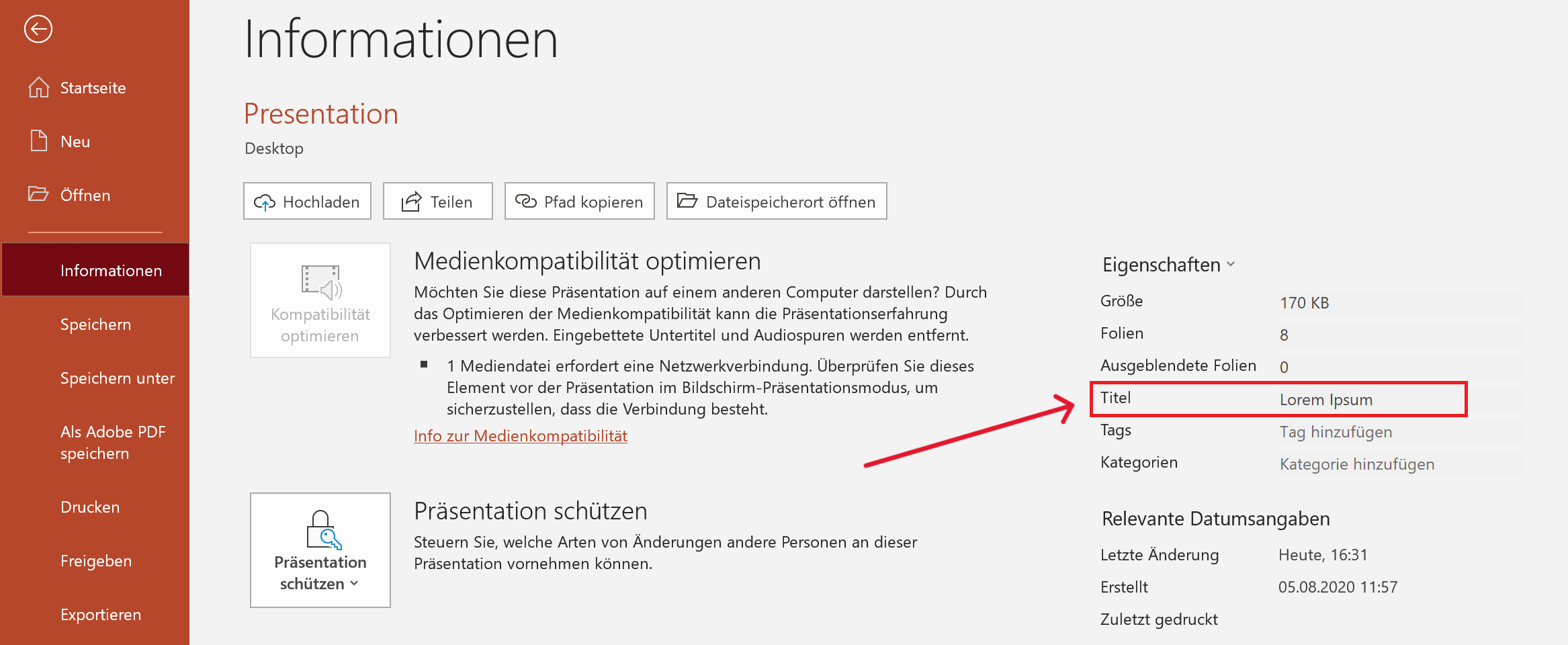
Specification of the title

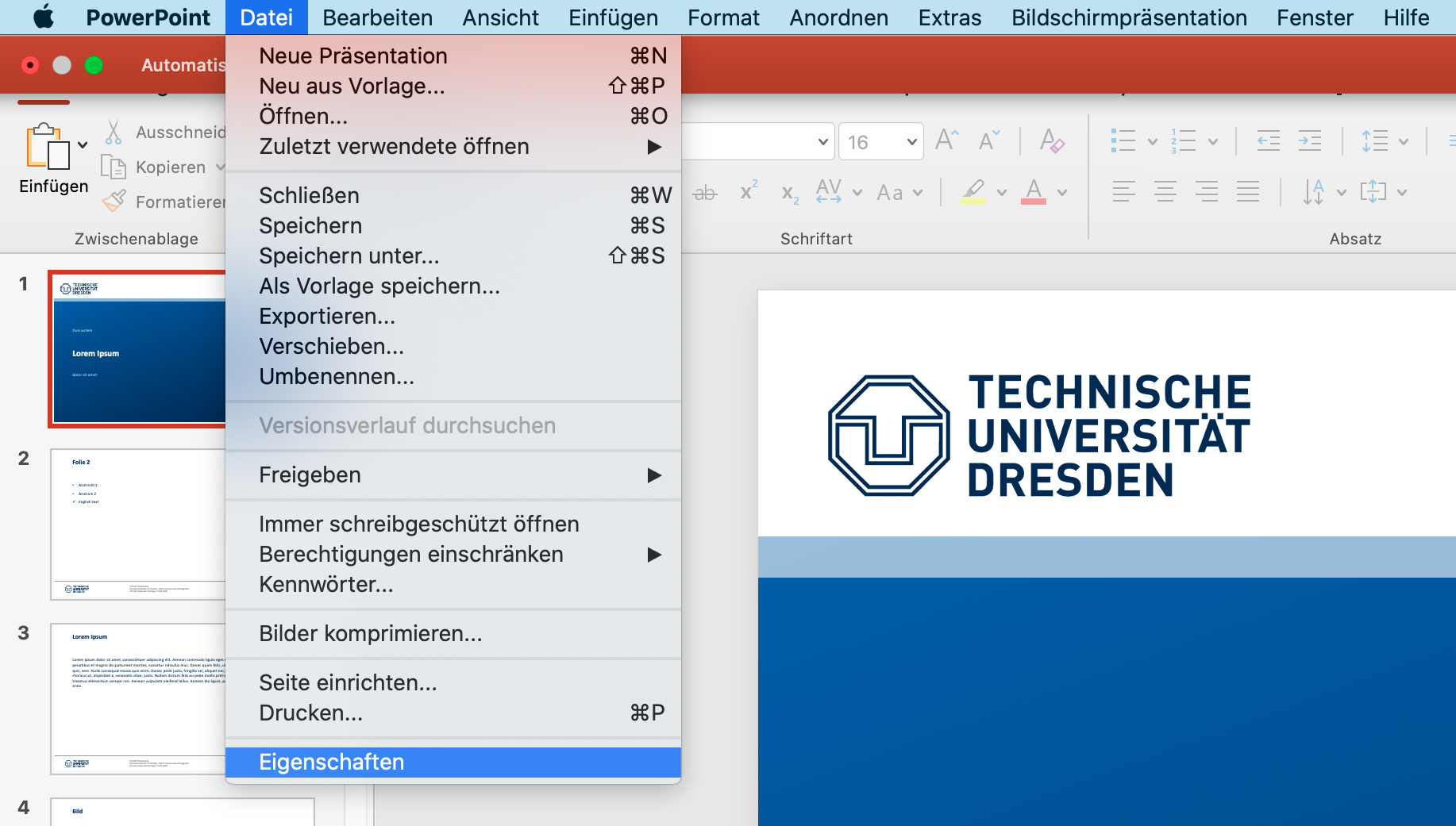
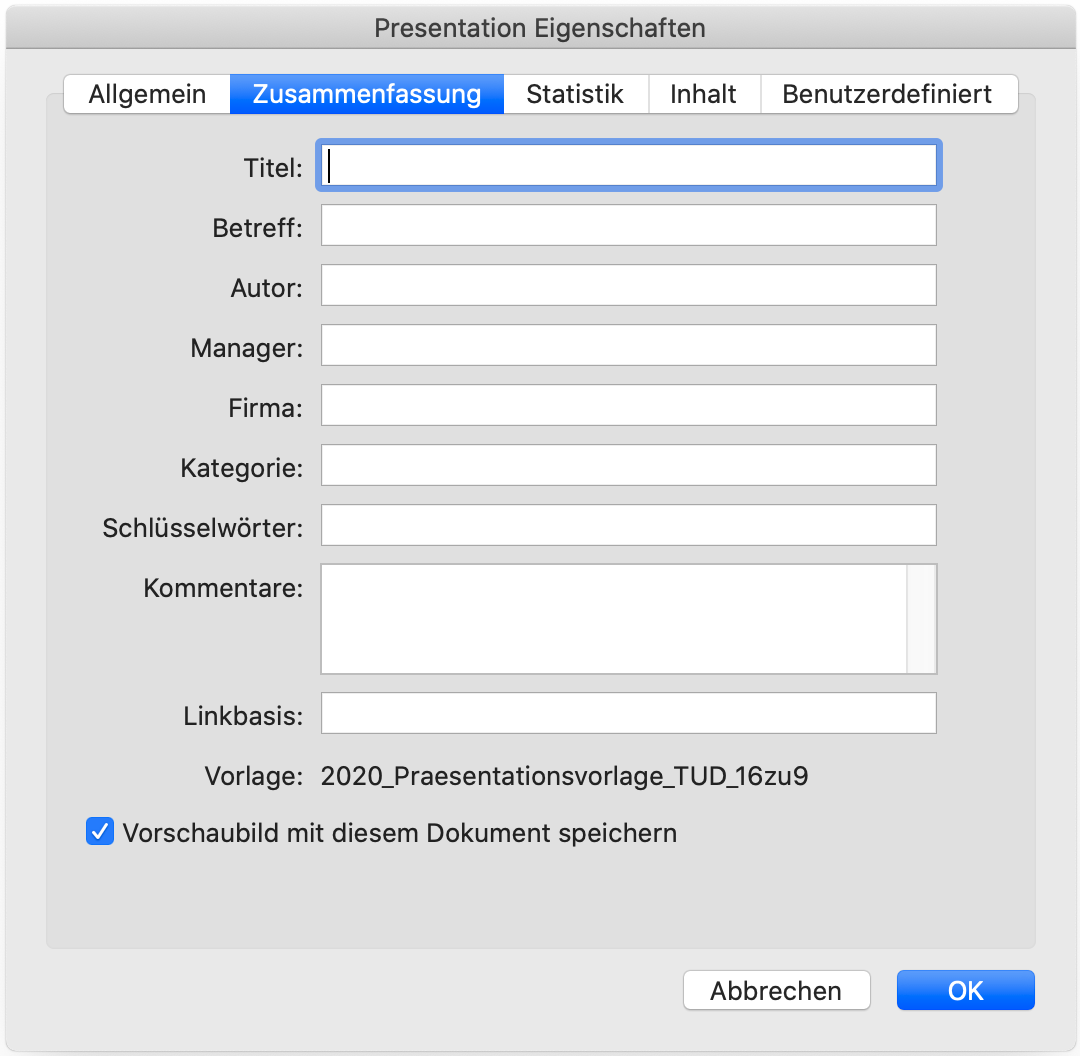
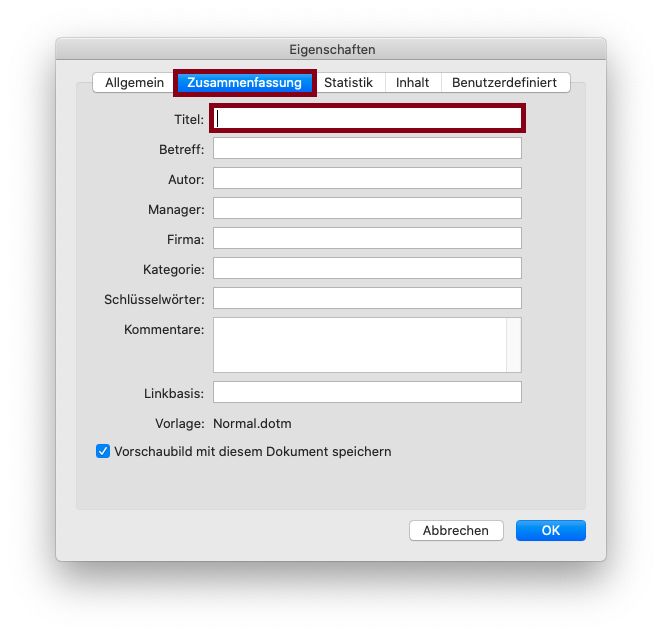
  1. Menu bar: File > Properties
  2. Go to "Info" and add title.

Specifying the language

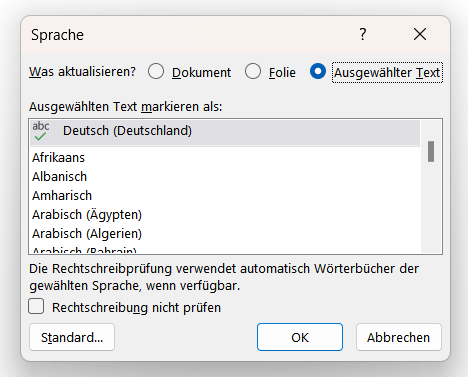
  1. You will find the current language at the bottom left-hand edge. To mark words in other languages, select them and then click on the language displayed at the bottom left-hand edge.

  2. Select the appropriate language and the desired scope of the change (document, slide or selected text).
Use of slide layout

  1. Menu bar: Home > Slides > Slide Layout
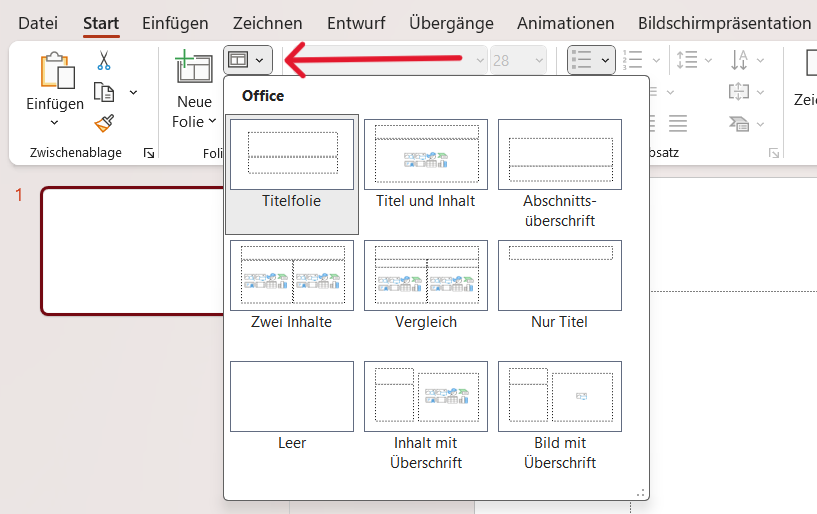
  2. You can personalize the layout in the slide master: View > Master Views > Slide Master

Checking the reading order

  1. Search bar: "Reading order" > Display the Reading Order Pane
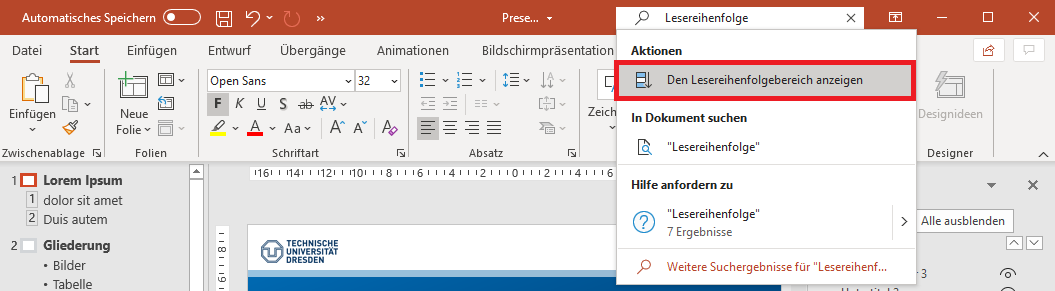
  2. Correct the order if necessary.

Additional Information

  • Instructions for the accessible design of documents from the Disability and Study Services working group of the TU Dresden

BITV-Guidelines

  • Sections and words from other languages are marked
The following criteria are taken from the checklist:
  • Text passages in a different language are appropriately marked.
  • Text can be magnified to 200% without loss of content and functionality.
  • Text spacing is adjustable without loss of content and functionality.

Text sections in other languages need to be tagged so that screen readers can pronounce them correctly. Visually impaired people can also improve the readability of text by using tools to adjust the spacing between lines, paragraphs, characters and words. Although this requires more space, text should be displayed in full.

Marking up text content: Mark up your content with appropriate HTML tags or use the style sheets of your editor. Further information on marking up text content can be found in the following entries.
Avoid Text in Images: If possible, avoid using images to display text. Text in images cannot be read by screen readers and does not scale well with zoom or responsive design. If it cannot be avoided, reproduce the image content in the alternative text.
Simple and Clear Language: Try to use simple and clear language. Avoid using complex sentences and jargon, unless absolutely necessary. This is particularly important for people with cognitive disabilities and non-native speakers.

Markup of Texts

HTML tags: Specify language using lang attribute within a tag
                
                  <p lang="de">Das ist ein deutscher Absatz.</p>
                  <p lang="en">This is an English paragraph.</p>
                
              
CSS code is required to implement the following criteria.
Magnified texts: Relative size specifications such as percent and em are used instead of pixels for size specifications.
Adjustable text spacing: The size of text containers should be larger than the width of the text or expand together with the text. The latter can be achieved via display: inline-block.
CSS code is required to implement the following criteria.
Magnified texts: Relative size specifications such as percent and em are used instead of pixels for size specifications.
Adjustable text spacing: The size of text containers should be larger than the width of the text or expand together with the text. The latter can be achieved via display: inline-block.

BITV-Guidelines

  • Sections and words from other languages are marked
  • Text can be scaled up to 200%
  • Text spacing customizable
The following criteria are taken from the checklist:
  • The document has a suitable document title, which is set in the metadata and is displayed when the document is opened.
  • The document language is specified.
  • Text passages in a different language are appropriately marked.
  • Text can be magnified to 200% without loss of content and functionality.
  • Text spacing is adjustable without loss of content and functionality.
  • Empty paragraphs are not used to create spacing between content.

Text sections in other languages need to be tagged so that screen readers can pronounce them correctly. Visually impaired people can also improve the readability of text by using tools to adjust the spacing between lines, paragraphs, characters and words. Although this requires more space, text should be displayed in full.

Marking up text content: Mark up your content with appropriate HTML tags or use the style sheets of your editor. Further information on marking up text content can be found in the following entries.
Avoid Text in Images: If possible, avoid using images to display text. Text in images cannot be read by screen readers and does not scale well with zoom or responsive design. If it cannot be avoided, reproduce the image content in the alternative text.
Simple and Clear Language: Try to use simple and clear language. Avoid using complex sentences and jargon, unless absolutely necessary. This is particularly important for people with cognitive disabilities and non-native speakers.

Realization of the criteria

Set Document Title
Microsoft Word: Menu bar: File > Info > Properties > Title
Set Document Language
Microsoft Word: Status bar: Select Language > Current Document
Or: Menu bar: Review > Language > Set Proofing Language… > Select language for current document

  1. Click “Language” in the status bar.
  2. Select the appropriate language for “Current Document”.
Labeling of text sections in other languages
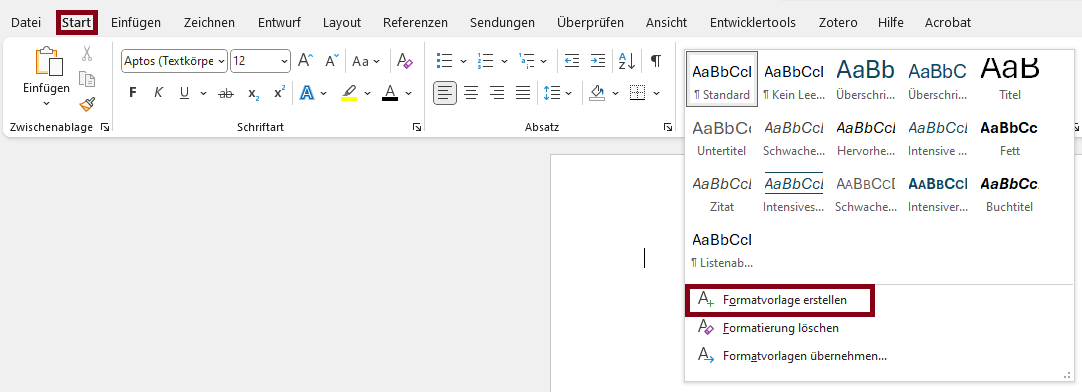
Microsoft Word: Menu bar: Home > Styles > Create a Style > Modify… > Format > Language… > Select Language
Create the new style starting from the normal style if you want to mark words of another language in your text paragraphs.
guide_tags_word_3
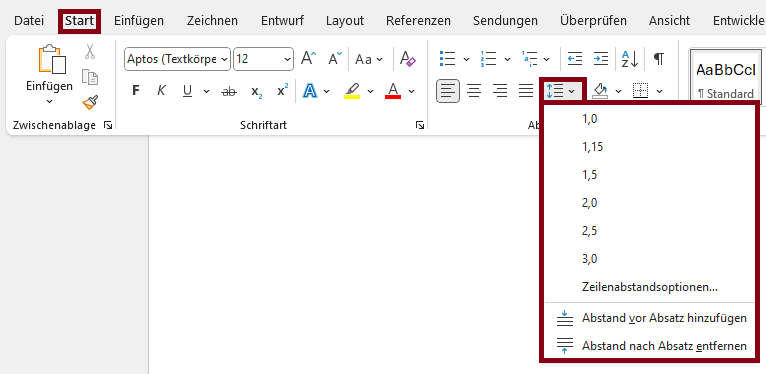
Microsoft Word: Menu bar: Home > Paragraph > Line and Paragraph Spacing > Line Spacing Options… > Spacing
Spacing between content should not be created by manually adding line breaks, but by increasing line and paragraph spacing.
Set Document Title
Microsoft Word: Menu bar: File > Info > Properties > Title
Set Document Language
Microsoft Word: Menu bar: Home > Styles > Create a Style > Modify… > Format > Language… > Select Language
Or: Menu bar: Review > Language > Set Proofing Language… > Select language for current document

  1. Click “Language” in the status bar.
  2. Select the appropriate language for “Current Document”.
BITV-Guidelines

  • Sections and words from other languages are marked
  • Text can be scaled up to 200%
  • Text spacing customizable
The following criteria are taken from the checklist:
  • The document has a suitable document title, which is set in the metadata and is displayed when the document is opened.
  • The document language is specified.
  • Text can be magnified to 200% without loss of content and functionality.
  • Text spacing is adjustable without loss of content and functionality.
  • Empty paragraphs are not used to create spacing between content.

Text sections in other languages need to be tagged so that screen readers can pronounce them correctly. Visually impaired people can also improve the readability of text by using tools to adjust the spacing between lines, paragraphs, characters and words. Although this requires more space, text should be displayed in full.

Marking up text content: Mark up your content with appropriate HTML tags or use the style sheets of your editor. Further information on marking up text content can be found in the following entries.
Avoid Text in Images: If possible, avoid using images to display text. Text in images cannot be read by screen readers and does not scale well with zoom or responsive design. If it cannot be avoided, reproduce the image content in the alternative text.
Simple and Clear Language: Try to use simple and clear language. Avoid using complex sentences and jargon, unless absolutely necessary. This is particularly important for people with cognitive disabilities and non-native speakers.

Realization of the criteria

Set Document Title
Placing the following command at the beginning of the document ensures that the document title and author are set correctly.
                  
                      \hypersetup{pdftitle=<…>, pdfauthor=<…>}
                  
                  
Set Document Language
To set the document language, add the command
                
                  \DocumentMetadata{} 
                
              
before you set the document class. Using this command also ensures that important XMP metadata such as the document title and the PDF/UA identifier are set.
                
                  \DocumentMetadata{
                    lang = <...>,
                    pdfversion = 1.7,
                    pdfstandard = ua-1,
                  } 
                
              
Change Font Size
Change the font size directly in the class options.
                
                  \documentclass[12pt]{…}
                
              
Change Text Spacing
Adjust the line spacing by using the following command.
                
                  \renewcommand{\baselinestretch}{1.5}


BITV-Guidelines

  • Sections and words from other languages are marked
  • Text can be scaled up to 200%
  • Text spacing customizable
State emblem of the Free State of Saxony: The lettering “Saxony” in black, below the stylized coat of arms of the Free State of Saxony in black on a white background. This measure is co-financed by tax funds on the basis of the budget approved by the Saxon state parliament.

v.0.11.1 - beta

  • Legal Notice
  • Data Protection
  • Accessibility
  • Checklist
  • Guidebook