Guidebook
Generator of an Accessibility Statement
LMS Check
  • Text Content
    • General Information on Texts
    • Headings
    • Paragraphs
    • Quotations
    • Lists
    • Tables
    • Cross-references
    • Links
    • Formulas
    • Code
  • Color
    • Use of Color
    • Contrast of Texts
    • Contrast of Buttons and Graphics
  • Images and Graphics
    • Informative and Functional Images
    • Decorative Images
  • Audio Elements
    • Formatting Audio Elements
    • Media Alternatives for Audio Elements
    • Mediaplayer
  • Video and Animation
    • Videoplayer
    • Caption
    • Audiodescription
    • Full-Text Alternative
    • Embed Video
  • Interactive Elements
    • Accordeon
    • Interactive Image
    • Map
    • Buttons
    • Form Fields
    • Custom Elements
    • JSX-Graph
  • PDF
    • Export PDF Document
    • Post-Processing with Adobe Acrobat Pro
    • Accessibility Check
  • Course layout
    • Stylesheets (CSS)
    • Scripts (JS)
  • Accessibility Testing
  • Upload Accessibility Statement to LMS
    • Create
    • Update

Decorative Images

The following criteria are taken from the checklist:
  • Decorative images and graphics are marked as such.

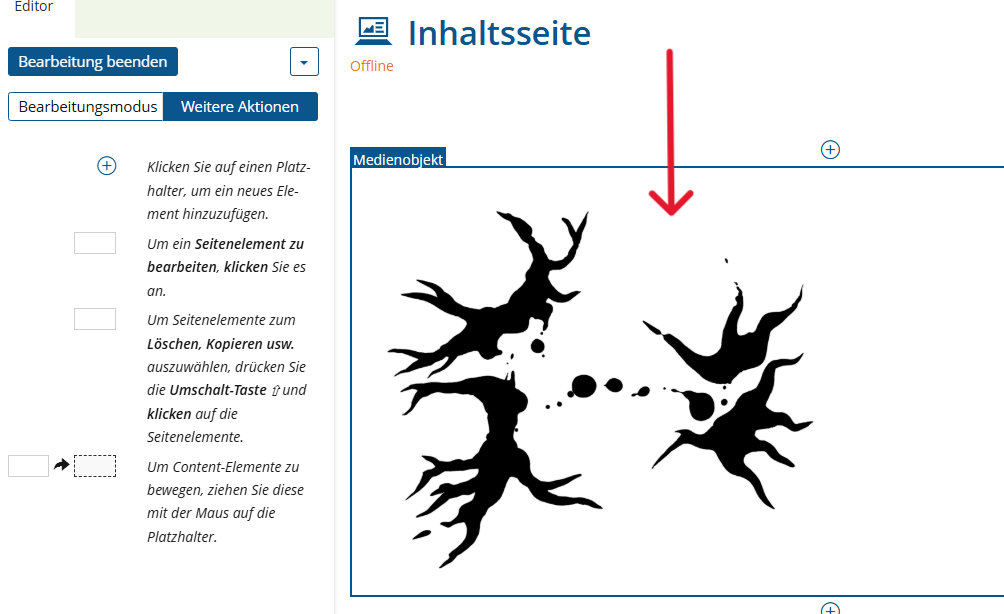
Decorative graphics are for decorative purposes only and therefore do not need to be taken into account by assistive technologies. To indicate this, the image must be marked as decorative.

Markup of Decorative Images

  1. Select the image icon in the toolbar of the page editor.
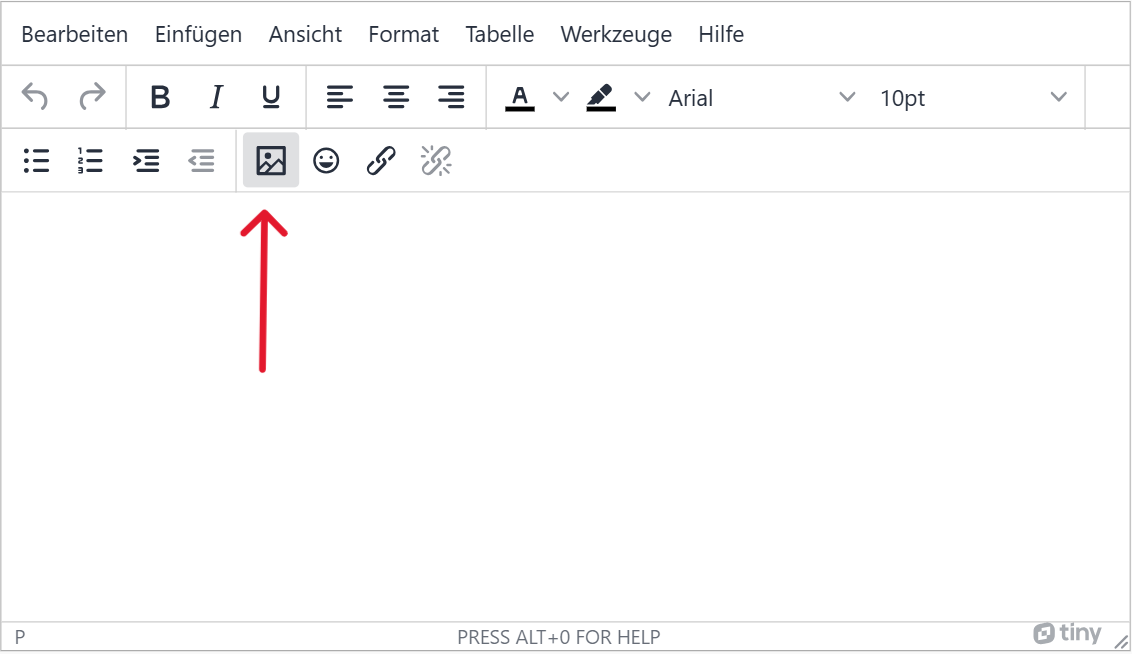
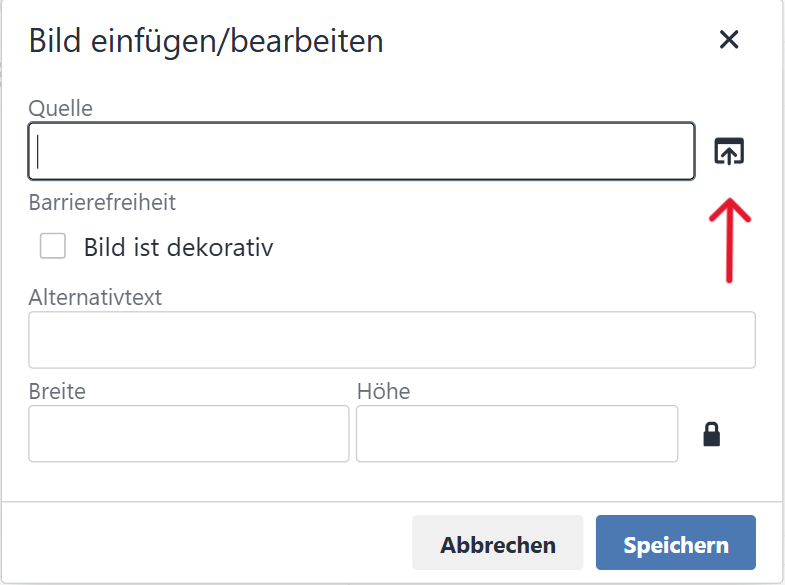
  2. Either enter the image source as text or upload an image directly using the upload icon on the right.
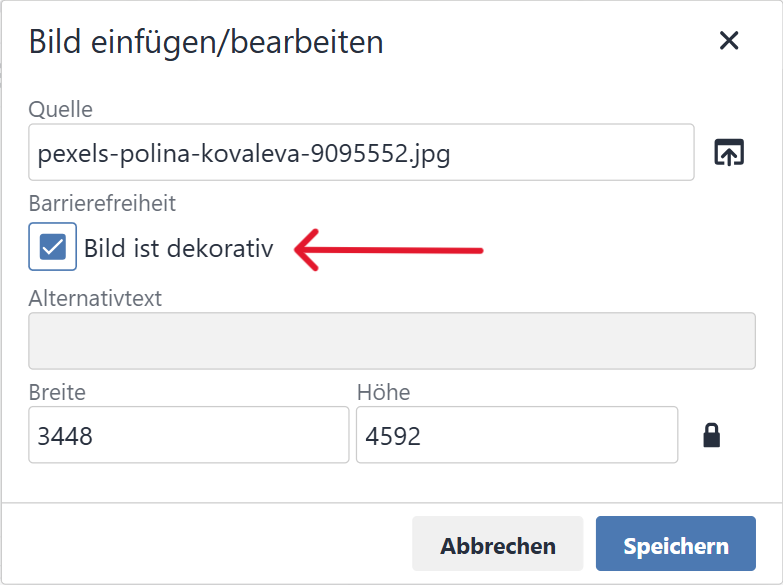
  3. Check the 'Image is decorative' box under Accessibility and save.
The following criteria are taken from the checklist:
  • Decorative images and graphics are marked as such.

Decorative graphics are only used for decoration and are therefore not interesting for blind and visually impaired people. For this reason, the alternative text must be empty so that assistive technologies ignore this type of image.

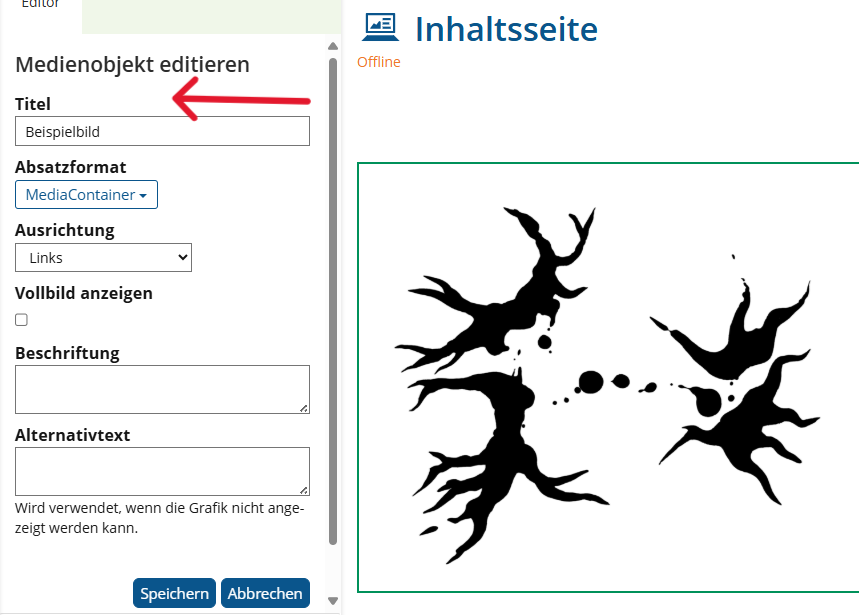
Insert Decorative Image

  1. Select your picture.
  2. You can change the title to 'Decorative Image'. Do not enter an alternative text or caption. Finally, click on "Save".
The following criteria are taken from the checklist:
  • Decorative images and graphics are marked as such.

Decorative graphics are for decorative purposes only and therefore do not need to be taken into account by assistive technologies. To indicate this, the image must be marked as decorative.

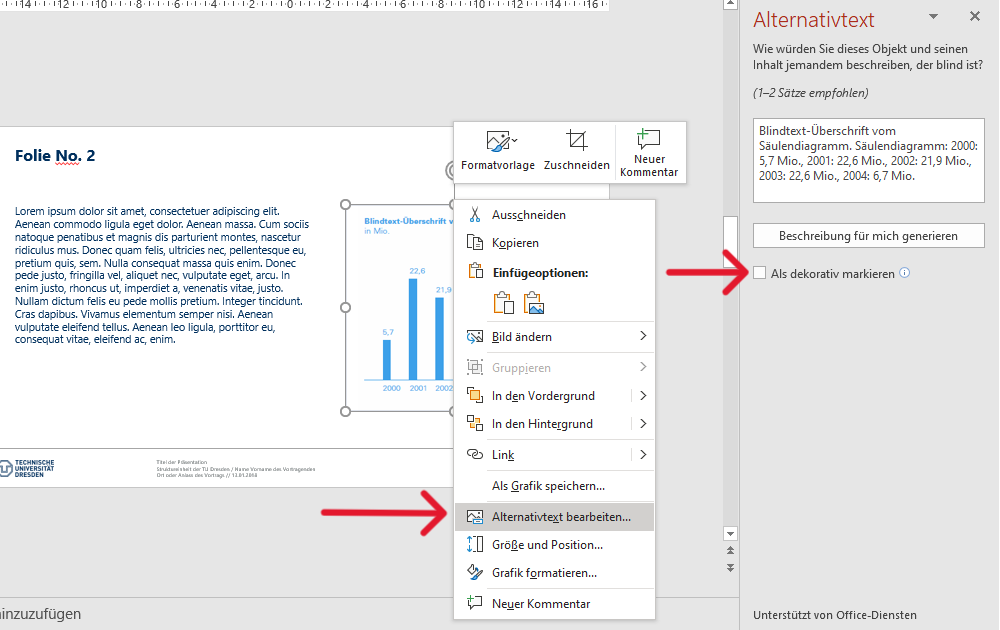
Realization of the criteria

Context menu (right click) > Edit alternative text > Mark as decorative
Additional Information

  • Instructions for the accessible design of documents from the Disability and Study Services working group of the TU Dresden
The following criteria are taken from the checklist:
  • Decorative images, which do not convey information, are not used. Otherwise they have an empty alternative text or they are integrated into the website using CSS.

guide_img_deco_barrier2

Markup of Decorative Images

HTML tags: <img>, Alternative texts: alt attribute
                  
                      <img src="image.jpg" alt="">
                  
                
Integration as SVG: As the alt attribute cannot be set, the content must be hidden from screen readers using aria-hidden='true'.
                  
                      <svg aria-hidden="true"> </svg>
                  
                
Integration via CSS: background-image: url('')
                  
                      body {background-image: url('image.gif');}
                  
                
The following criteria are taken from the checklist:
  • Decorative graphics that do not convey information are avoided or marked as decorative.

Decorative graphics are for decorative purposes only and therefore do not need to be taken into account by assistive technologies. To indicate this, the image must be marked as decorative.

Markup of Decorative Images
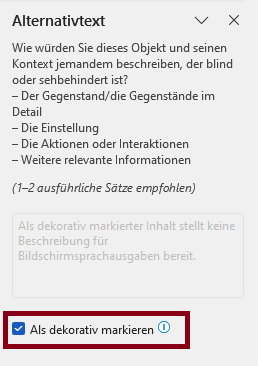
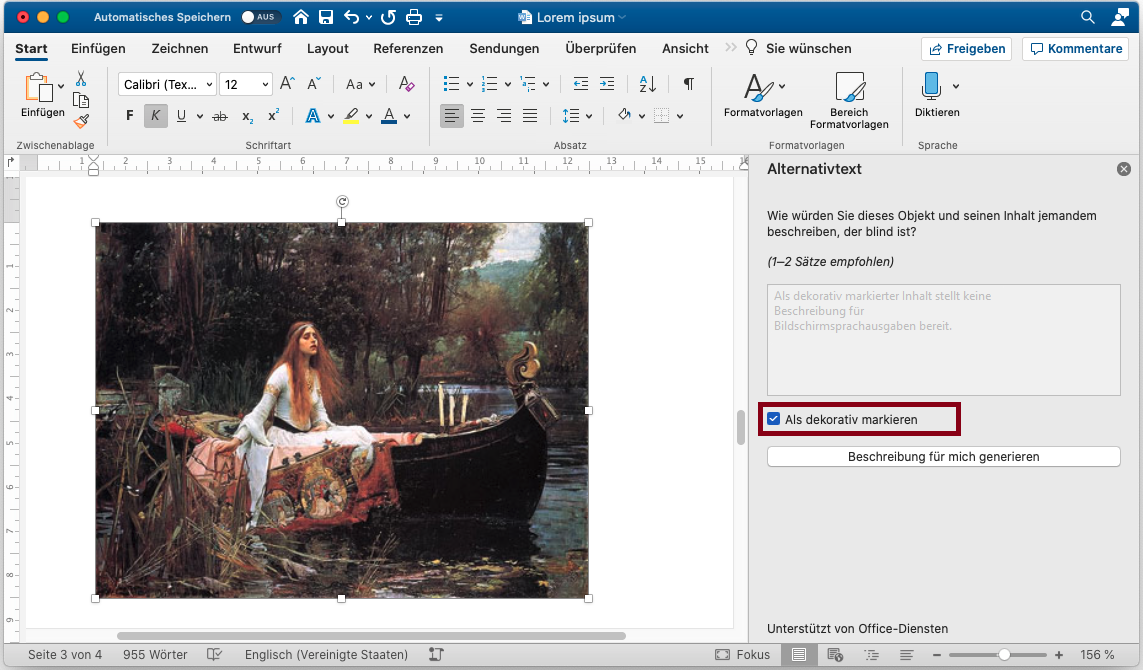
Microsoft Word: Right-click on image > View Alt Text… > Mark as decorative
The following criteria are taken from the checklist:
  • Decorative graphics that do not convey information are avoided or marked as decorative.

Decorative graphics are for decorative purposes only and therefore do not need to be taken into account by assistive technologies. To indicate this, the image must be marked as decorative.

Markup of Decorative Images
LaTeX does not currently support automatic tagging, so the correct tags must be added in post-processing.
See Guidebook: “Example PDF Tags: Images and Graphics” for help with tagging.

BITV-Guidelines

  • Empty alt attributes for decorative graphics
State emblem of the Free State of Saxony: The lettering “Saxony” in black, below the stylized coat of arms of the Free State of Saxony in black on a white background. This measure is co-financed by tax funds on the basis of the budget approved by the Saxon state parliament.

v.0.11.1 - beta

  • Legal Notice
  • Data Protection
  • Accessibility
  • Checklist
  • Guidebook