Embed Video
Barriers of ILIAS
Overlay images cannot be opened using the keyboard and are therefore not accessible to people with visual or motor impairments.
Barriers- There are no controls for switching audio descriptions on and off.
- If a video is embedded as a URL (e.g. from YouTube), existing captions are not displayed. They cannot be added later either.
- Users cannot adjust the font size or color of captions.
Insert video
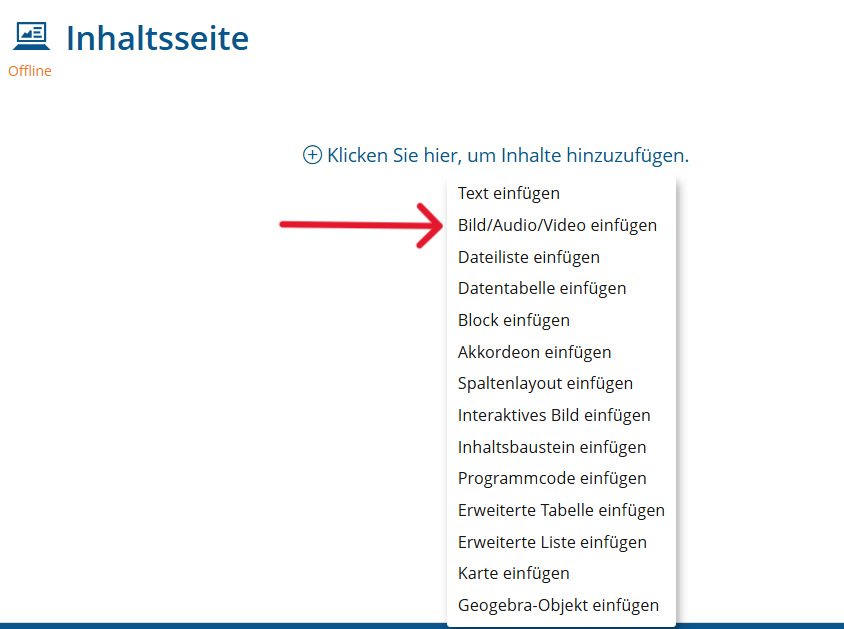
- Click on the plus sign and select "Insert image/audio/video"
- Select your video file or enter the URL of your video to embed it.
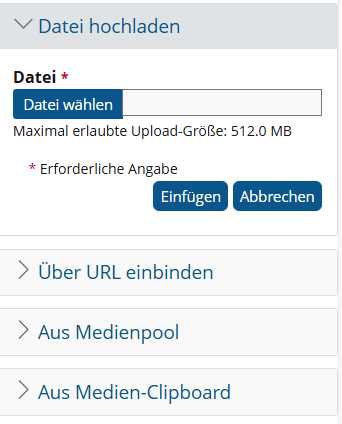
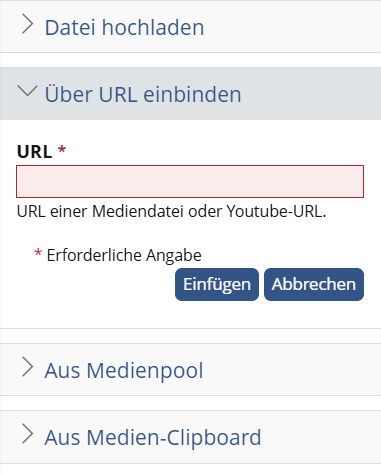
- Select your video.
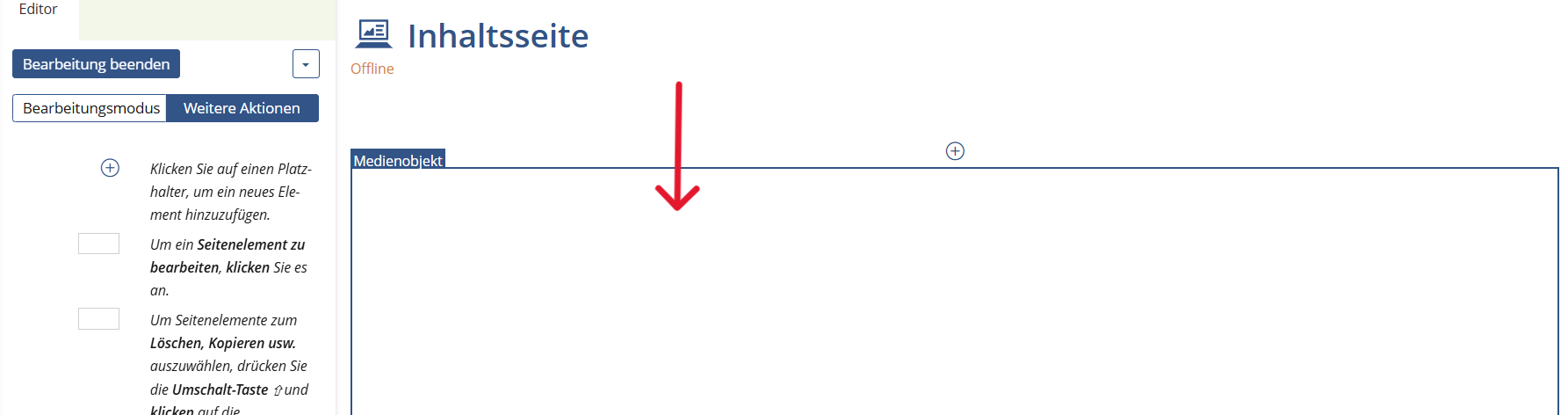
- Go to "Advanced settings".
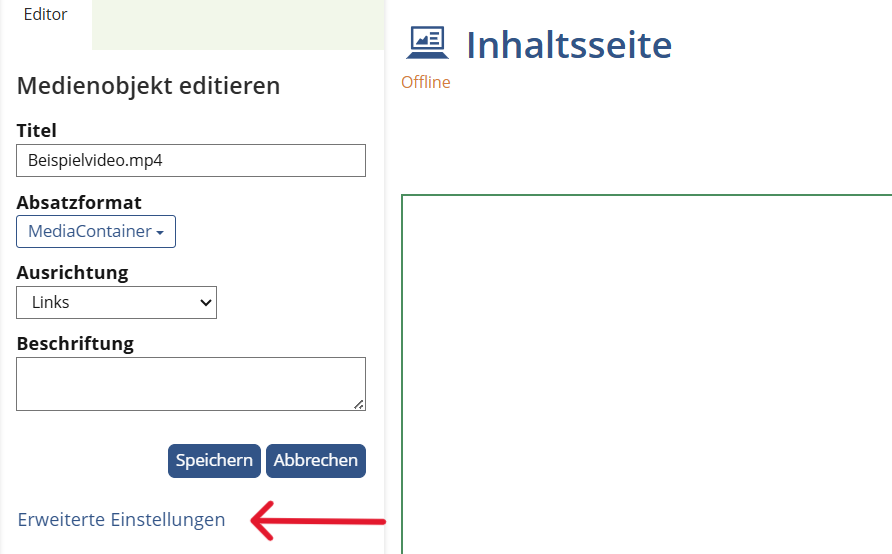
- If you want to change the size of your video, select "Customized" under Size and enter the desired video size.
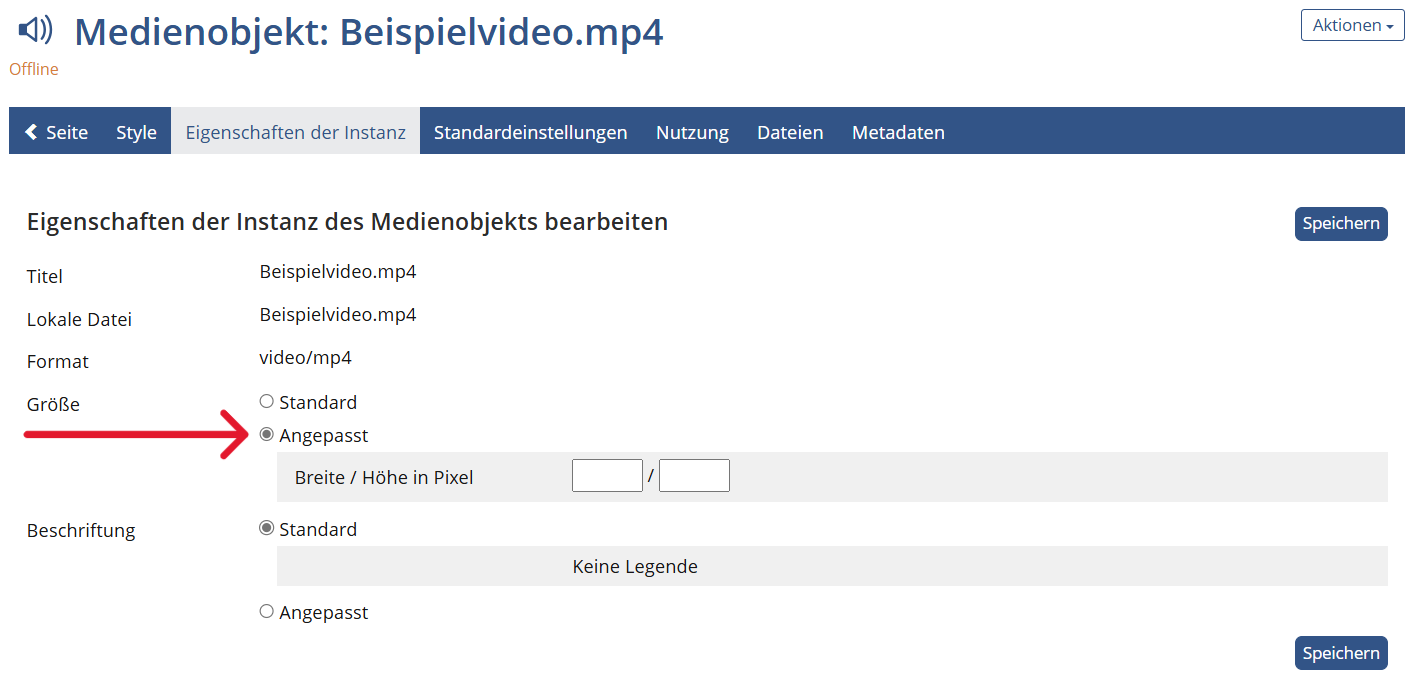
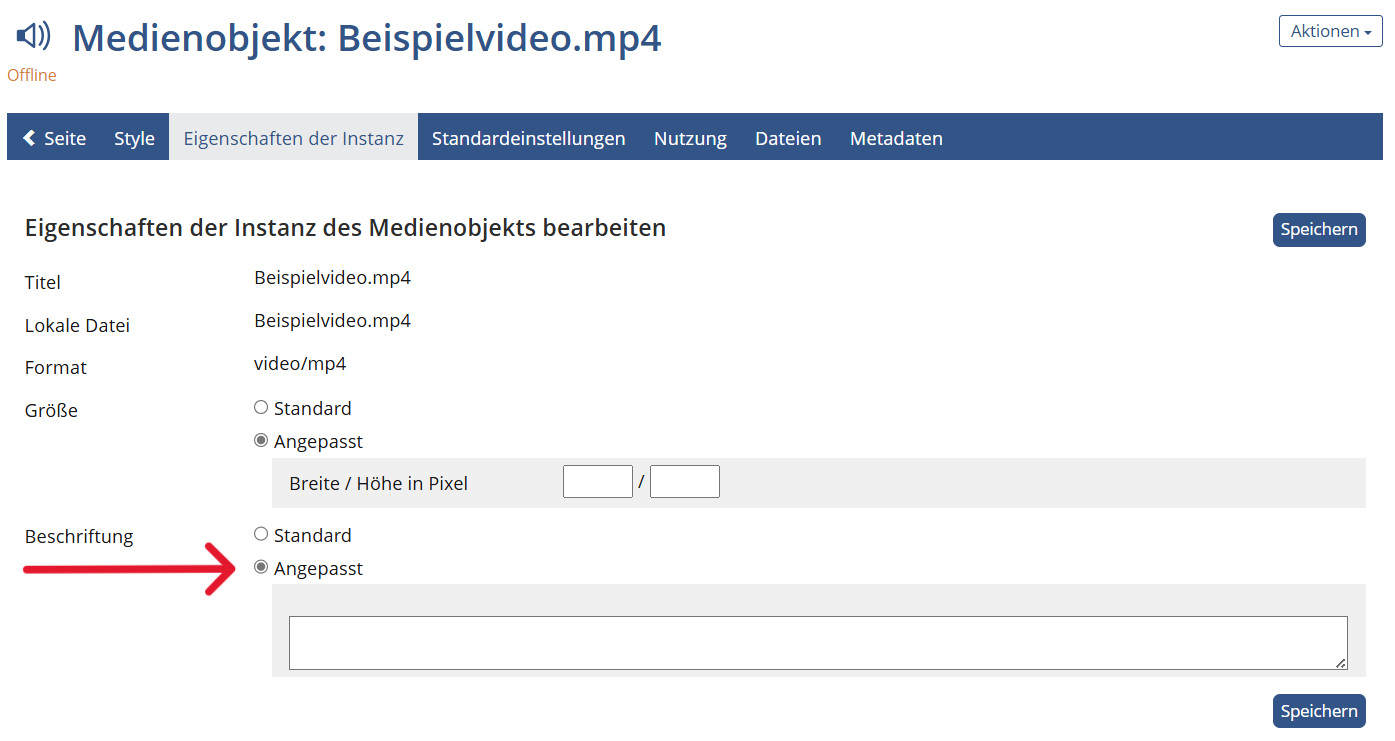
- For Caption, select "Customized" and enter a title for the video. Click on "Save" and then on "Page" in the menu bar to return to the content page.
Insert video from Videocampus Sachsen
Step-by-step instructions: Using videos from the Videocampus in OPAL
Insert video from YouTube
- Open your video in YouTube. Then click on 'Share' below the video.
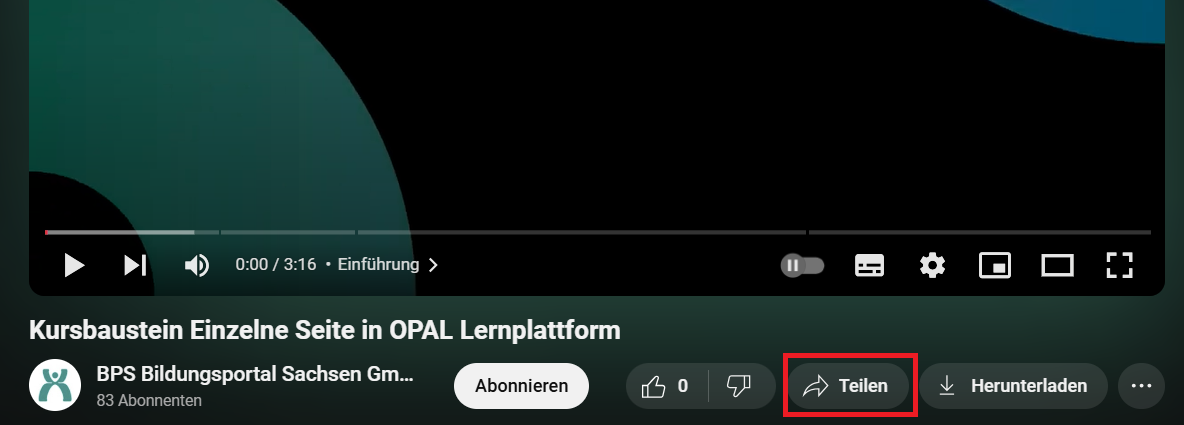
- Select 'Embed' in the 'Share' category.

- Copy the displayed code.

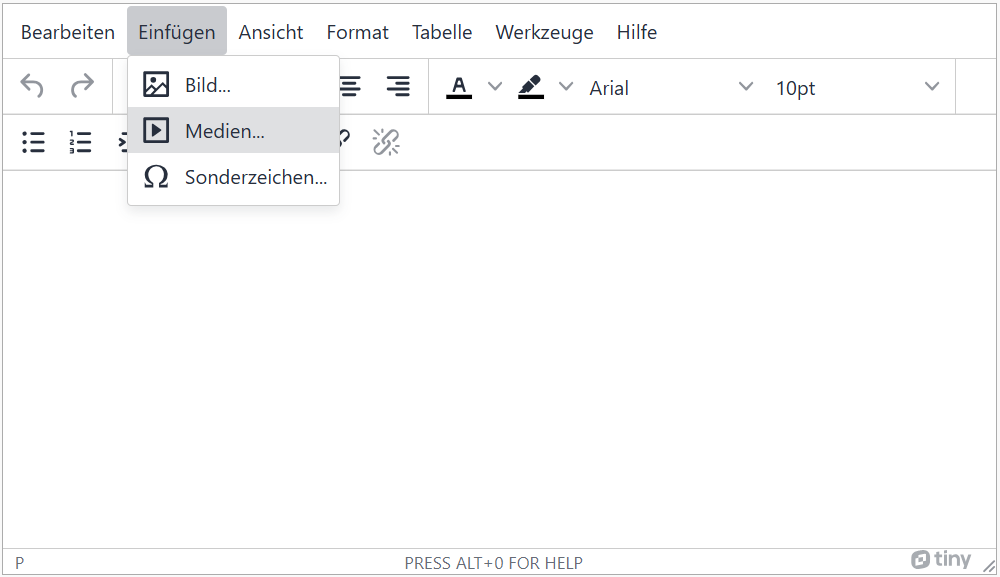
- Open the page editor in OPAL. Select 'Insert' from the menu bar and then 'Media'.
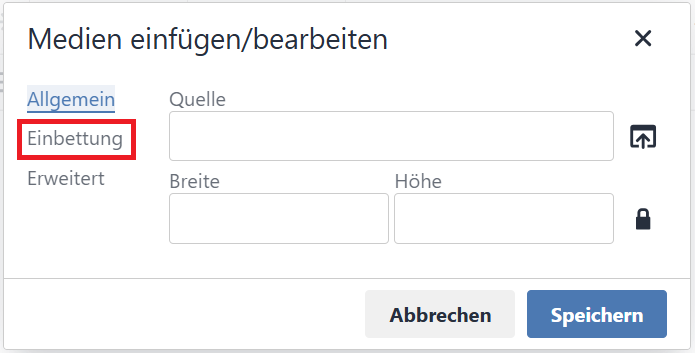
- Go to the category 'Embed'.
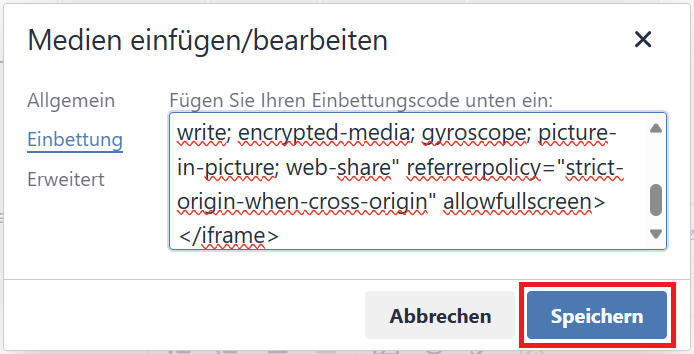
- Paste the copied code into the text field. You can do this, for example, by right-clicking and pasting. Finally, click on 'Save'.
Here you will find instructions on how to insert videos into PowerPoint according to the operating system.
- Menu bar: Insert > Media > Video > "This Device" or "Online Videos"

- For online videos, please provide the link.
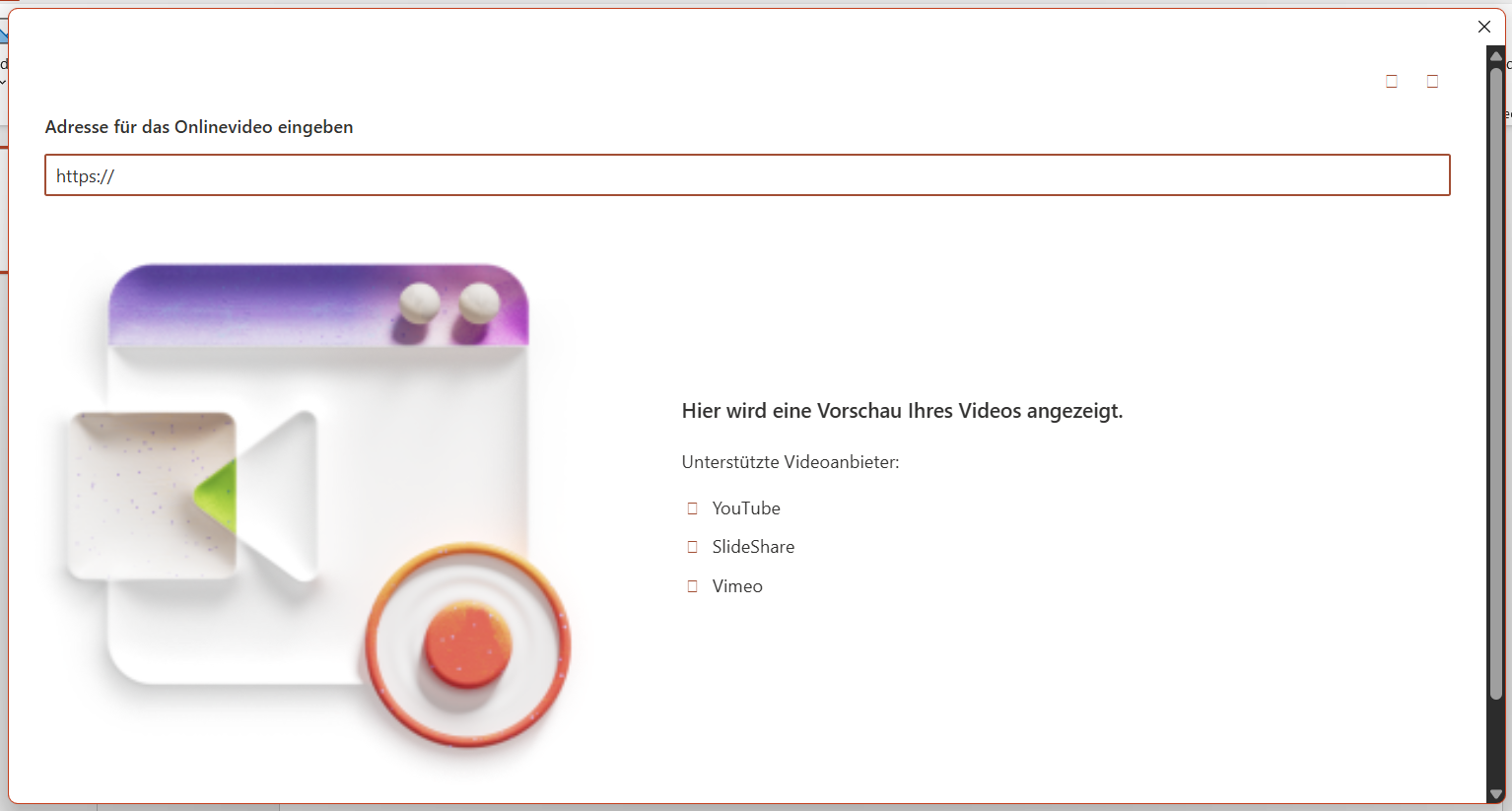
- Menu bar: Insert > Media > Video > "Video from File" or "Online Film"

- For online videos, please provide the link.

HTML tags: for own video files: <video>; for videos from external sites: <iframe>
Insert video from file
                      <video controls>
                        <source src="video.mp4" type="video/mp4">
                        Your browser does not support the video element.
                      </video>
Insert video via link
                    <iframe width="420" height="315" src="https://www.youtube.com/watch?v=Azvk18PLV9E&ab_channel=BPSBildungsportalSachsenGmbH">
                    Your browser does not support the video element.
                    </iframe>