Links
- Link texts are meaningful and reflect the destination and purpose; download links include the file format.
- Mouse click input on links can be canceled.
- The visible link text is part of the accessible name.
Blind users who move from link to link listen to the link texts. These should be as meaningful as possible and should convey where they lead. It is also important for voice control that visible labels are also included in the accessible names of controls so that they can be pronounced correctly.
Links should not be triggered when the mouse button is pressed, but only when it is released. This enables people with motor impairments to avoid incorrect inputs by moving the mouse. Similarly, people with motor impairments use primarly the keyboard as. For this purpose, the focus sequence should be traceable to ensure easy orientation.
Meaningful link text: Make sure your link text makes sense even without context. Avoid using vague text like "click here" or "read more". If links lead to content in other formats, such as PDF, this should also be included in the name.
Markup of Links
-
toolbar > chain icon
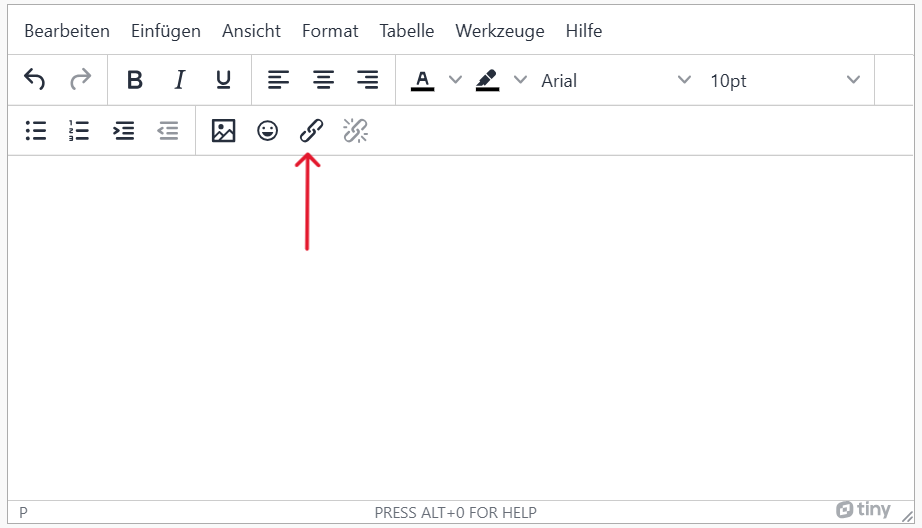
-
Then fill in URL and text to display from your link. On hover the title will be displayed as a tooltip.
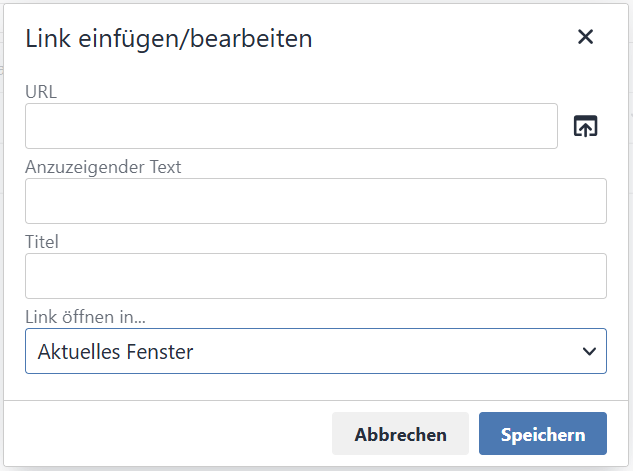
- Link text is meaningful and reflects the target and purpose.
Blind users who move from link to link listen to the link texts. These should be as meaningful as possible and should convey where they lead. It is also important for voice control that visible labels are also included in the accessible names of controls so that they can be pronounced correctly.
Links should not be triggered when the mouse button is pressed, but only when it is released. This enables people with motor impairments to avoid incorrect inputs by moving the mouse. Similarly, people with motor impairments use primarly the keyboard as. For this purpose, the focus sequence should be traceable to ensure easy orientation.
Meaningful link text: Make sure your link text makes sense even without context. Avoid using vague text like "click here" or "read more". If links lead to content in other formats, such as PDF, this should also be included in the name.
Add links
-
Click the plus sign and choose "Insert Text".
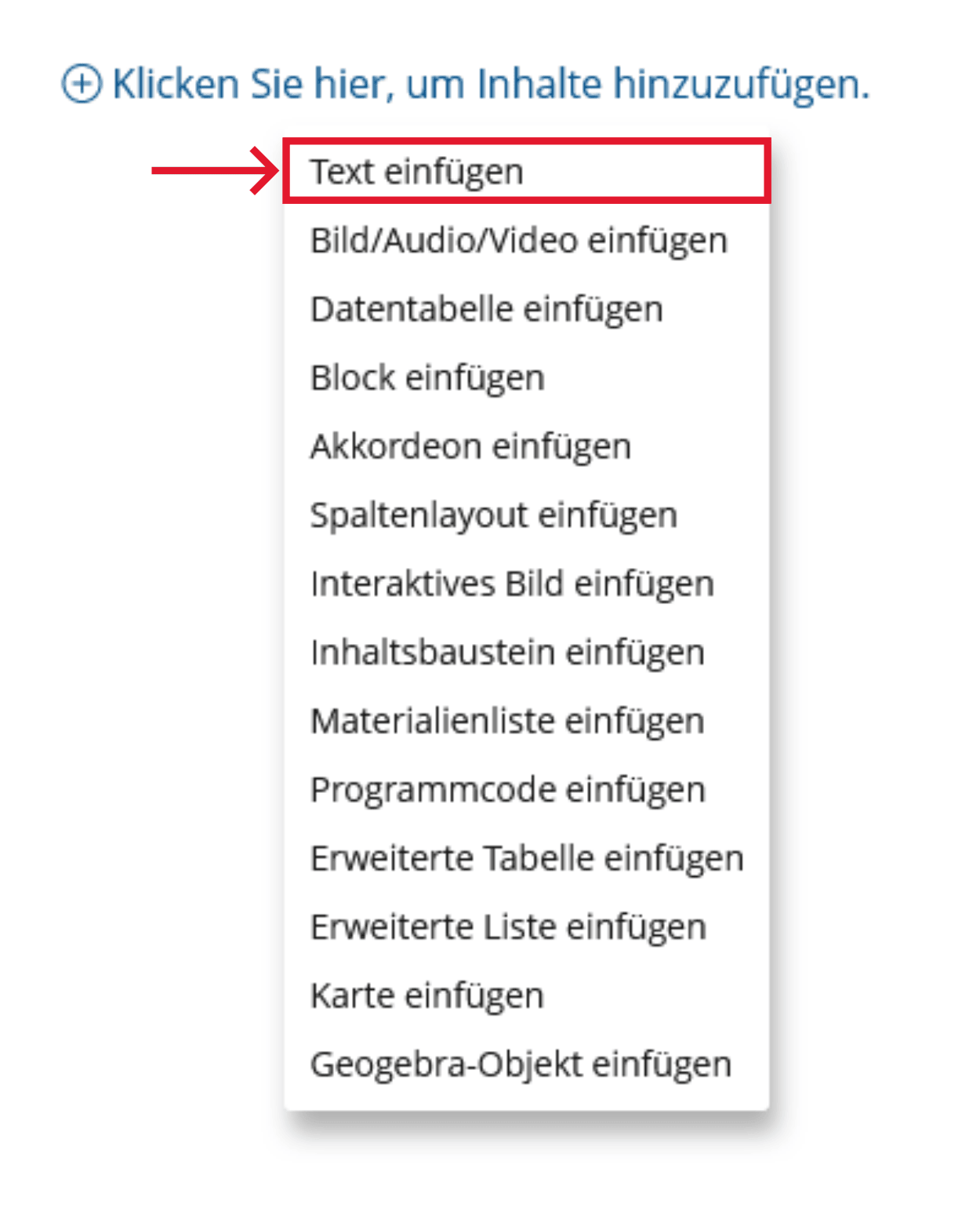
-
Select the type of link under "More" - "Link".
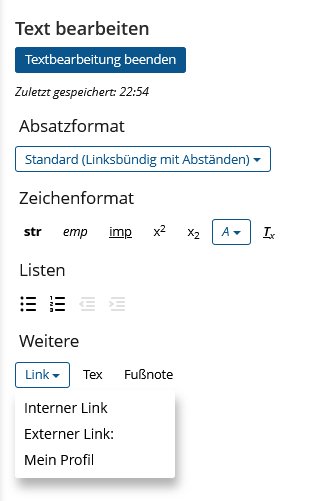
-
Select the type of link under "More" - "Link".
-
An internal link points to another page within Ilias. Select an object or a person and enter a meaningful link text:
[iln crs="1234567"]"link text"[/iln] -
An external link points to another Web site. Enter the URL at url="". Enter a meaningful link text:
[xln url="https://website.com"]"link text"[/xln] - This link will automatically point to the user's profile. The link text is the profile name.
-
An internal link points to another page within Ilias. Select an object or a person and enter a meaningful link text:
- Link texts are meaningful and reflect the aim and purpose. Download links contain the file format.
- The ScreenTip contains information about the destination of the link.
Link texts should provide information about where they lead and what purpose they serve. This makes it easier for users to assess whether they want to follow a link. The ScreenTip is displayed when the mouse pointer is over a link and provides further information about the link. Avoid vague formulations such as “Click here”.
Realization of the criteria
-
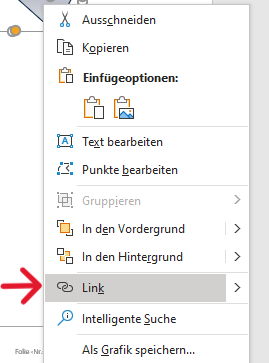
Context menu (right click) > Link
-
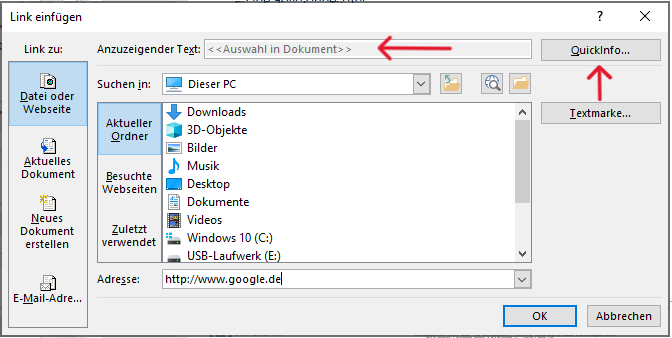
Text to display > enter link text; ScreenTip > Enter name and save
Additional Information
- Link texts are meaningful and reflect the destination and purpose; download links include the file format.
- Mouse click input on links can be canceled.
- The visible link text is part of the accessible name.
Blind users who move from link to link listen to the link texts. These should be as meaningful as possible and should convey where they lead. It is also important for voice control that visible labels are also included in the accessible names of controls so that they can be pronounced correctly.
Links should not be triggered when the mouse button is pressed, but only when it is released. This enables people with motor impairments to avoid incorrect inputs by moving the mouse. Similarly, people with motor impairments use primarly the keyboard as. For this purpose, the focus sequence should be traceable to ensure easy orientation.
Meaningful link text: Make sure your link text makes sense even without context. Avoid using vague text like "click here" or "read more". If links lead to content in other formats, such as PDF, this should also be included in the name.
                      <a href="https://example.com">
                      <img src="image.jpg" alt="Go to Example.com">
                      </a>
- Easily identifiable links: Links should be visually distinct from the surrounding text, and should change appearance when hovered over or focused.
- Avoid Using "#" as a href: Using `#` as a href can be confusing for screen reader users, as it doesn't provide any context about where the link will lead.
- Alternative Text for Image Links: If you're using an image as a link, make sure to provide alternative text that describes the link destination.
- Link texts are meaningful and reflect the destination and purpose; download links include the file format.
- The ScreenTip contains information about the destination of the link.
- The order in which links are accessed with the keyboard is logical and understandable, and the keyboard focus is clearly recognizable.
Blind users who move from link to link listen to the link texts. These should be as meaningful as possible and should convey where they lead. It is also important for voice control that visible labels are also included in the accessible names of controls so that they can be pronounced correctly.
Links should not be triggered when the mouse button is pressed, but only when it is released. This enables people with motor impairments to avoid incorrect inputs by moving the mouse. Similarly, people with motor impairments use primarly the keyboard as. For this purpose, the focus sequence should be traceable to ensure easy orientation.
Meaningful link text: Make sure your link text makes sense even without context. Avoid using vague text like "click here" or "read more". If links lead to content in other formats, such as PDF, this should also be included in the name.
Markup of Links
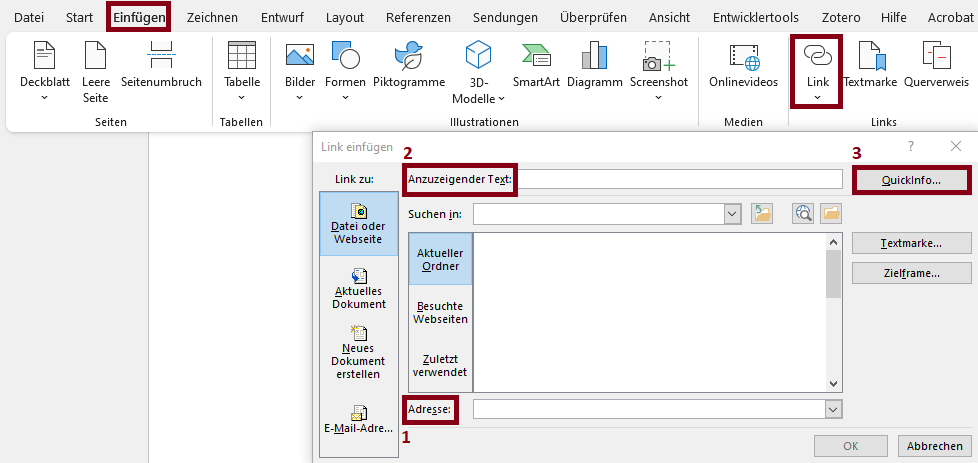
- Paste the URL under “Address”.
- Under “Text to display”, enter a clear label that should be displayed instead of the URL.
- Using “ScreenTip...”, you can set the alternative text for the hyperlink, such as the websites title. The visible link text should also be part of the ScreenTip.
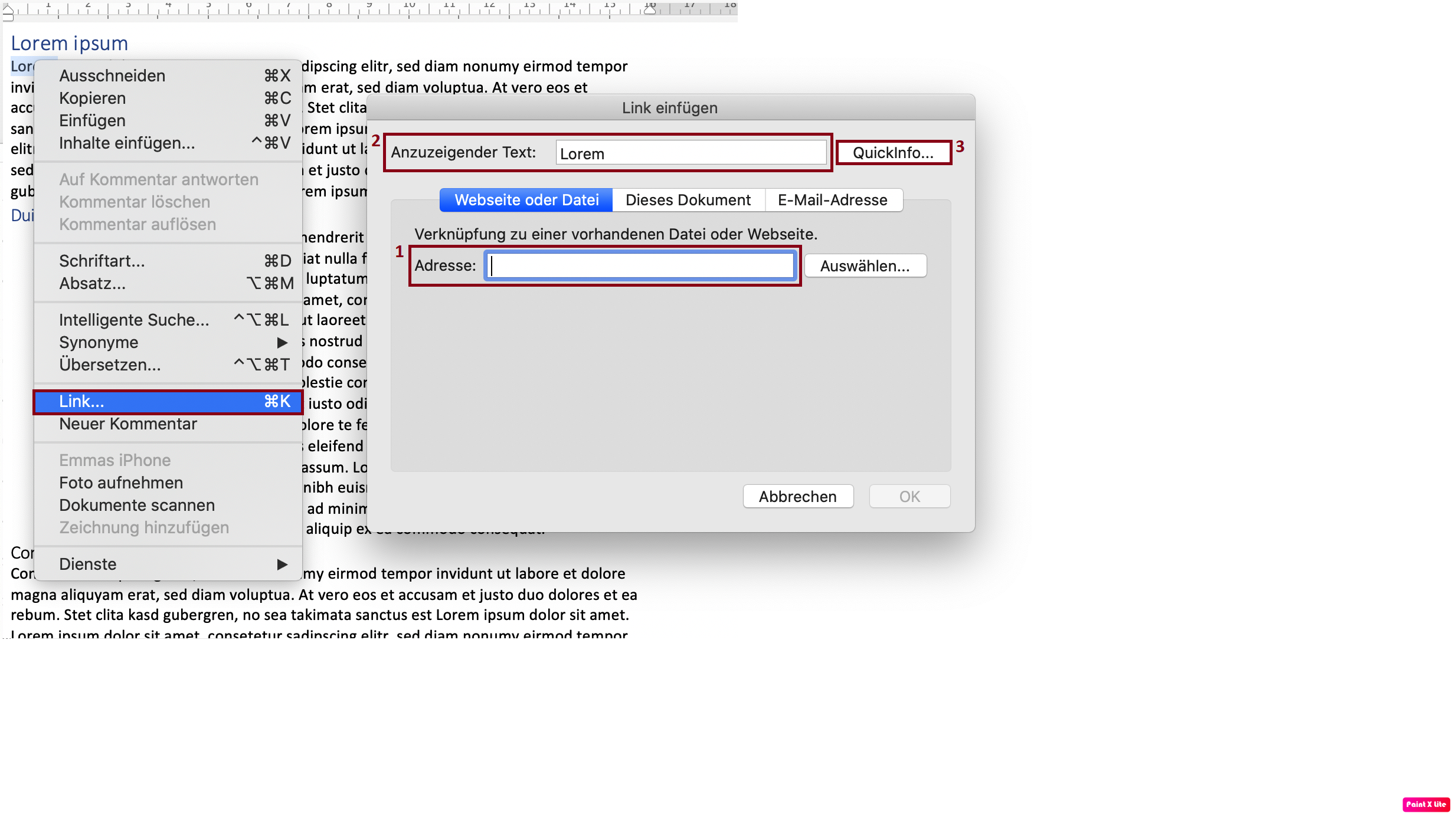
- Paste the URL under “Address”.
- Under “Text to display”, enter a clear label that should be displayed instead of the URL.
- Using “ScreenTip...”, you can set the alternative text for the hyperlink, such as the websites title. The visible link text should also be part of the ScreenTip.
- Link texts are meaningful and reflect the destination and purpose; download links include the file format.
- The ScreenTip contains information about the destination of the link.
- The order in which links are accessed with the keyboard is logical and understandable, and the keyboard focus is clearly recognizable.
Blind users who move from link to link listen to the link texts. These should be as meaningful as possible and should convey where they lead. It is also important for voice control that visible labels are also included in the accessible names of controls so that they can be pronounced correctly.
Links should not be triggered when the mouse button is pressed, but only when it is released. This enables people with motor impairments to avoid incorrect inputs by moving the mouse. Similarly, people with motor impairments use primarly the keyboard as. For this purpose, the focus sequence should be traceable to ensure easy orientation.
Meaningful link text: Make sure your link text makes sense even without context. Avoid using vague text like "click here" or "read more". If links lead to content in other formats, such as PDF, this should also be included in the name.