Formatting Audio Elements
- Sounds longer than 3s will not play automatically or can be turned off.
Auto-playing audio can be disruptive or startling to users, especially those using screen readers. If you must auto-play, make sure to provide a clear stop or mute button.
Markup of Audio Elements
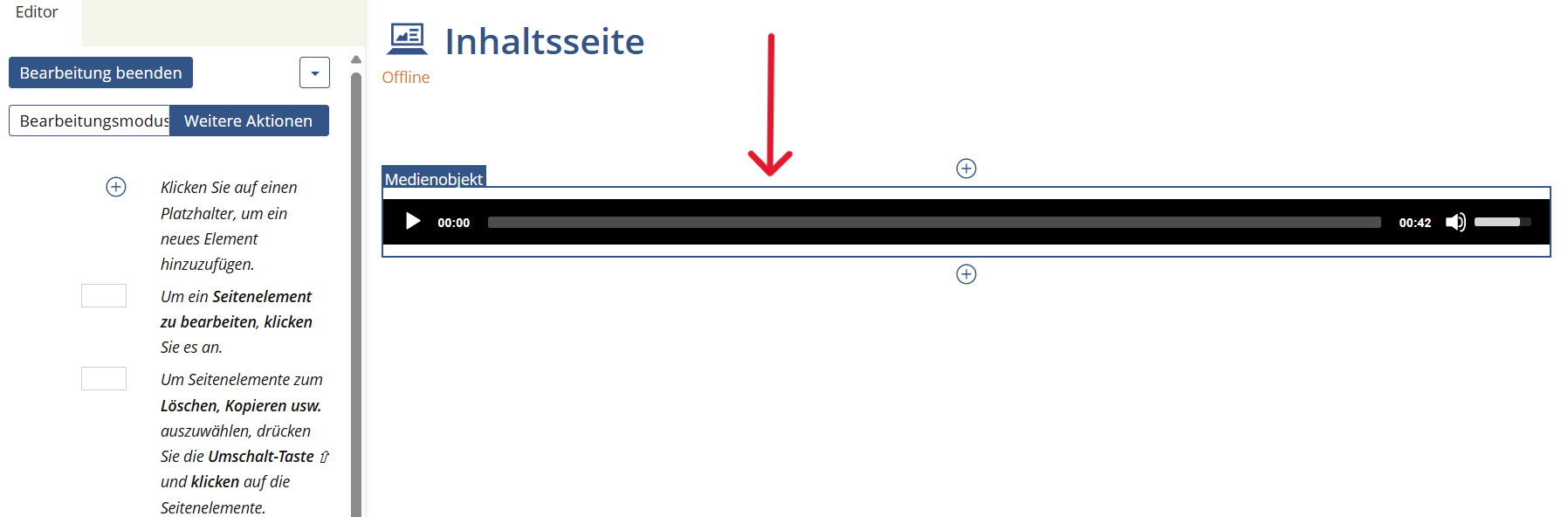
The following describes how you can integrate short audio elements directly into content pages. However, this does not work for longer audio elements. Use a material folder or podcast to provide these.
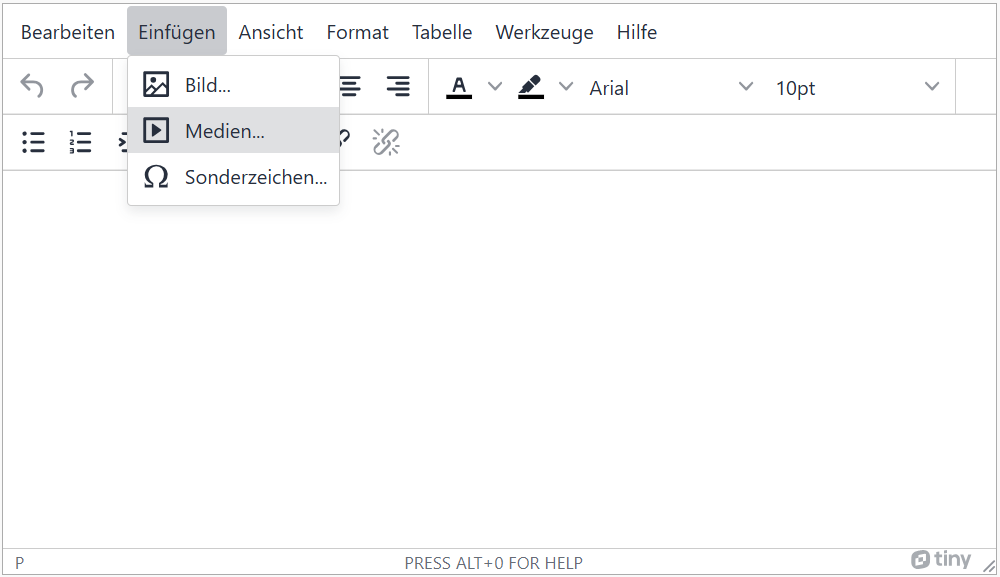
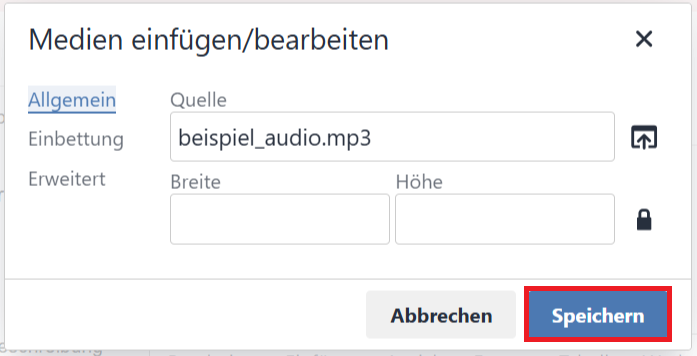
- Select 'Insert' from the menu bar and then 'Media'.
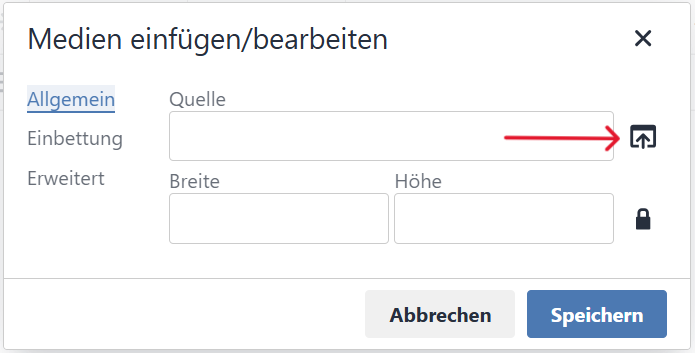
- Select the upload icon to the right of the input field for the source.
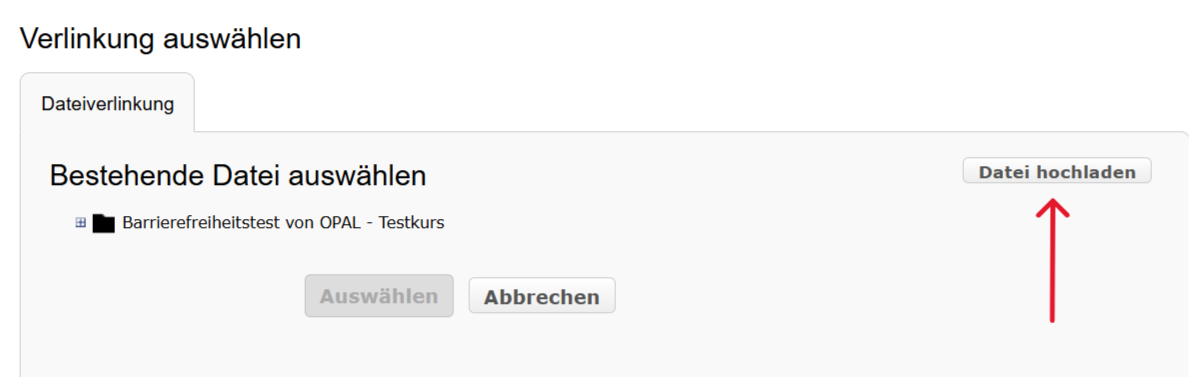
- Select 'Upload file'.
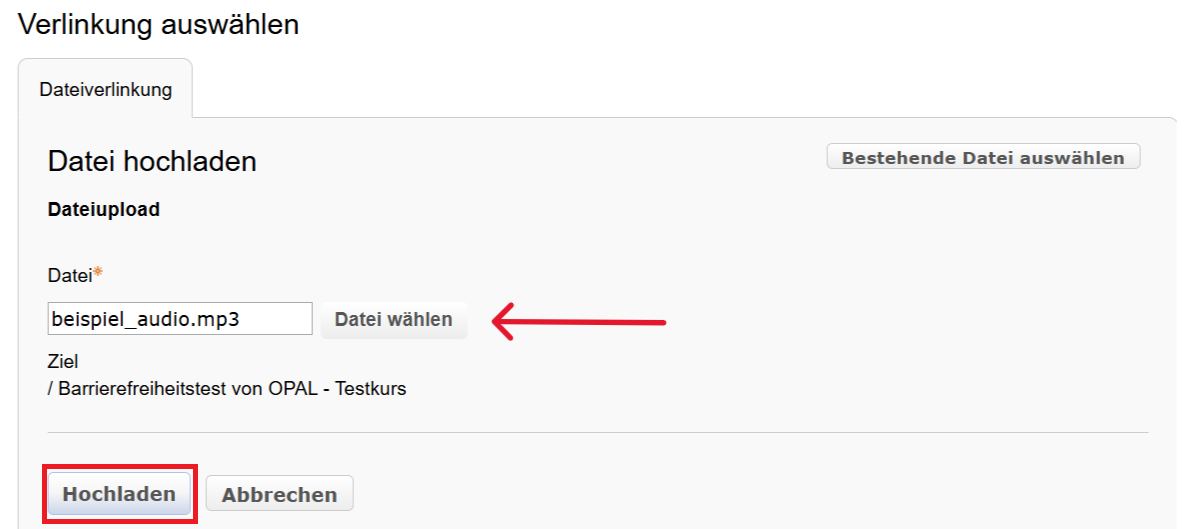
- Go to 'Select file' and select your audio file. Then click on 'Upload'.
- Finally, you can set the width and height of the audio player or go straight to 'Save'.
- Sounds longer than 3s will not play automatically or can be turned off.
- The full screen view is not used.
Auto-playing audio can be disruptive or startling to users, especially those using screen readers. If you must auto-play, make sure to provide a clear stop or mute button.
The full-screen view cannot be accessed using the keyboard. Therefore, it cannot be accessed by people who can not use the mouse, including people with blindness and motor impairments.
Audio files cannot be played automatically in ILIAS. The criterion is therefore automatically fulfilled and not included in the checklist.
Insert Audio File
- Select your audio.
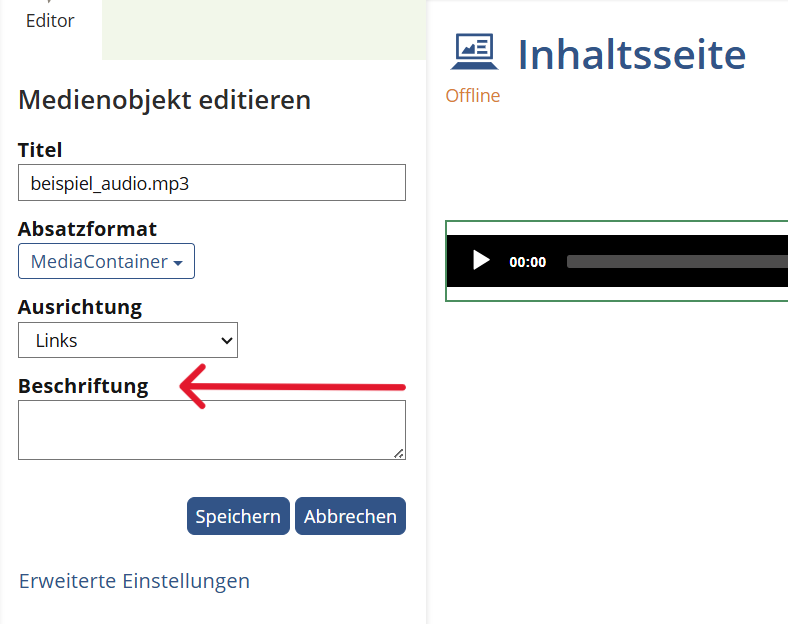
- Add a name and numbering as labels.
- Sounds longer than 3s will not play automatically or can be turned off.
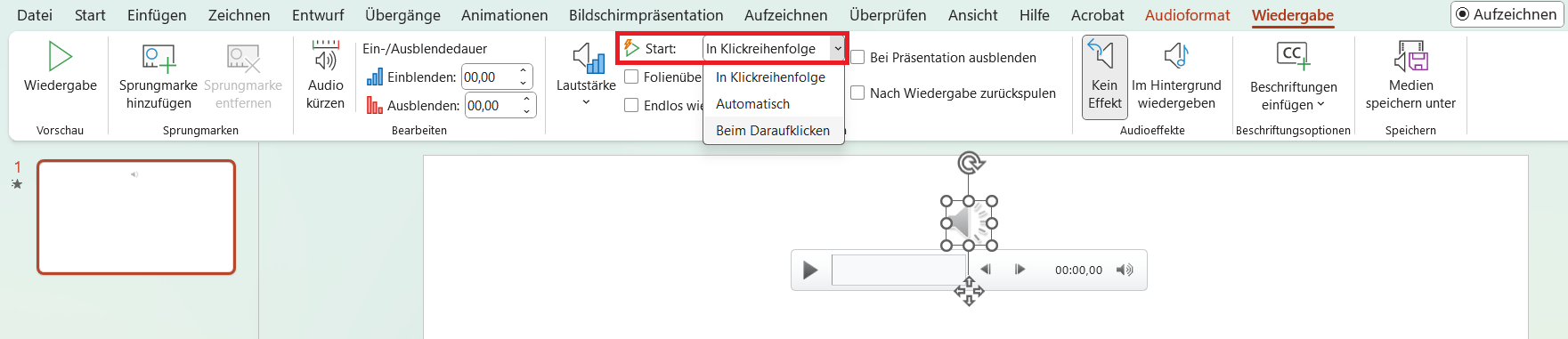
Automatic audio playback can be annoying or frightening for users, especially for those who use screen readers. Therefore, only start your audio files on user input (click).
Realization of the criteria
- Menu bar: Insert > Media > Audio > Audio on my PC

- Menu bar: Playback > Audio Options > Start > "In Click Sequence" or "When Clicked on" (not "Automatically"!)
- Sounds longer than 3s will not play automatically or can be turned off.
Markup of Audio Elements
                      <audio controls src="audio.mp3" type="audio/mpeg">
                        Your browser does not support the audio element.
                      </audio>