Informative and Functional Images
- Linked images or informational graphics and images have alternative texts.
Without alternative texts, the image content is not accessible for people with visual impairments. Blind and visually impaired people cannot understand the content of images at all or only with difficulty. For this reason, information-oriented and functional images should always have an alternative text. This is read aloud by assistive technologies, such as screen readers, and briefly describes the content of the image.
Alternative Text
Informative Images
- Description of image content in one sentence (maximum 140 characters), starting with "Photo of ..." or "Picture of a ..." Start with 'Photo of ...' or 'Picture of a ...'.
- Neutral, without own interpretations
- No repetition of information given in the text
Functional Images
- Description of the action performed, for example 'Open survey'
- No indication of the complete link
- Logos: Indication of the full name of the institution
Create images and graphics in OPAL
-
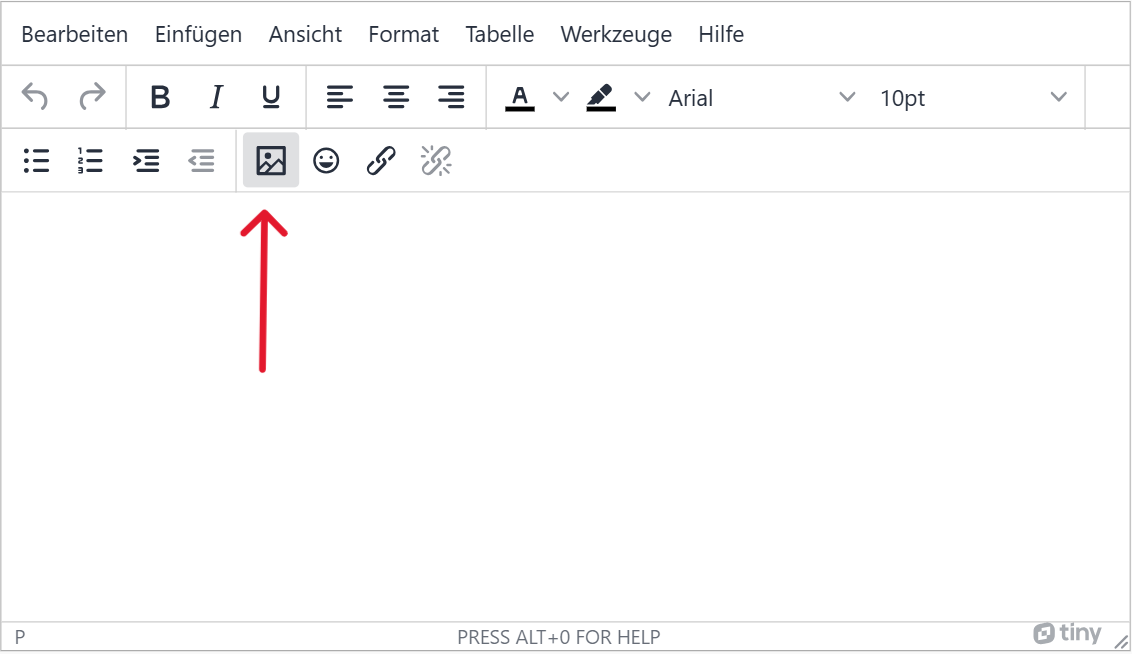
Select the image icon in the toolbar of the page editor.
-
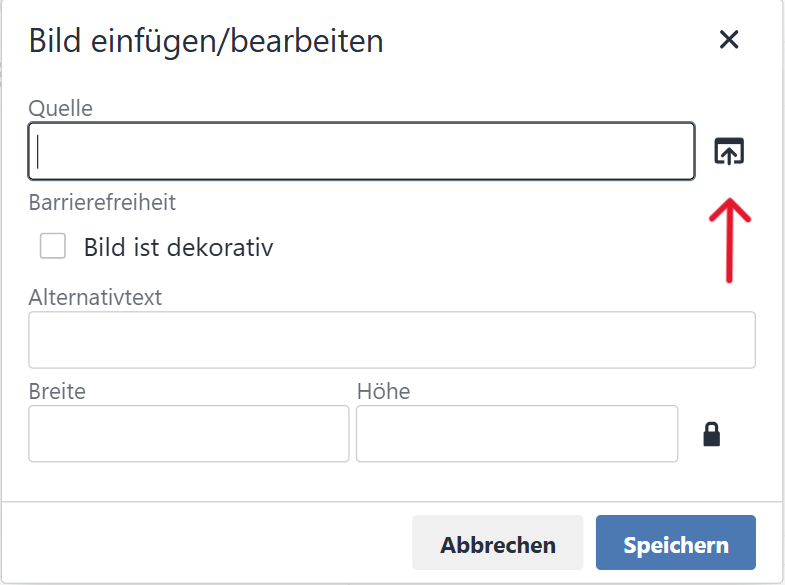
Either enter the image source as text or upload an image directly using the upload icon on the right.
-
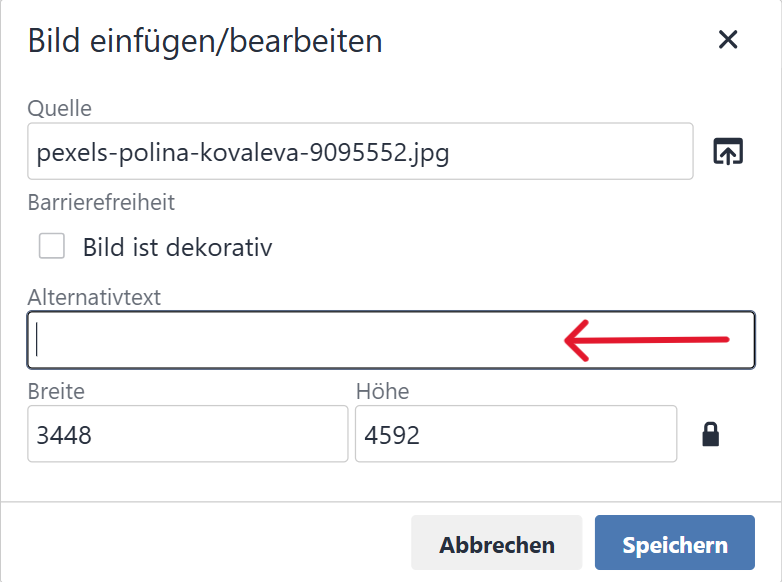
Enter and save alternative text under 'Alternative text'.
BITV-Guidelines
Without alternative texts, the image content is not accessible for people with visual impairments. Blind and visually impaired people cannot understand the content of images at all or only with difficulty. For this reason, information-oriented and functional images should always have an alternative text. This is read aloud by assistive technologies, such as screen readers, and briefly describes the content of the image.
The full-screen view cannot be accessed using the keyboard. Therefore, it cannot be accessed by people who can not use the mouse, including people with blindness and motor impairments. The highlighted mode does not display a keyboard focus in the linked areas. This means that keyboard or switch users cannot see where their focus is currently located.
Alternative Text
Informative Images
- Description of image content in one sentence (maximum 140 characters), starting with "Photo of ..." or "Picture of a ..." Start with 'Photo of ...' or 'Picture of a ...'.
- Neutral, without own interpretations
- No repetition of information given in the text
Functional Images
- Description of the action performed, for example 'Open survey'
- No indication of the complete link
- Logos: Indication of the full name of the institution
Insert Alternative Texts
-
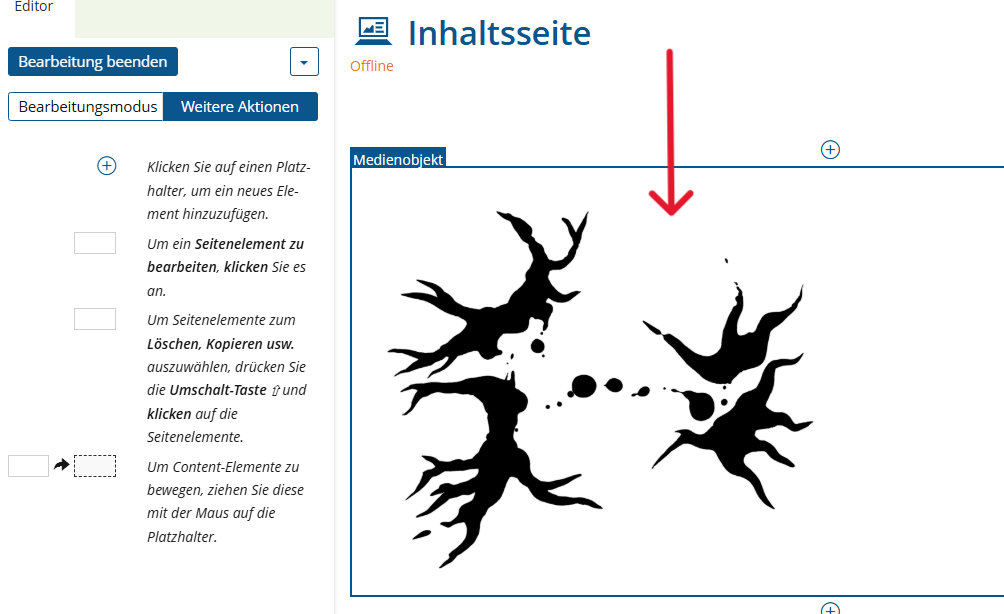
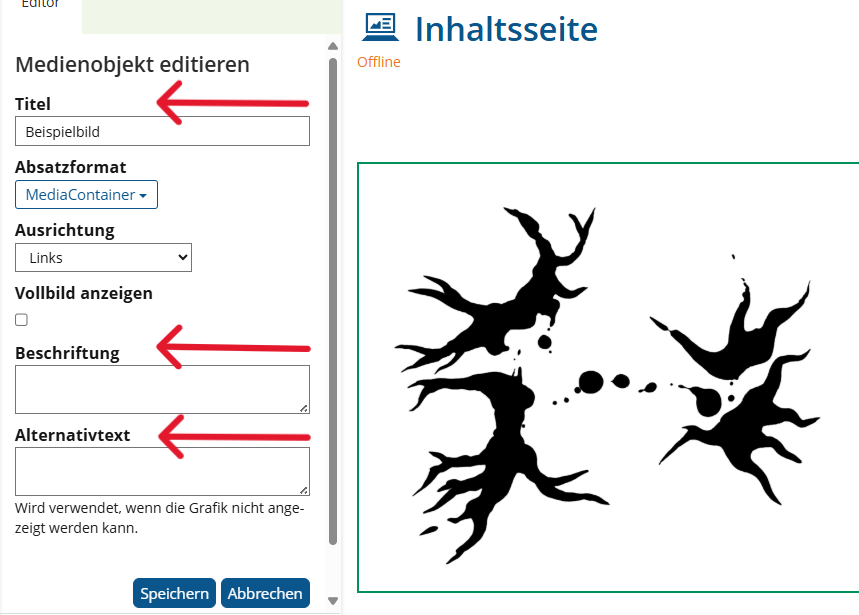
Select your picture.
-
You can now change the title. You can also add a caption, which is displayed below the image, and insert the alternative text.
Insert Links in Images
-
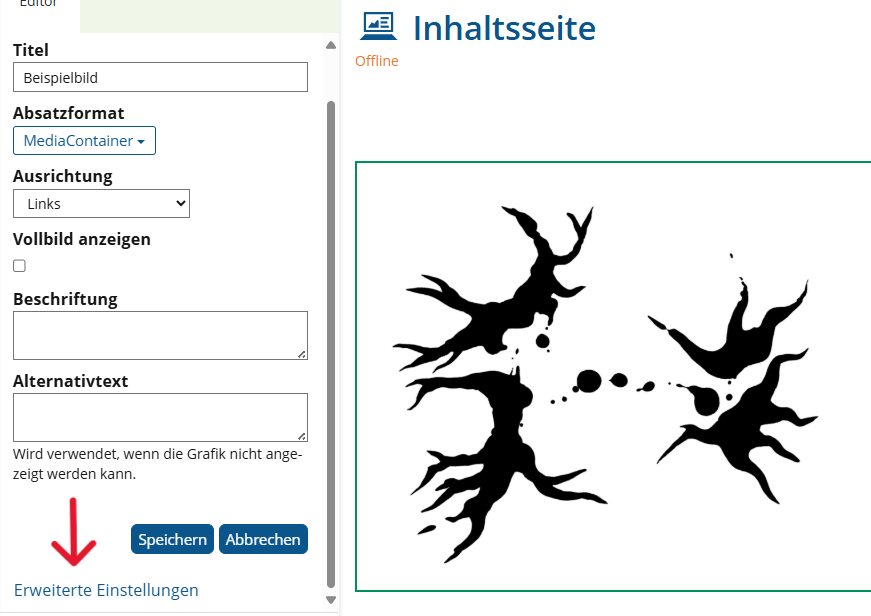
Select your image and go to "Advanced Settings".
-
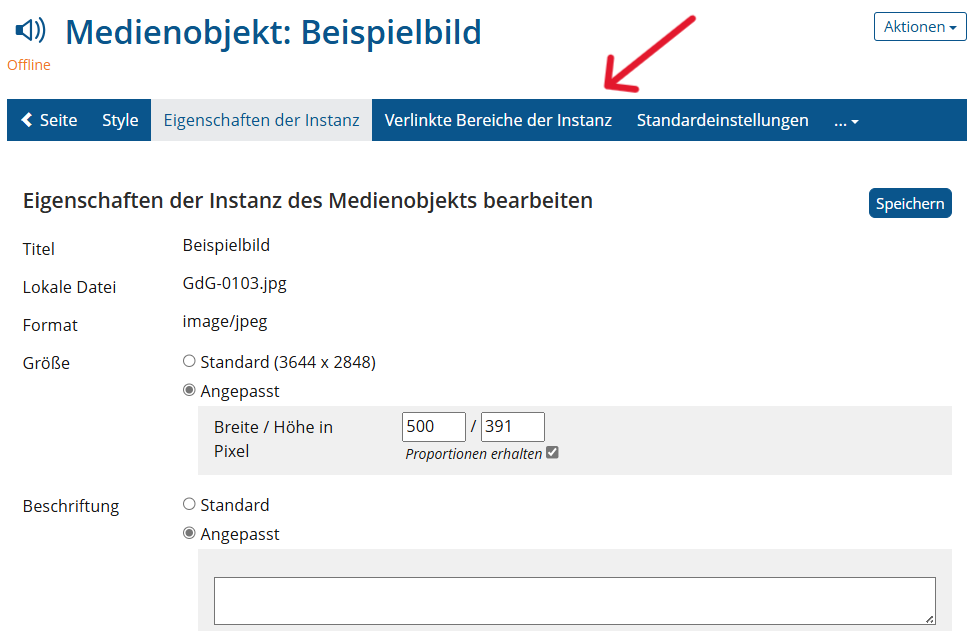
Select "Linked Areas of the Instance" in the menu bar.
-
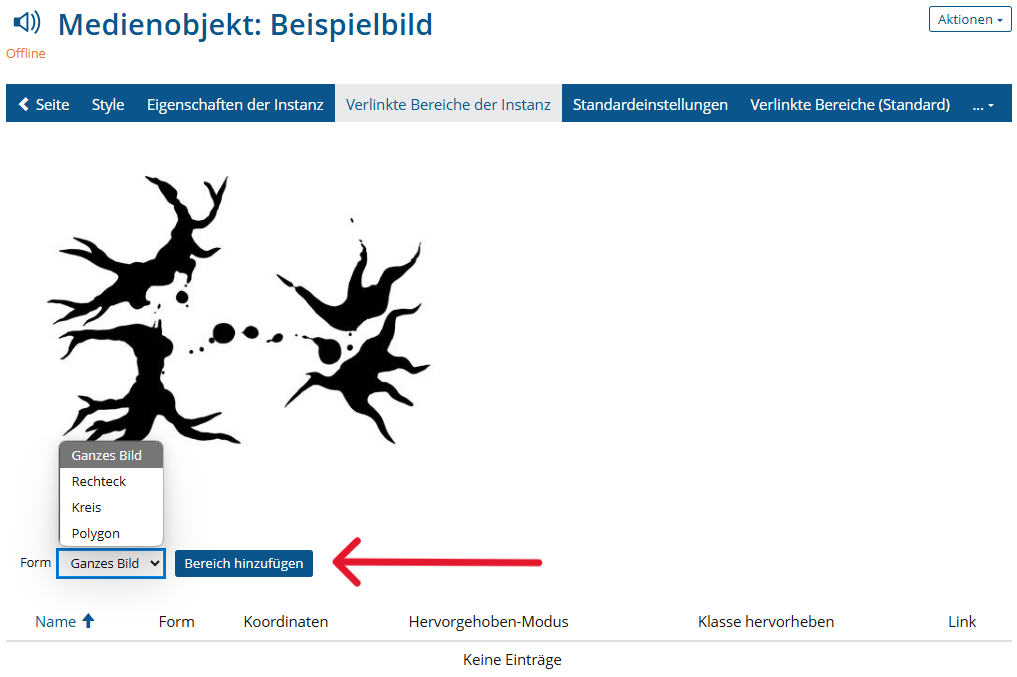
Select a shape for the linked area and click on "Add area". If you have selected rectangle, circle or polygon, follow the further instructions for creating the shape.
-
Select whether your link should be external, internal or just a highlight. Then enter the specific link text, specify a name for the link area and click "Save".
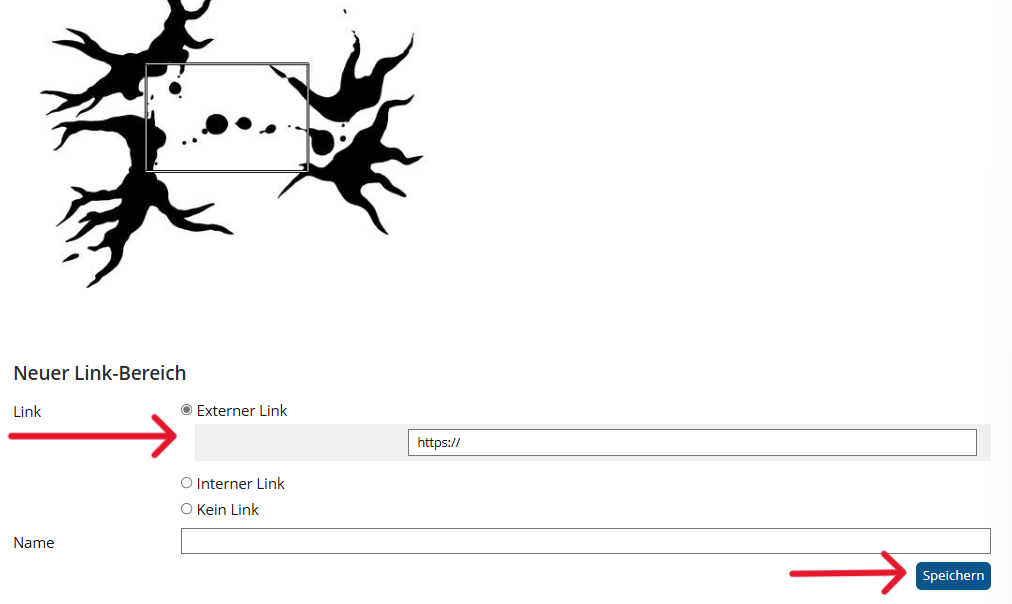
-
Finally, change the highlighted mode from "None" to "Hover" or "Always" and save your changes.
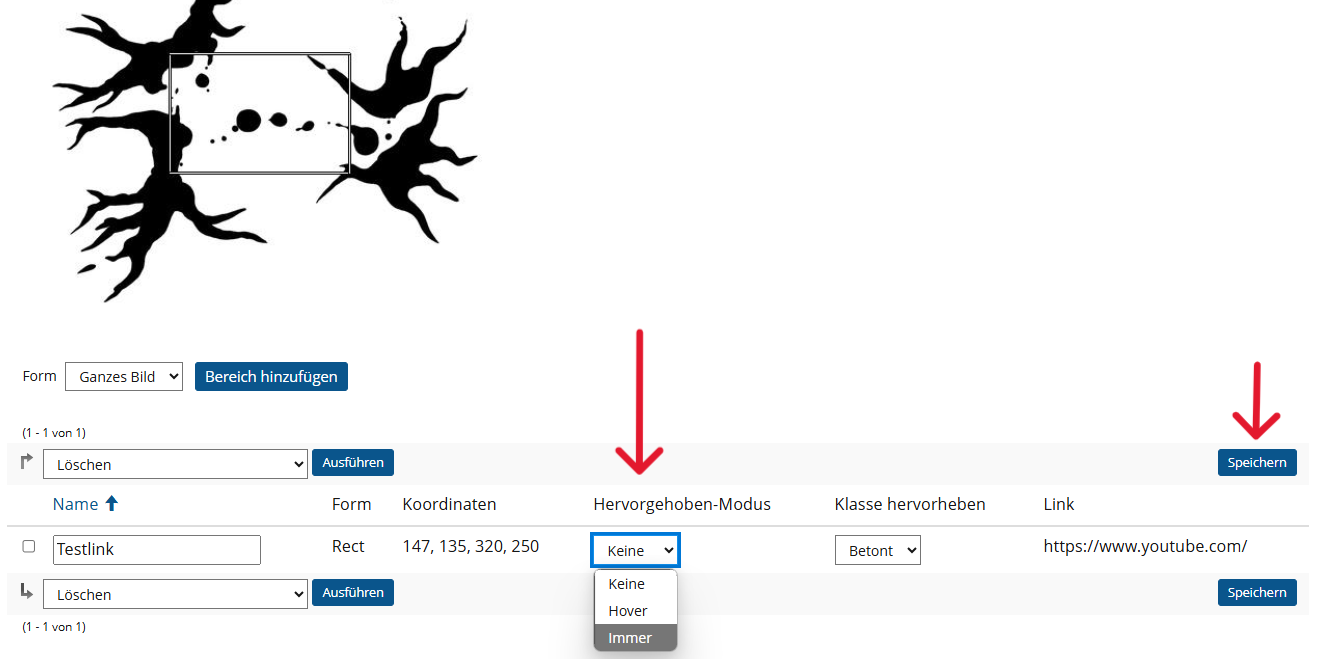
BITV-Guidelines
- Information-oriented images and graphics have an alternative text.
- Functional images and graphics have an alternative text.
Blind and visually impaired people cannot understand the content of images at all or only with difficulty. For this reason, information-oriented and functional images should always have an alternative text. This is read aloud by assistive technologies, such as screen readers, and briefly describes the content of the image.
Alternative Text
Informative Images
- Description of image content in one sentence (maximum 140 characters), starting with "Photo of ..." or "Picture of a ..." Start with 'Photo of ...' or 'Picture of a ...'.
- Neutral, without own interpretations
- No repetition of information given in the text
Functional Images
- Description of the action performed, for example 'Open survey'
- No indication of the complete link
- Logos: Indication of the full name of the institution
Realization of the criteria
Images and Graphics
Context menu (right click) > View Alt Text > Enter alternative text
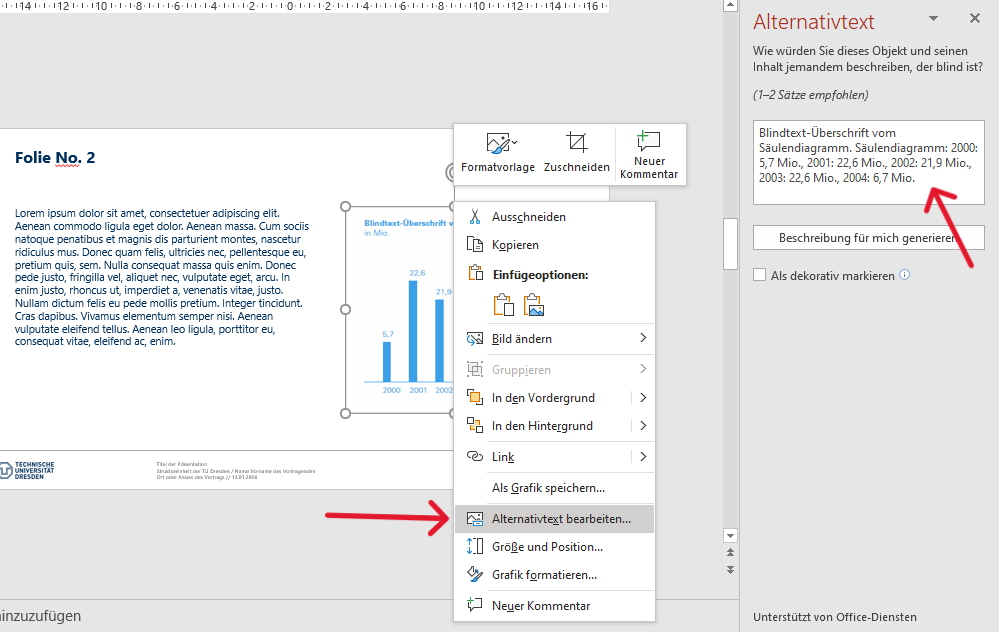
Functional Images
-
Context menu (right click) > Link
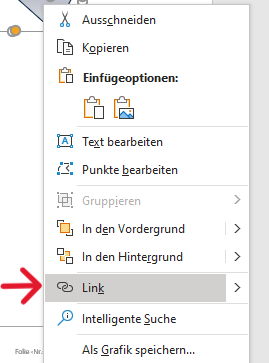
-
Text to display > enter link text; ScreenTip > Enter name and save
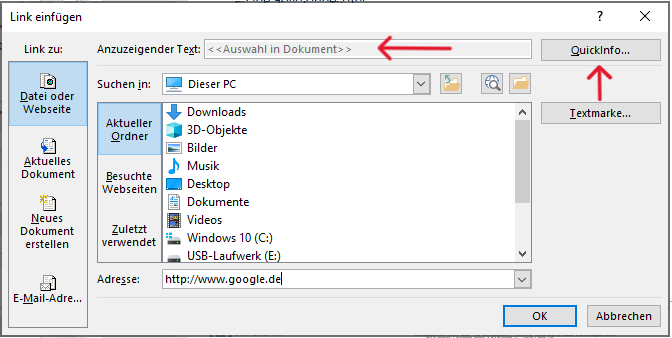
- Add alternative text (see images and graphics)
Freeform
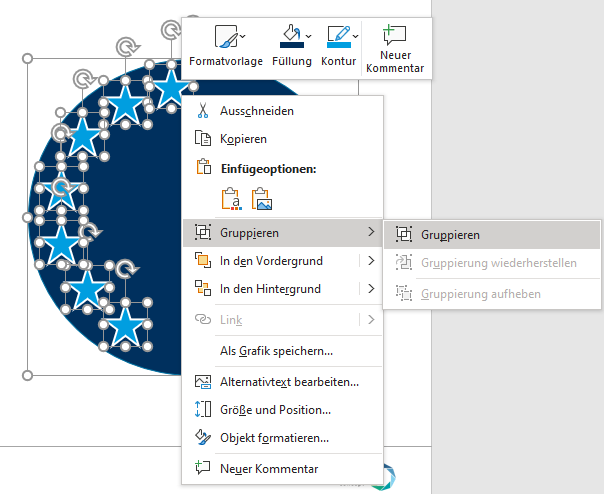
Freeforms must be grouped so that they are viewed as a complete image. This is particularly important for generating a PDF. Then add an alternative text for the entire shape (see instructions for images and graphics).
Context menu (right click) > Group > Group
SmartArt
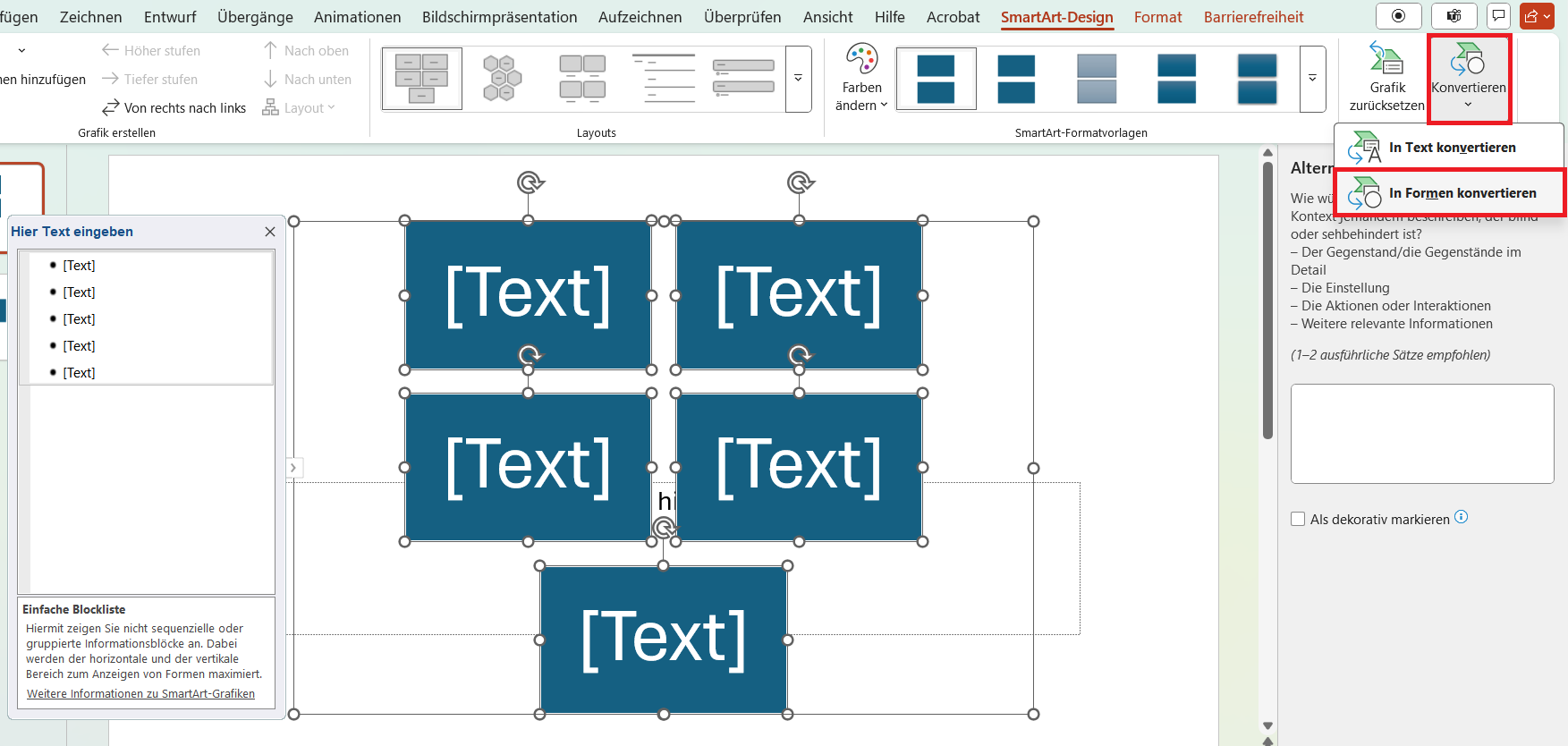
When exporting PowerPoint presentations to PDF, the alternative texts of SmartArts are not kept. Therefore, convert the SmartArt into shapes and add an alternative text for each shape.
Menu bar: SmartArt Design > Reset > Convert > Convert to Shapes
Additional Information
BITV-Guidelines
- Linked images or informational graphics and images have alternative texts.
Blind and visually impaired people cannot understand the content of images at all or only with difficulty. For this reason, information-oriented and functional images should always have an alternative text. This is read aloud by assistive technologies, such as screen readers, and briefly describes the content of the image.
Alternative Text
Informative Images
- Description of image content in one sentence (maximum 140 characters), starting with "Photo of ..." or "Picture of a ..." Start with 'Photo of ...' or 'Picture of a ...'.
- Neutral, without own interpretations
- No repetition of information given in the text
Functional Images
- Description of the action performed, for example 'Open survey'
- No indication of the complete link
- Logos: Indication of the full name of the institution
Markup of Informative and Functional Images
<img src="image.jpg" alt="Description of the image">
BITV-Guidelines
- Images and their captions are marked as such. Images are tagged using a <Figure> structural element, while their captions are tagged with <Caption>.
- Linked images or informational graphics and images have alternative texts.
Without alternative texts, the image content is not accessible for people with visual impairments. Blind and visually impaired people cannot understand the content of images at all or only with difficulty. For this reason, information-oriented and functional images should always have an alternative text. This is read aloud by assistive technologies, such as screen readers, and briefly describes the content of the image.
Create Linked Images
-
Paste the URL under “Address”
-
Using “ScreenTip...”, you can set the alternative text for the hyperlink, such as the websites title. The visible link text should also be part of the ScreenTip.
Set Alternative Text
Add Caption
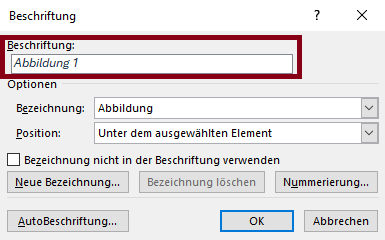
Charts
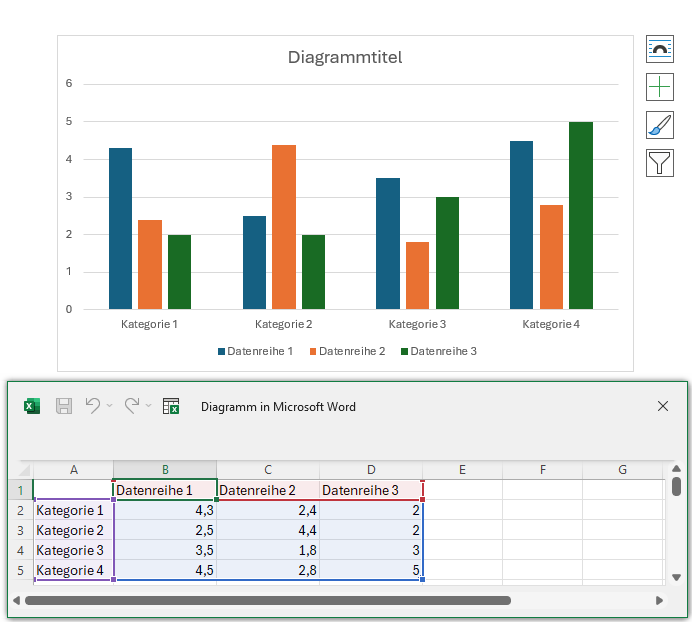

Set Alternative Text
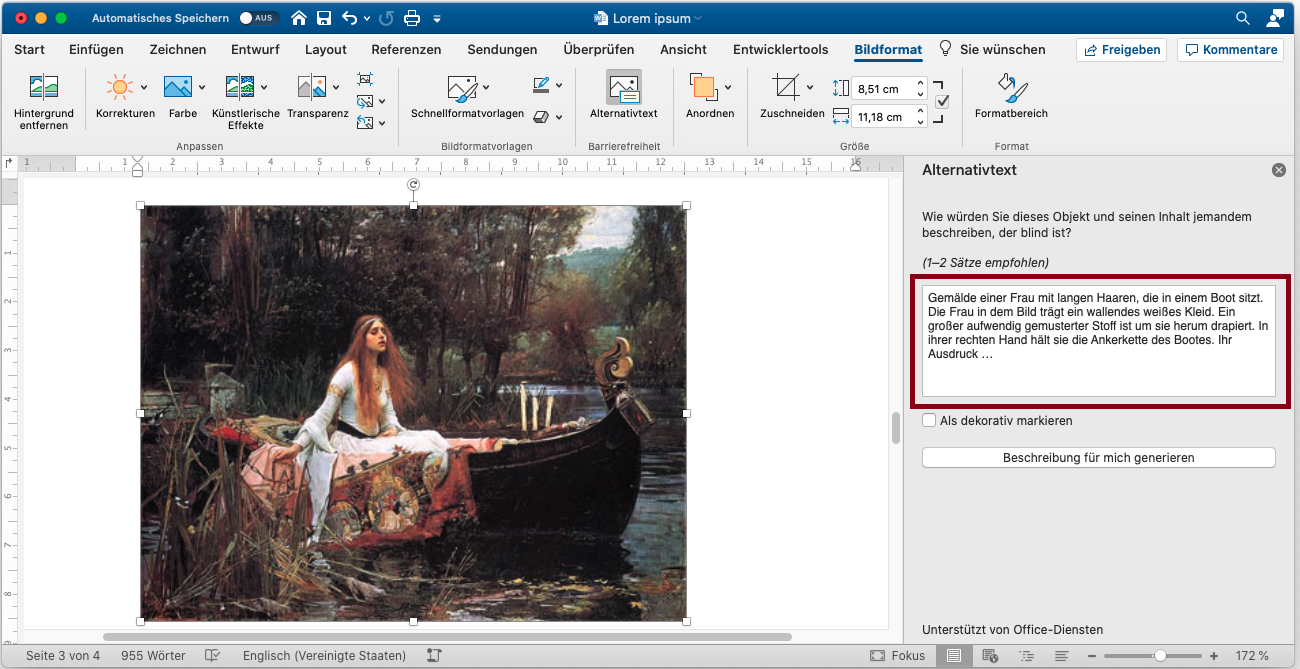
BITV-Guidelines
- Images and their captions are marked as such. Images are tagged using a <Figure> structural element, while their captions are tagged with <Caption>.
- Linked images or informational graphics and images have alternative texts.
Without alternative texts, the image content is not accessible for people with visual impairments. Blind and visually impaired people cannot understand the content of images at all or only with difficulty. For this reason, information-oriented and functional images should always have an alternative text. This is read aloud by assistive technologies, such as screen readers, and briefly describes the content of the image.