Accessibility Check
Adobe Acrobat Pro
- Under “All tools”, select “Prepare for accessibility”.
- Select “Check for accessibility”.
- In the “Accessibility Checker Options” window, select the options you want, and then click “Start Check”.
- Once the check is complete, the accessibility issues will be listed on the right. Open the dropdown list for each issue type to view details and implement the suggested fixes.
PDF Accessibility Checker (PAC) 2024
Use the free accessibility checker to asses the accessibility of PDF documents
"PAC 2024"
.
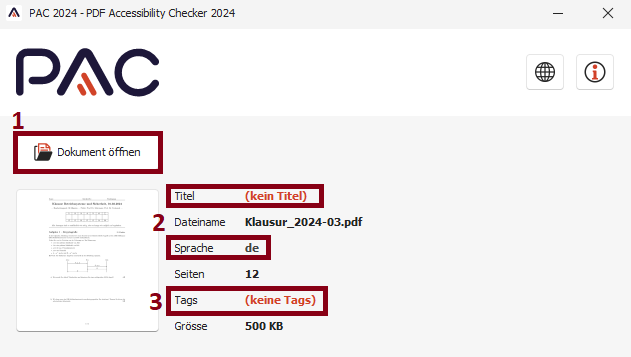
- Upload the document using the “Open document” button.
- Check that the Title and Language are set correctly.
- Check if the document has Tags.
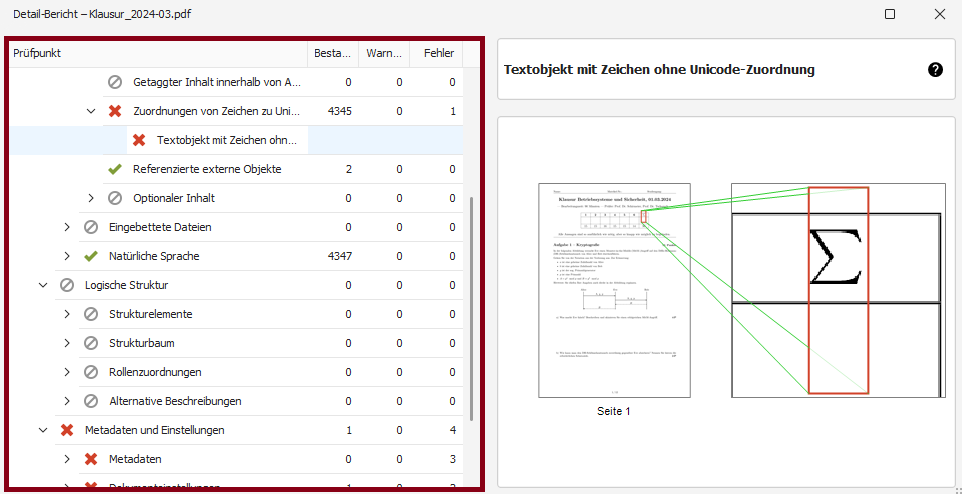
- Click on the button “Results in detail”.
- Navigate through the dropdown menu to view the specific error messages. Criterias marked with a red cross indicate existing barriers.
- Next, you can view the document's tag structure. To do so, click the first of the three buttons in the bottom right corner. Hovering over it with your mouse will reveal the name “Logical structure.”
- Navigate through the tags in the “Structure elements” tab (left) and compare them with the content of your document, which you can display in the “Page view” tab (right).