Caption
- If the audio track of a video contains information, captions are provided as an alternative.
- Captions and sound are displayed synchronously.
- There are only videos with original sound in the main language of the course. If not, there are switchable captions in the main language that can be accessed as a separate audio track.
People with hearing impairments rely on captions to fully understand video content. However, captions can also help people learn a foreign language or make it possible to watch videos in noisy environments. In order to capture all content correctly, captions and the associated sound and image must be displayed synchronously. If there are foreign language sections in the audio track, these should be translated in the captions.
Create Captions
Create manually
- Create a text file in a text editor (e.g. Notepad or Editor)
- First Line: WEBVTT
- Time periods for caption sections: 00:01.000 --> 00:05.000
- Insert captions directly below
- Blank line between sections
- Save as: "videoname-languagekey.vtt", for example myvideo-en.vtt
Create with Video Editor
- Video platforms such as YouTube often offer mechanisms for automatic creation.
- More information on this can be found in the instructions for video platforms in the "Insert captions" section.
Create Captions
YouTube
Step-by-step instructions: Add subtitles & captions
Videocampus Sachsen
Step-by-step instructions: Videocampus Saxony: Creation of captions for videos (TU Chemnitz)
- If the audio track of a video contains information, captions are provided as an alternative.
- Captions and sound are displayed synchronously.
- There are only videos with original sound in the main language of the course. If not, there are switchable captions in the main language that can be accessed as a separate audio track.
People with hearing impairments rely on captions to fully understand video content. However, captions can also help people learn a foreign language or make it possible to watch videos in noisy environments. In order to capture all content correctly, captions and the associated sound and image must be displayed synchronously. If there are foreign language sections in the audio track, these should be translated in the captions.
Create Captions
Create manually
- Create a text file in a text editor (e.g. Notepad or Editor)
- First Line: WEBVTT
- Time periods for caption sections: 00:01.000 --> 00:05.000
- Insert captions directly below
- Blank line between sections
- Save as: "videoname-languagekey.vtt", for example myvideo-en.vtt
Create with Video Editor
- Video platforms such as YouTube often offer mechanisms for automatic creation.
- More information on this can be found in the instructions for video platforms in the "Insert captions" section.
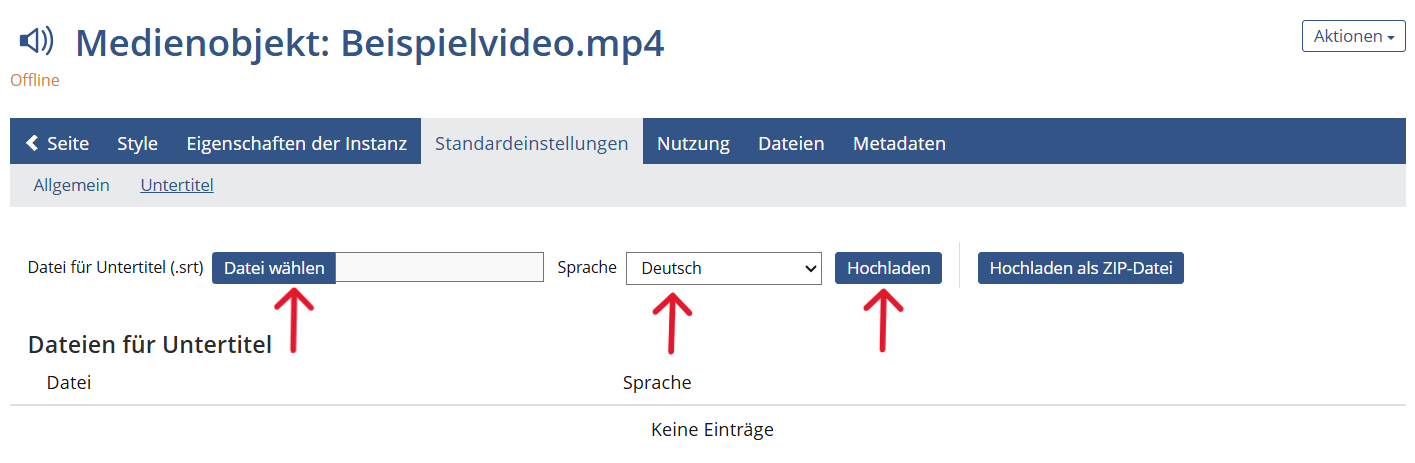
If you have inserted your video as a file, you can add a subtitle file by following the step-by-step instructions below. However, if you have embedded your video via a URL, no captions can be displayed or inserted.
Insert Captions
-
Select your video.
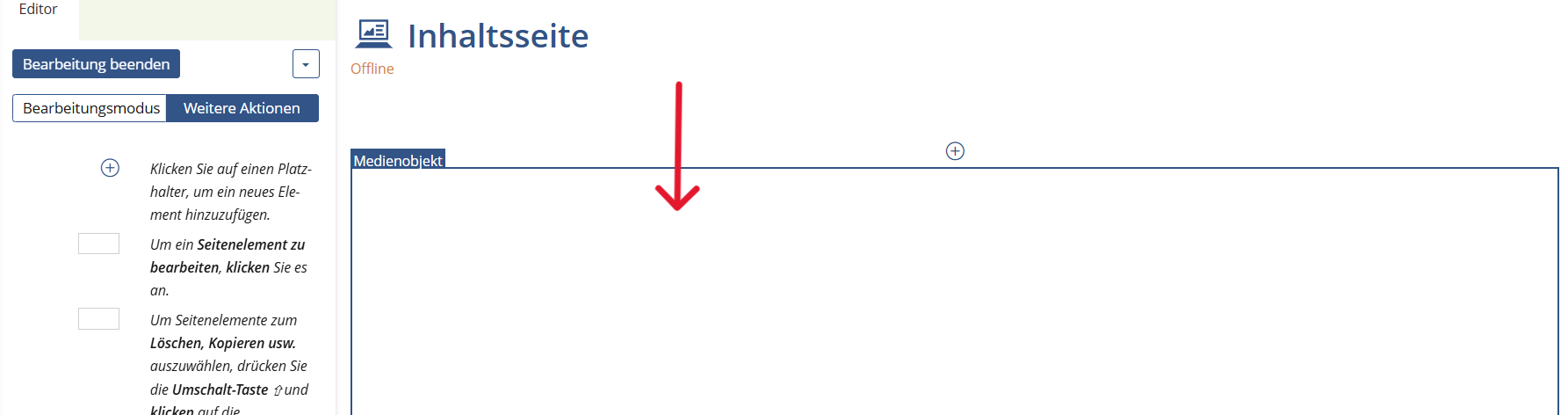
-
Go to "Advanced settings".
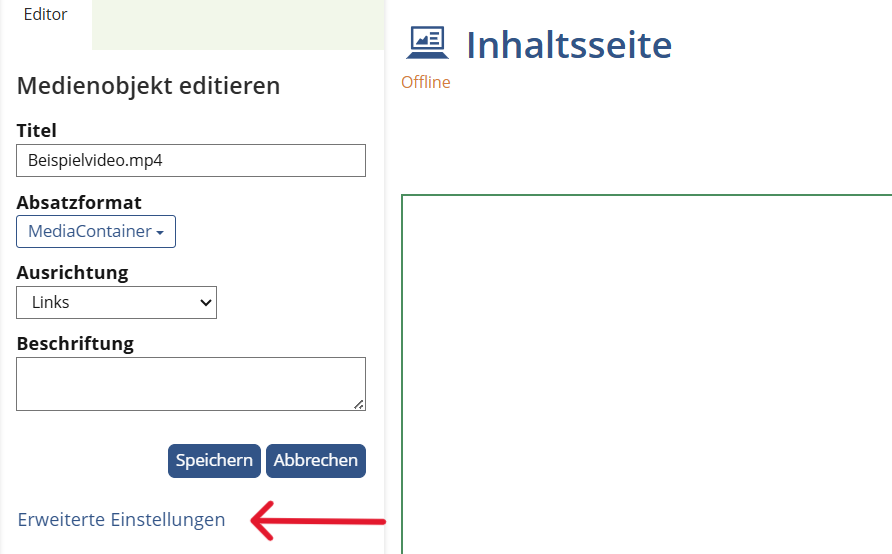
-
Select "Default settings" from the menu bar.
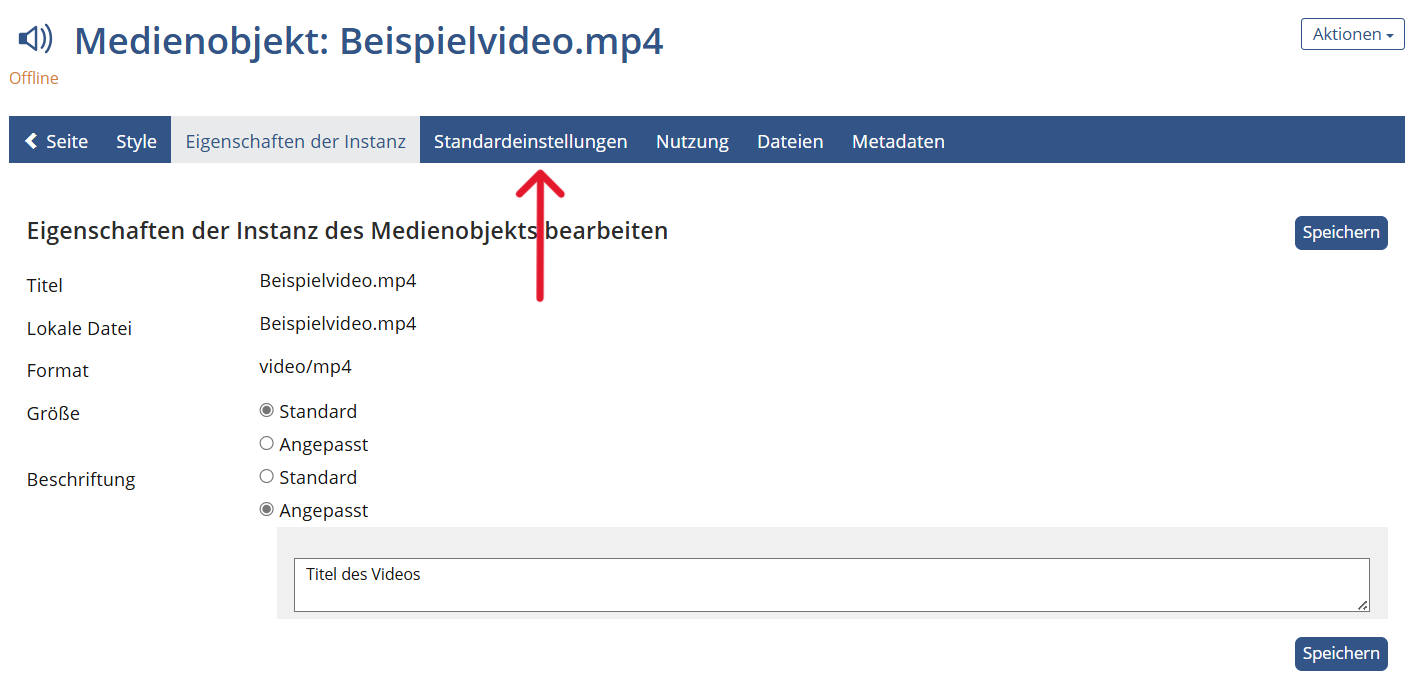
-
Select "Captions" in the submenu.
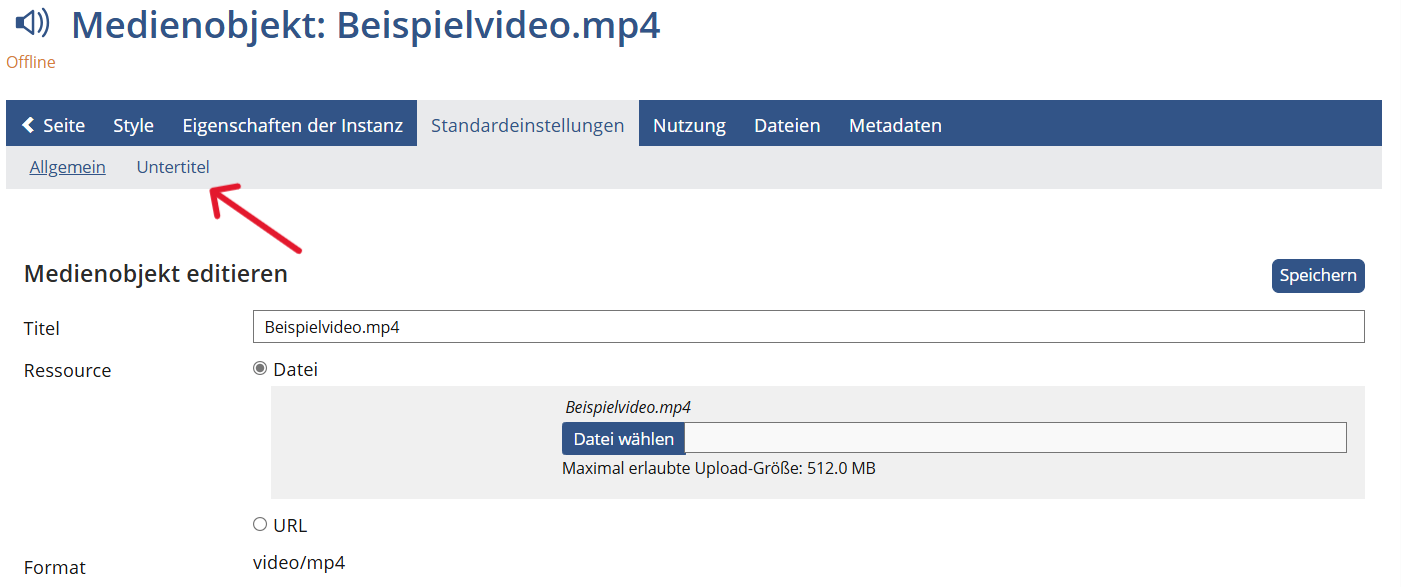
-
Select your subtitle file and the language. Then click on "Upload". Click on "Page" in the menu bar to return to the content page.
YouTube
Step-by-step instructions: Add subtitles & captions
Videocampus Sachsen
Create Captions
Create with Video Editor
Video editing programs, such as YouTube, sometimes offer automatic caption creation. More information on this can be found in the instructions for video platforms in the "Insert captions" section.
Create manually
- Create a text file in a text editor (e.g. Notepad or Editor)
- First Line: WEBVTT
- Time periods for caption sections: 00:01.000 --> 00:05.000
- Insert captions directly below
- Blank line between sections
- Save as: "videoname-languagekey.vtt", for example myvideo-en.vtt
- If the audio track of a video contains information, captions are provided as an alternative.
- Captions and sound are displayed synchronously.
- There are only videos with original sound in the main language of the course. If not, there are switchable captions in the main language that can be accessed as a separate audio track.
People with hearing impairments rely on captions to fully understand video content. However, captions can also help people learn a foreign language or make it possible to watch videos in noisy environments. In order to capture all content correctly, captions and the associated sound and image must be displayed synchronously. If there are foreign language sections in the audio track, these should be translated in the captions.
The following describes how you can create subtitle files yourself and insert them via PowerPoint. If you embed your video online via YouTube, follow the Instructions for creating and inserting captions in YouTube.
Create manually
- Create a text file in a text editor (e.g. Notepad or Editor)
- First Line: WEBVTT
- Time periods for caption sections: 00:01.000 --> 00:05.000
- Insert captions directly below
- Blank line between sections
- Save as: "videoname-languagekey.vtt", for example myvideo-en.vtt
Create Captions
Menu bar: Playback > Caption Options > Insert Captions > Insert Captions

- If the audio track of a video contains information, captions are provided as an alternative.
- Captions and sound are displayed synchronously.
- There are only videos with original sound in the main language of the course. If not, there are switchable captions in the main language that can be accessed as a separate audio track.
People with hearing impairments rely on captions to fully understand video content. However, captions can also help people learn a foreign language or make it possible to watch videos in noisy environments. In order to capture all content correctly, captions and the associated sound and image must be displayed synchronously. If there are foreign language sections in the audio track, these should be translated in the captions.
Create Captions
- Create a text file in a text editor (e.g. Notepad or Editor)
- First Line: WEBVTT
- Time periods for caption sections: 00:01.000 --> 00:05.000
- Insert captions directly below
- Blank line between sections
- Save as: "videoname-languagekey.vtt", for example myvideo-en.vtt
Create Captions
                    <video controls>
                      <source src="myvideo.mp4" srclang="en" type="video/mp4">
                      <track src="myvideo-en.vtt" kind="subtitles" srclang="en" label="English">
                    </video>