Create Accessibility Statement
-
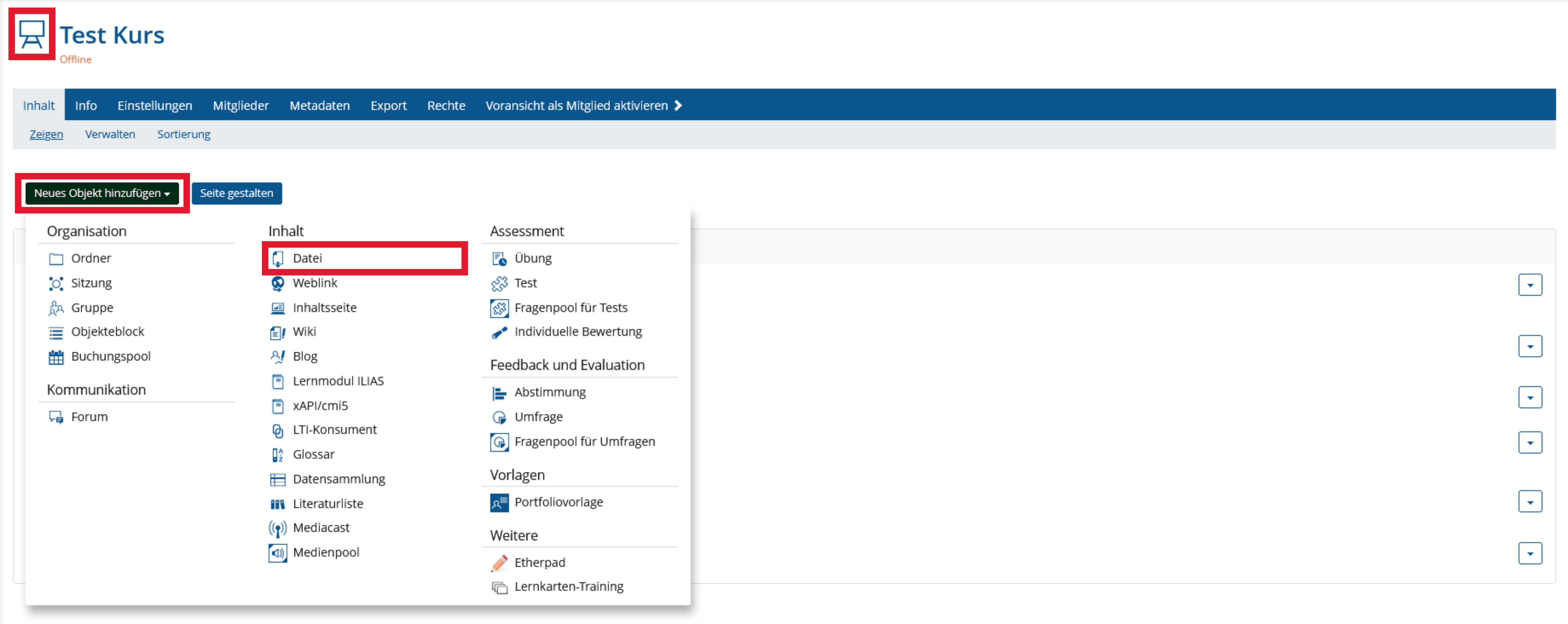
Go to the Home page of your course and select the "Content" tab. Click Add New Object and select "File".
-
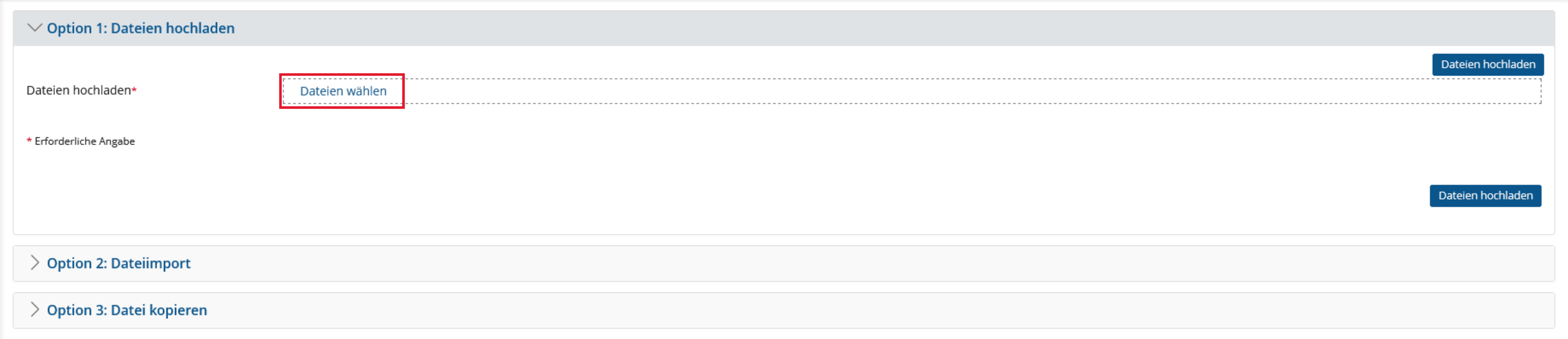
Upload your accessibility statement here by clicking "Select files".
-
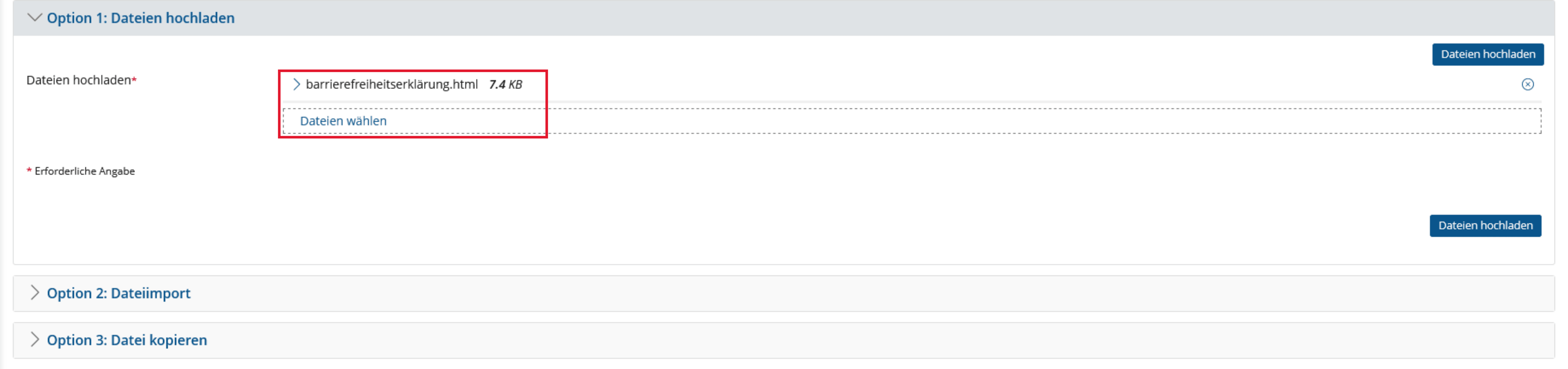
Your selected file will be displayed. Verify that it is the correct file and click the arrow next to the name.
-
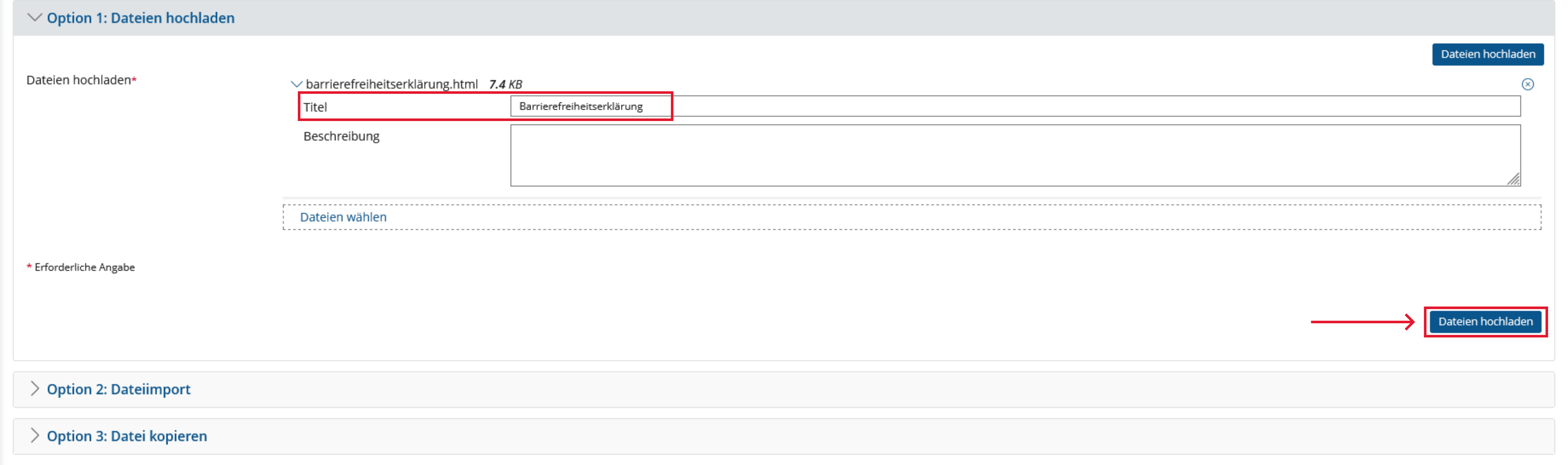
Change the title of the file to something like "accessibility statement" and click "Upload Files". Your accessibility statement has now been successfully uploaded and will be displayed on the first page of your course.
-
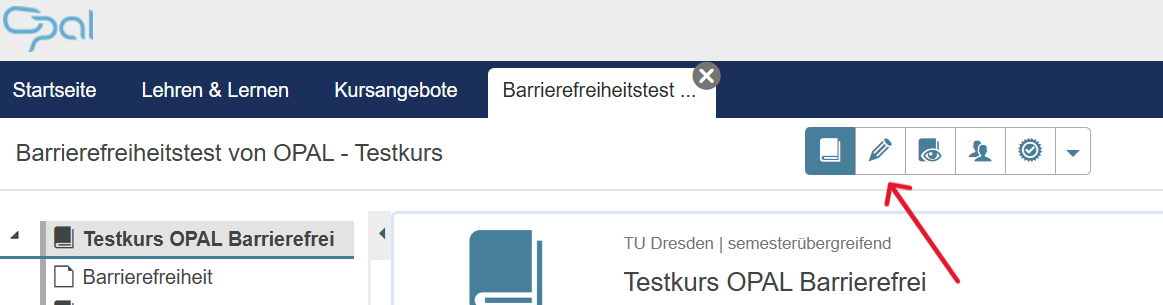
Go to the editor using the pen icon.
-
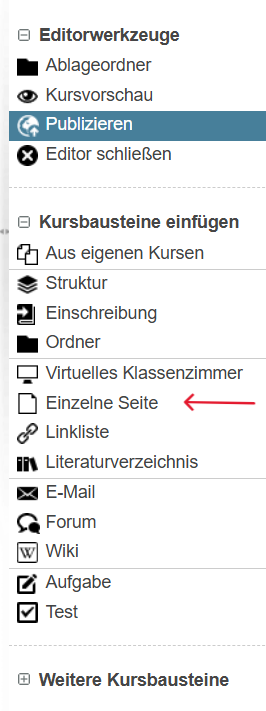
Create a Single Page from the category 'insert course elements'.
-
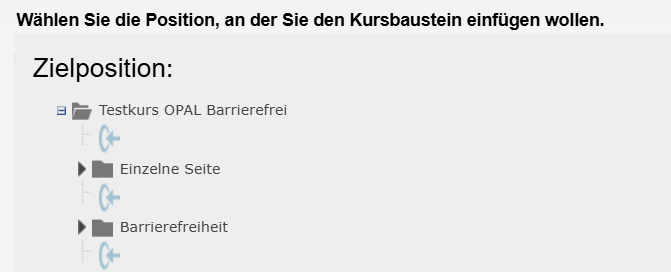
Select a destination that is as close as possible to the start page so that users of the course can find the statement easily.
-
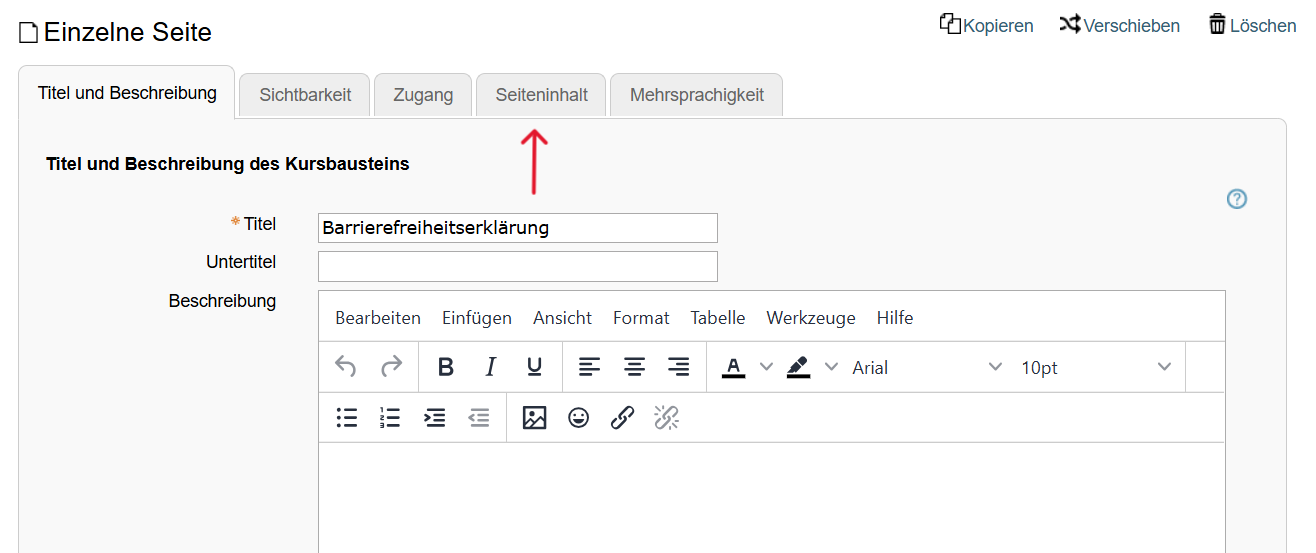
Add a title and save it. Then click on 'Page Content'.
-
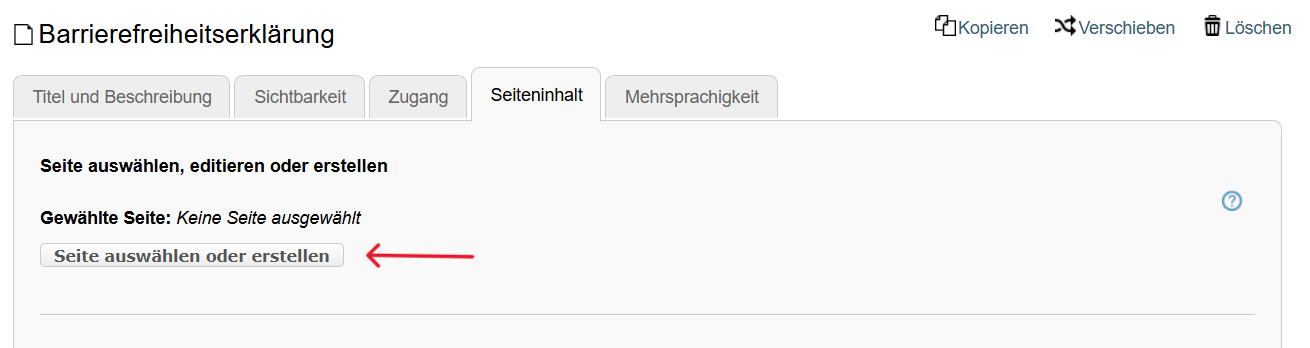
Select 'creating or selecting an HTML page'
-
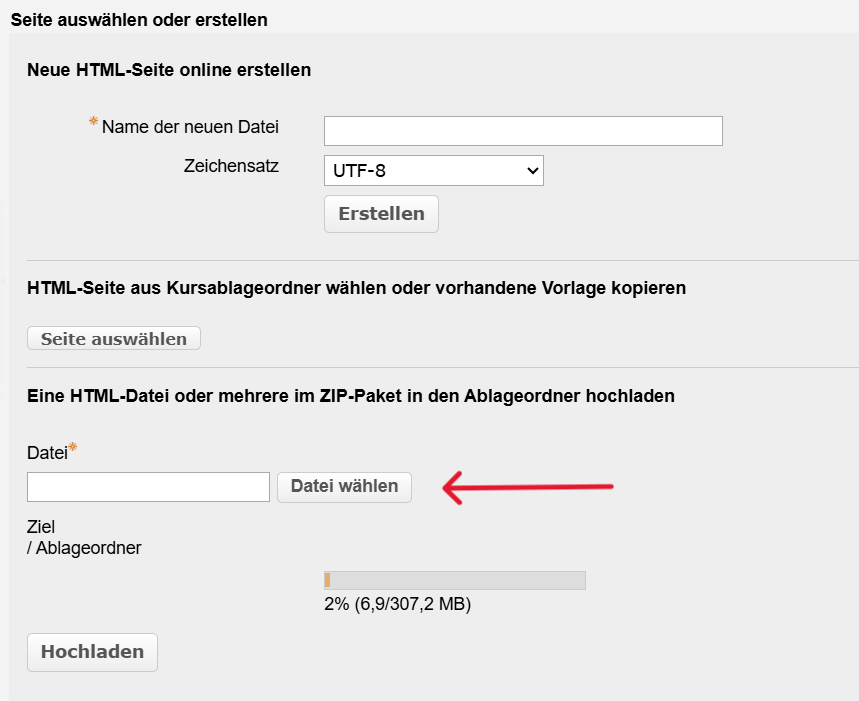
Click on the button 'Select file', choose the file with the accessibility statement and click on 'Upload'.
-
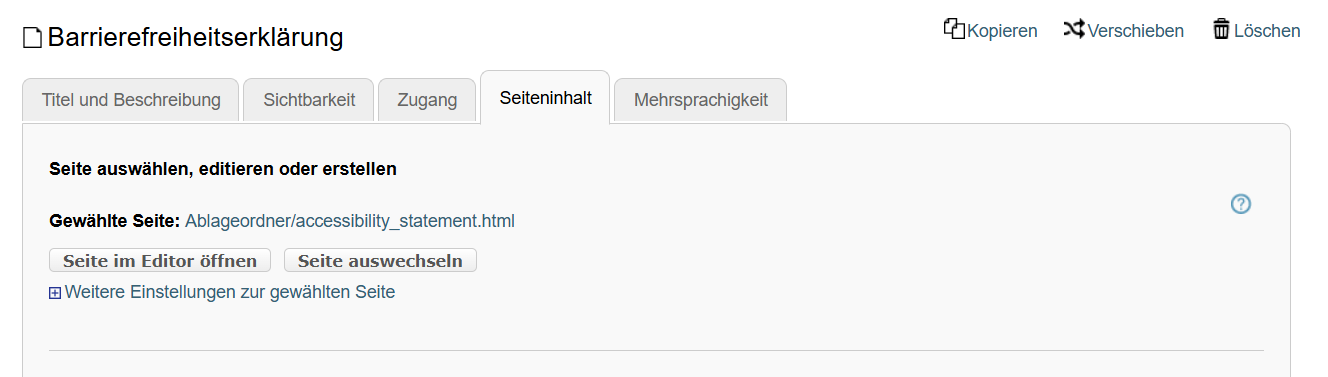
Your HTML file is now a part of the page.
-
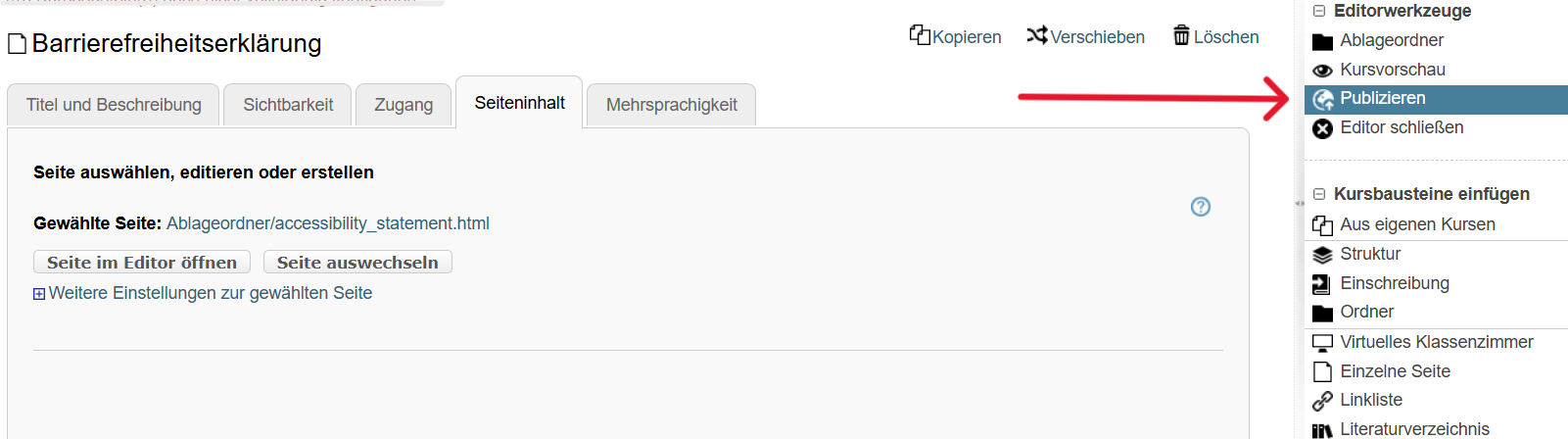
Publish your changes with the Editor tool 'Publish'.