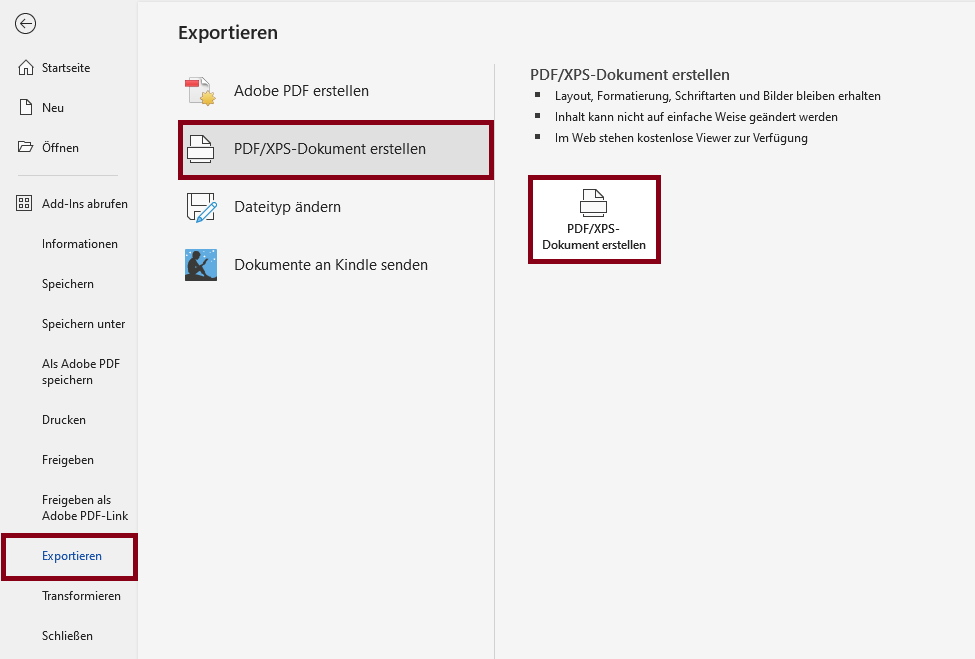
Export PDF Document
Microsoft Word:
Menu bar: File > Export > Create PDF/XPS Document
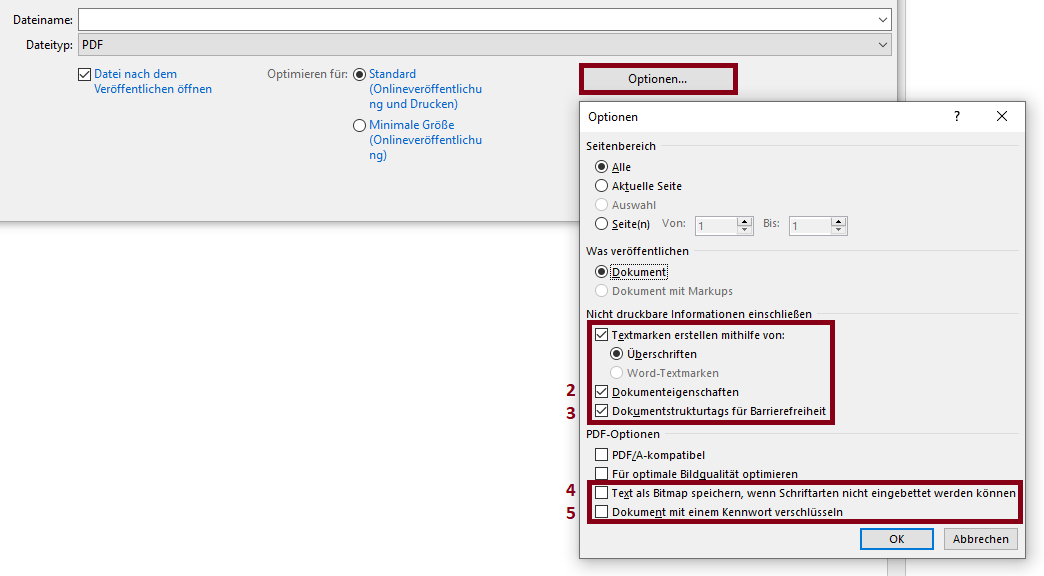
- Select under “Create bookmarks using:” “Headings” if you have created headings using the Styles to automatically generate bookmarks for navigating the document.
- Check the “Document Properties” box to include information such as the document title.
- Check the box called “Document structure tags for accessibility” to include all structural information in the PDF document.
- Deactivate “Bitmap text when fonts may not be embedded” to prevent textual content from being saved as image information, which would no longer be readable for non-visual users.
- If possible, do not encrypt your documents with a password to ensure that assistive technologies can access all necessary information without problems.
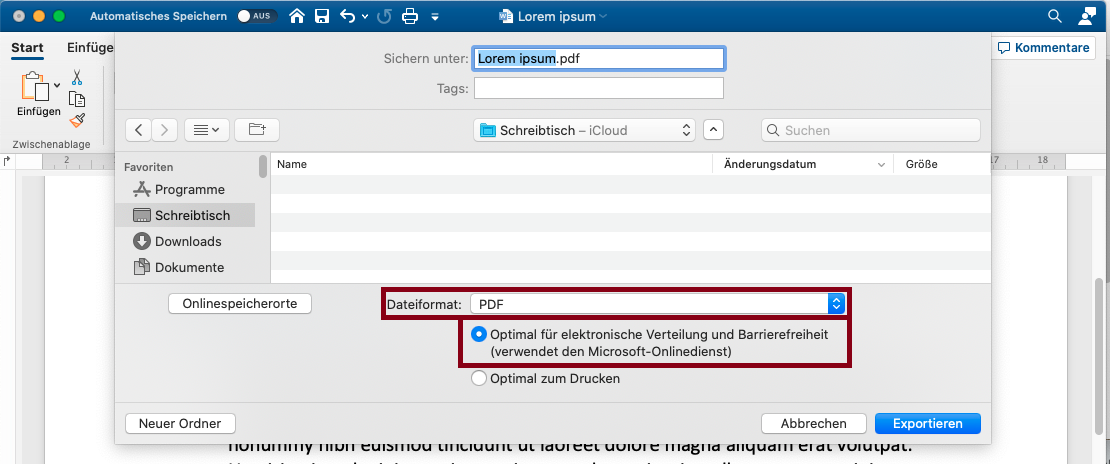
Microsoft Word:
Menu bar: File > Save as... > File Format
Under „Save as...“, you can specify the file name, file type, and save location. Check the box next to „Best for electronic distribution and accessibility.“