Tables
- The tables have a logical structure, understandable headings and contextual information.
- Complex tables with merged cells: The assignment of headings and content is correct ('scope' or 'id' and 'headers' attributes are used).
- Layout tables, which only format text, are avoided or they do not have structural markup.
Visually impaired and blind users develop an idea of the structure of a table based on headings and other information available in context. To support this, tables need to have a clear structure and unambiguous headings. If headings in headers or columns are marked with structure elements, screen readers can read them aloud when rows or columns are changed.
Tables should not be used to control the layout of your page, because then screenreaders will read out the page in a way that reflects the table structure, not the visual layout.
Markup of Tables
Create Table
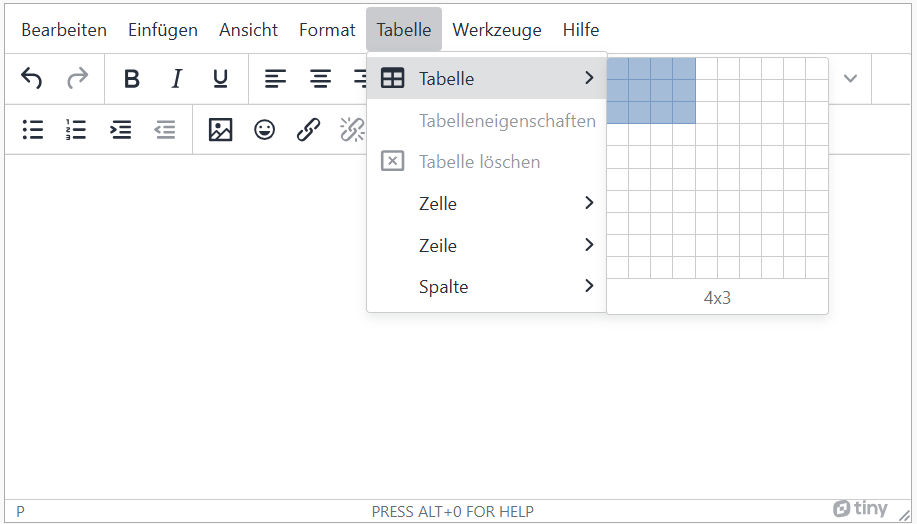
Format table
Add caption
-
In the menu bar choose Table and then Table properties.
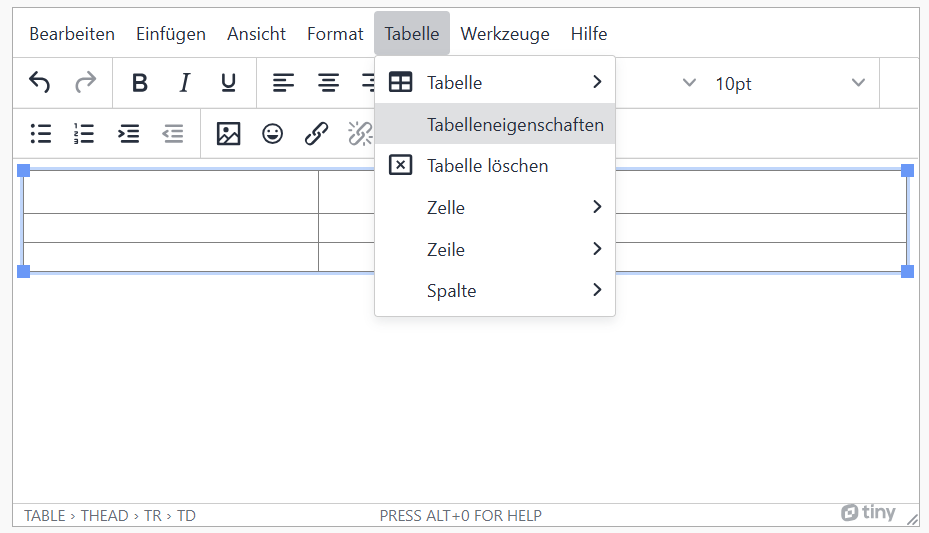
-
Enable Caption.
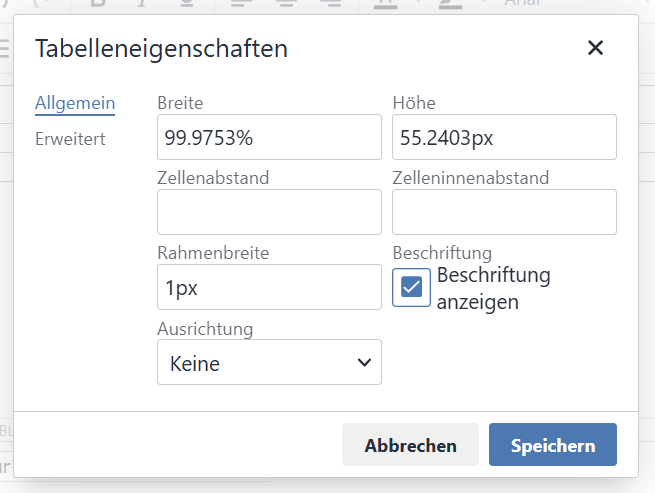
-
Change caption to fit your content.
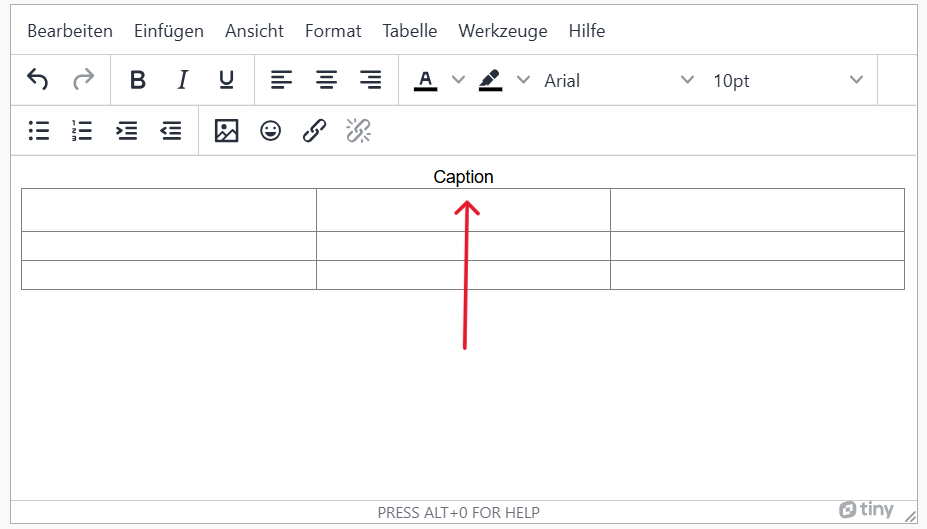
Mark header of the table
-
First select the desired row or column..
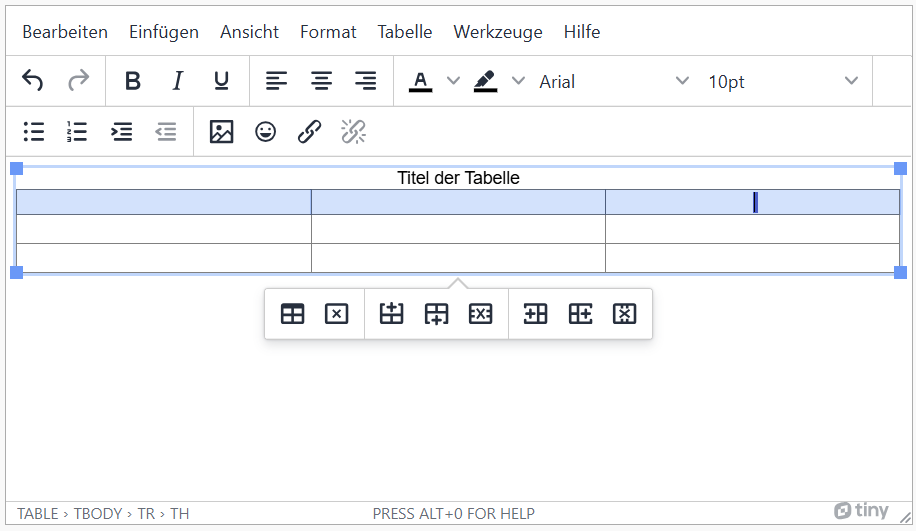
-
Then choose the following: menu bar > Table > Cell > Cell properties.
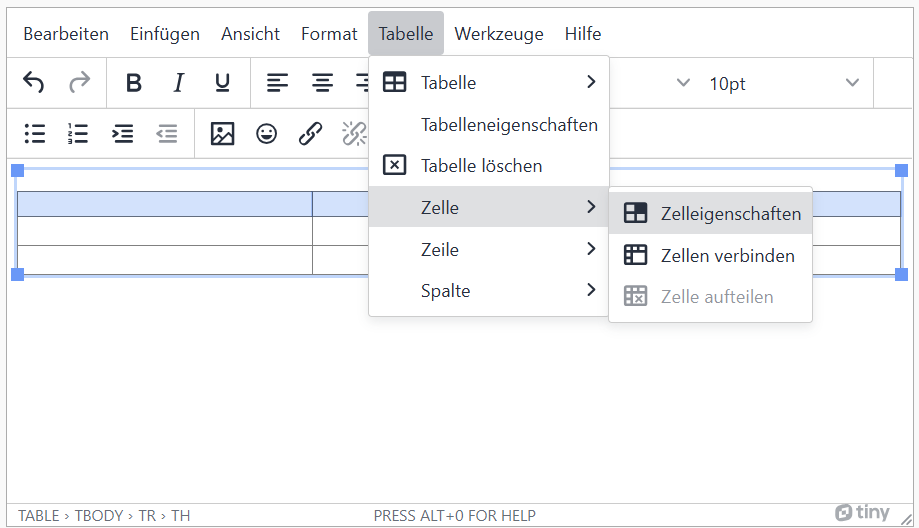
-
As Cell type choose 'Header cell'.
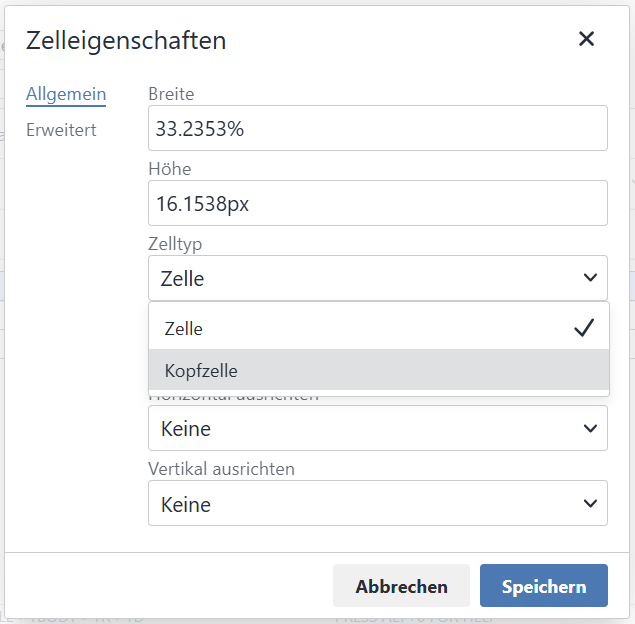
-
Select 'Column' as the Scope for column headings and 'Row' for row headings.
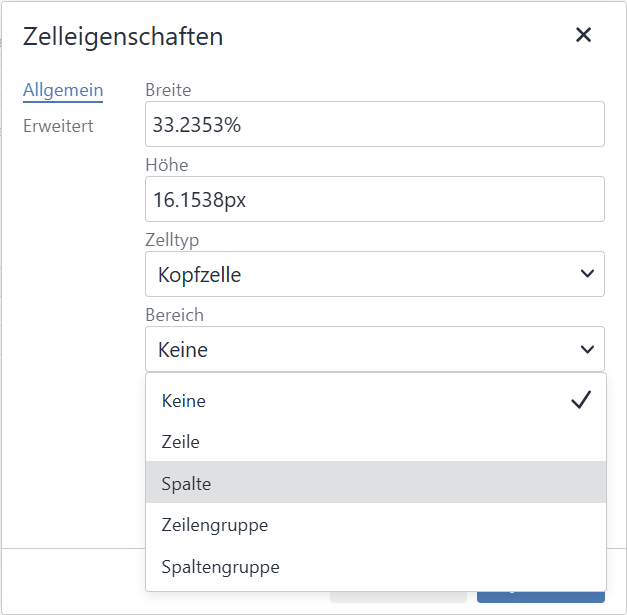
Complex table: merge cells
-
Mark cells to be connected
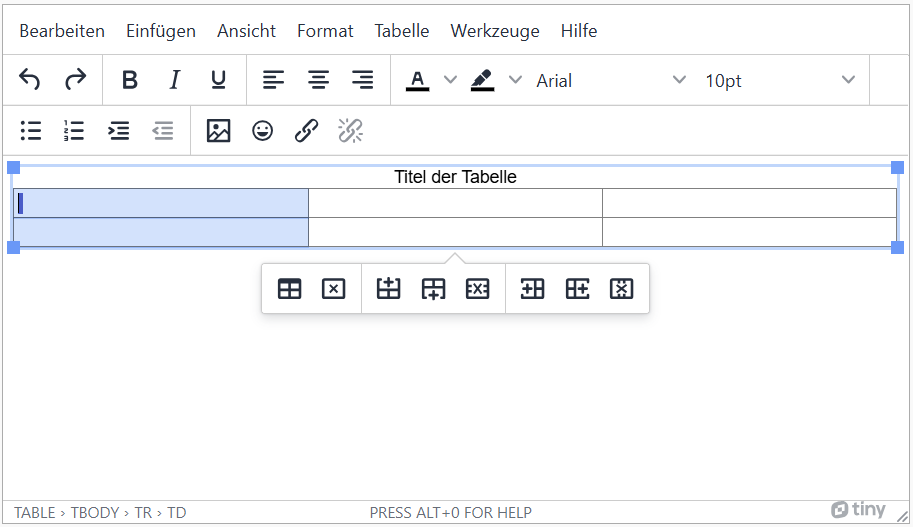
-
Menu bar: Table > Cell > Merge Cells
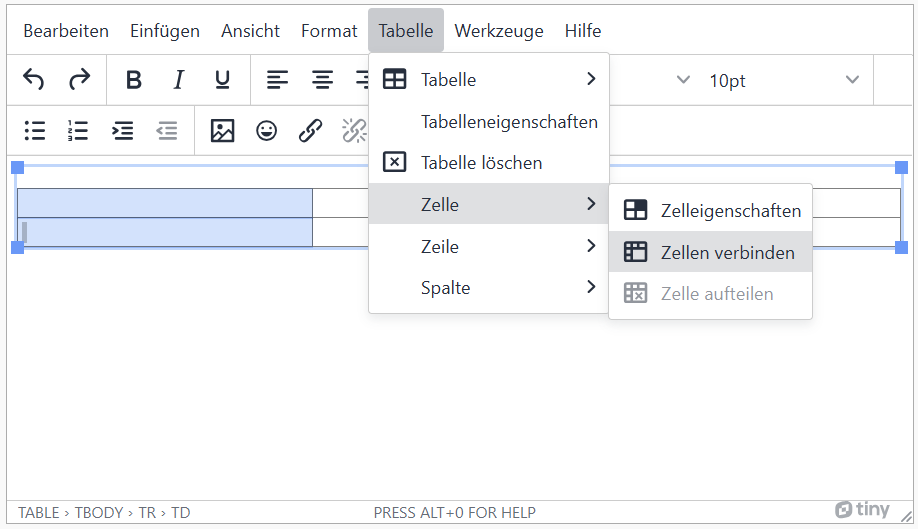
- Tables with multiple header rows or columns are not used.
- Layout tables are not used. Layout tables are tables that create the visual structure of the website.
- Table footers were not used.
- Tables have a logical structure, understandable headings and contextual information.
Only one header row or column should be used. It should contain meaningful headings for each row or column. Footers and footer columns should be avoided, as they are not properly marked. A label should be added that briefly describes the contents of the table. This will appear above or below the table. The language selection has no function at the moment, but should be filled in for the sake of completeness.
Add Table
-
Click the plus sign and choose "Insert Data Table".
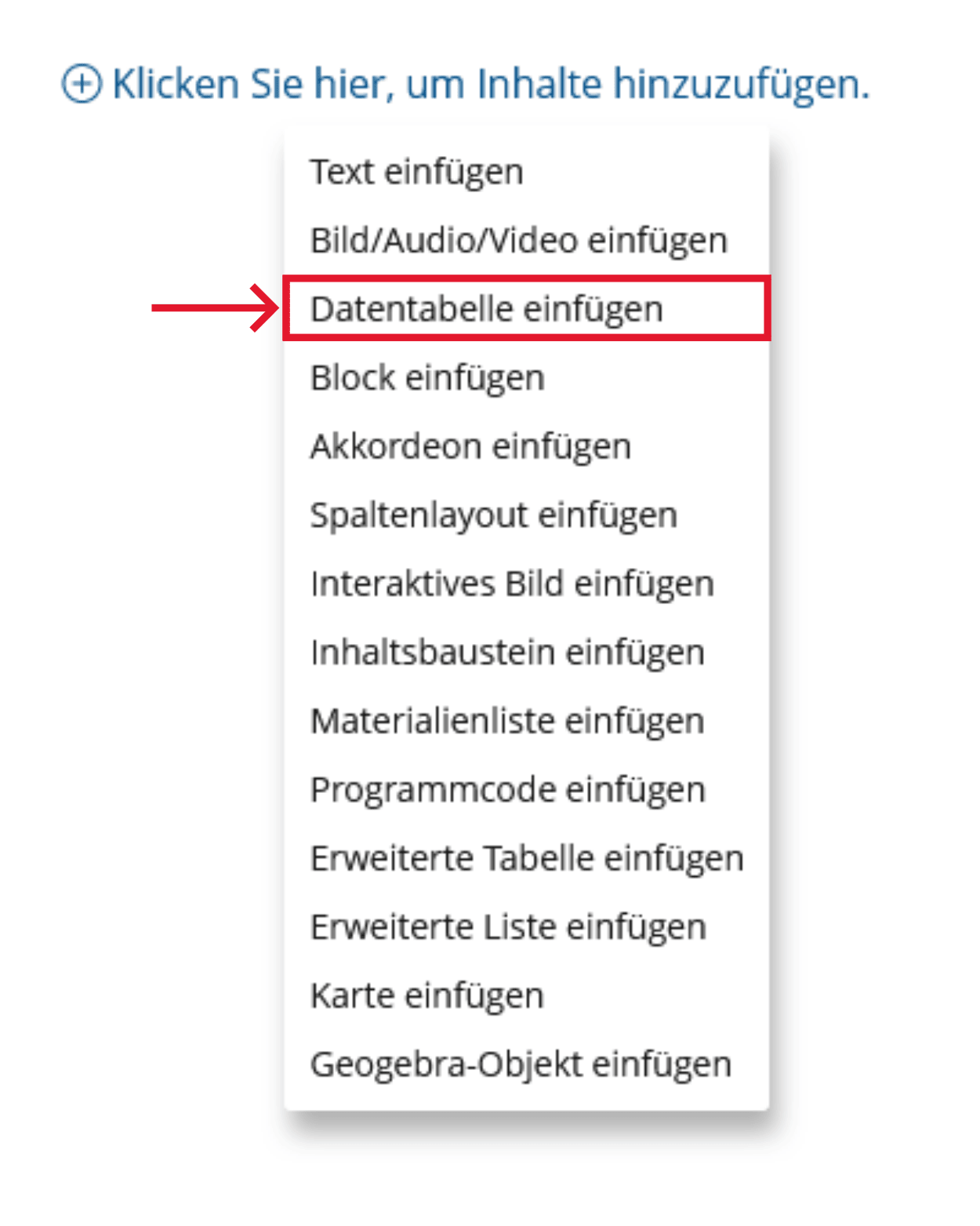
-
The following points need to be considered regarding properties:
- Use only one header
- Do not use footers or footer columns
- Add Caption
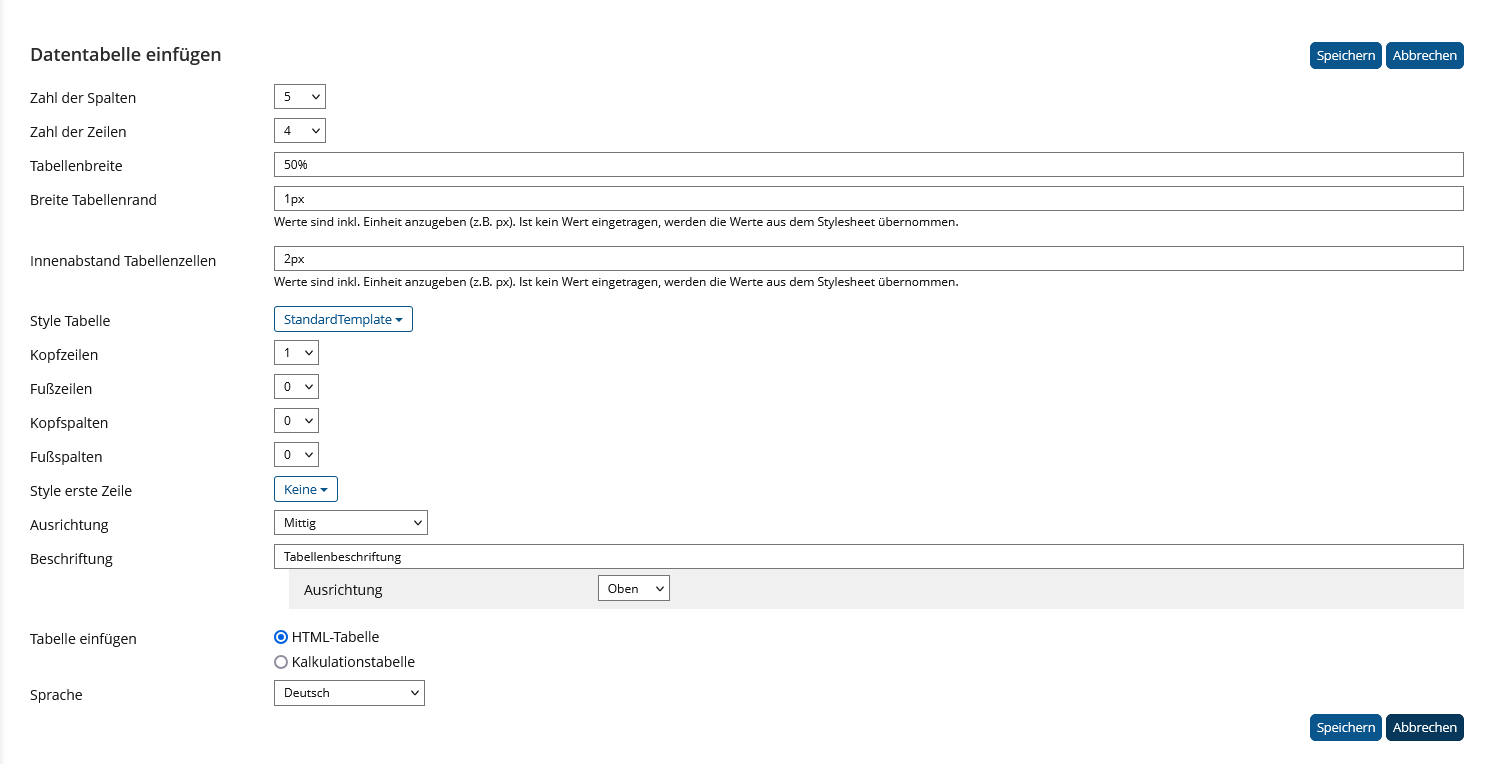
Insert Extended Table
An extended table is a table that can contain other content modules, such as images or videos, in addition to text.
-
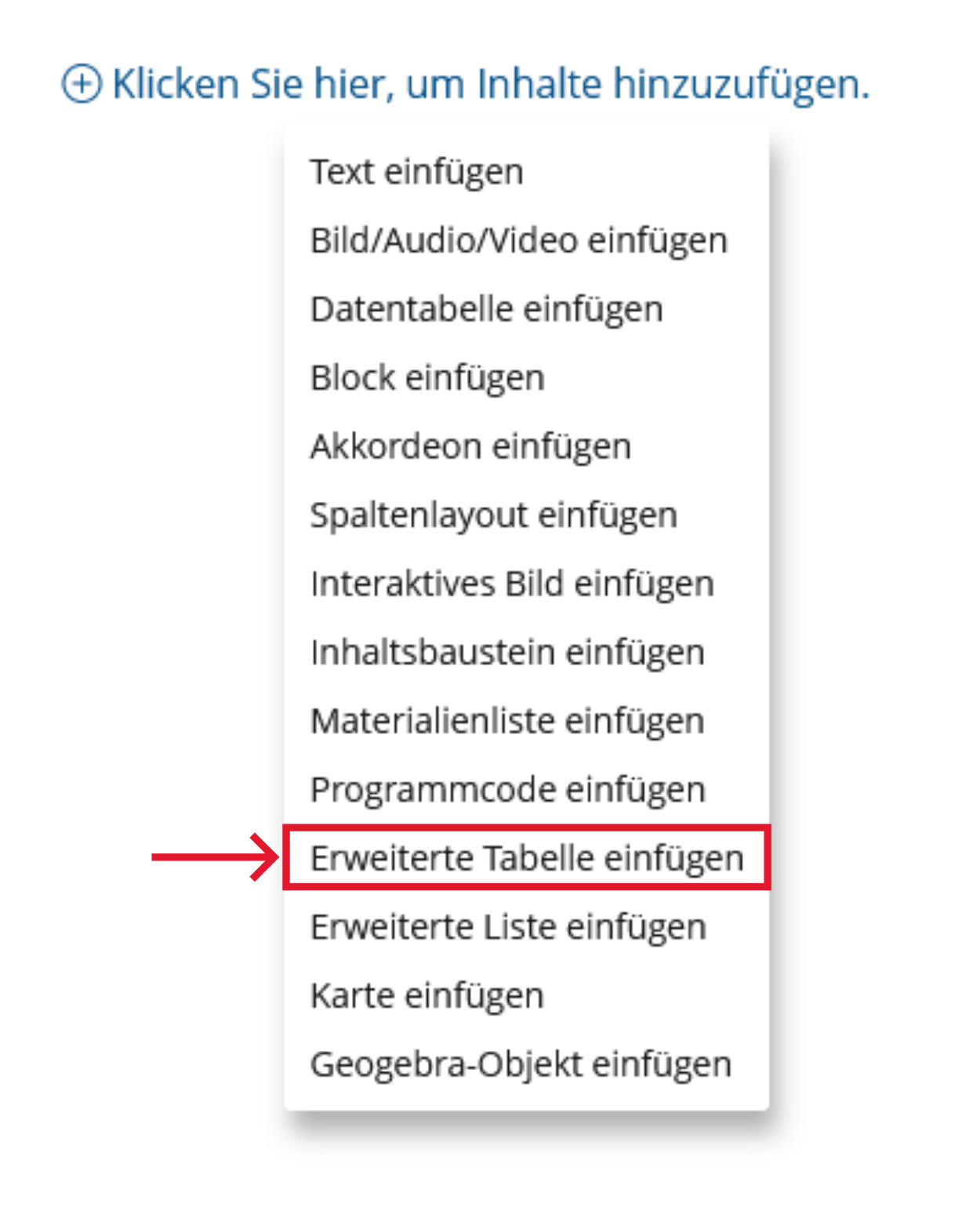
Click the plus sign and choose "Insert Advanced Table".
-
Proceed as you would for a simple table.
- The tables have a logical structure, understandable headings and contextual information.
- Complex tables with merged cells: The assignment of headings and content is correct ('scope' or 'id' and 'headers' attributes are used).
- Layout tables, which only format text, are avoided or they do not have structural markup.
Visually impaired and blind users develop an idea of the structure of a table based on headings and other information available in context. To support this, tables need to have a clear structure and unambiguous headings. If headings in headers or columns are marked with structure elements, screen readers can read them aloud when rows or columns are changed.
Tables should not be used to control the layout of your page, because then screenreaders will read out the page in a way that reflects the table structure, not the visual layout.
Markup of Tables
Format table with html code
-
Provide a Caption:
Use the <caption> element to provide a brief overview of the table. This helps users understand what kind of information to expect in the table.
                              <table>
                              <caption>This is a caption for this table.</caption>
                                ...
                              </table>
This is a caption for this table. Heading 1 Heading 2 value 1 value 2 -
Create the table content:
Use thead and tbody to structure your table.
                              <table>
                              <caption>This is a caption for this table.</caption>
                                <thead>
                                  <tr>
                                    <th >Heading 1</th>
                                    <th >Heading 2</th>
                                  </tr>
                                </thead>
                                <tbody>
                                  <tr>
                                    <td>value 1</td>
                                    <td>value 2</td>
                                  </tr>
                                  ...
                                </tbody>
                              </table>
This is a caption for this table. Heading 1 Heading 2 value 1 value 2 -
Specify Scope for Headers:
Use the scope attribute on <th> elements to specify whether they are headers for a column (scope="col") or a row (scope="row"). This is particularly important for tables with row and column headings and helps assistive technologies to assign the headings correctly to the data cells.
                                    <table>
                                      <tr>
                                        <td> </td>
                                        <th scope="col">Monday</th>
                                        <th scope="col">Tuesday</th>
                                      </tr>
                                      <tr>
                                        <th scope="row"> 09:00 – 11:00</th>
                                        <td>Closed</td>
                                        <td>Open</td>
                                      </tr>
                                      ...
                                    </table>
Monday Tuesday 09:00 – 11:00 Closed Open -
Creating merged cells:
The rowspan and colspan attributes can be used to connect table cells. Rowspan connects the specified number of cells within a row, colspan in a column.
Furthermore use id and headers attributes to explicitly associate data cells with the correct headers.
                                <table>
                                  <tr>
                                    <th id="name">First Name</th>
                                    <th id="job">Job role</th>
                                  </tr>
                                  <tr>
                                    <td headers="name">Lisa</td>
                                    <td headers="job" rowspan="2">Marketing Coordinator</td>
                                  </tr>
                                  <tr>
                                    <td headers="name">John</td>
                                  </tr>
                                  <tr>
                                    <td colspan="2">Welcome to the company</td>
                                  </tr>
                                ...
                                </table>
First Name Job role Lisa Marketing Coordinator John Welcome to the company
- The table has a simple structure. It only has a header row and a few rows and columns.
- The header row is marked as a heading.
- The table has an alternative text with a summary.
Visually impaired and blind users develop an idea of the structure of a table based on headings and other information available in context. To support this, tables need to have a clear structure and unambiguous headings. If headings in headers or columns are marked with structure elements, screen readers can read them aloud when rows or columns are changed.
Realization of the criteria
Do not use a header column, as this is not marked correctly by PowerPoint. You should also avoid complex tables (with many entries or linked cells). These not only make slides confusing, but are also difficult for blind and visually impaired people to understand.
-
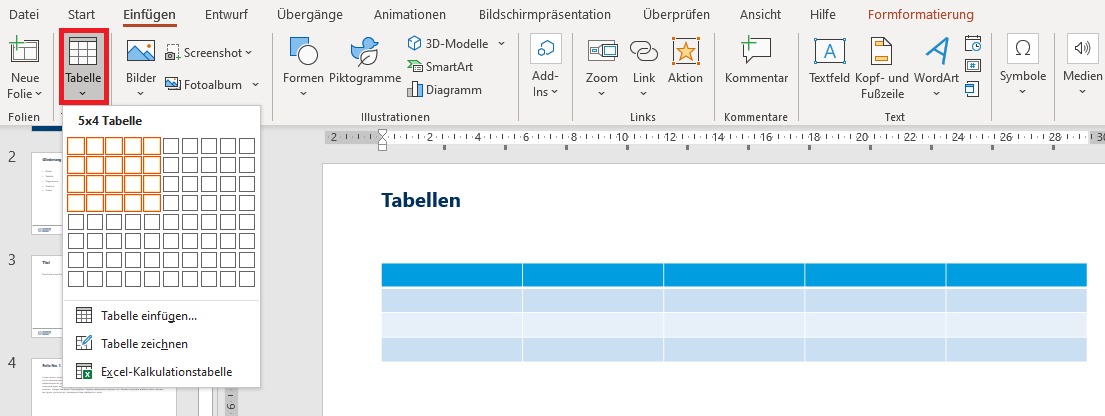
Insert table:
Menu bar: Insert > Tables > Table
-
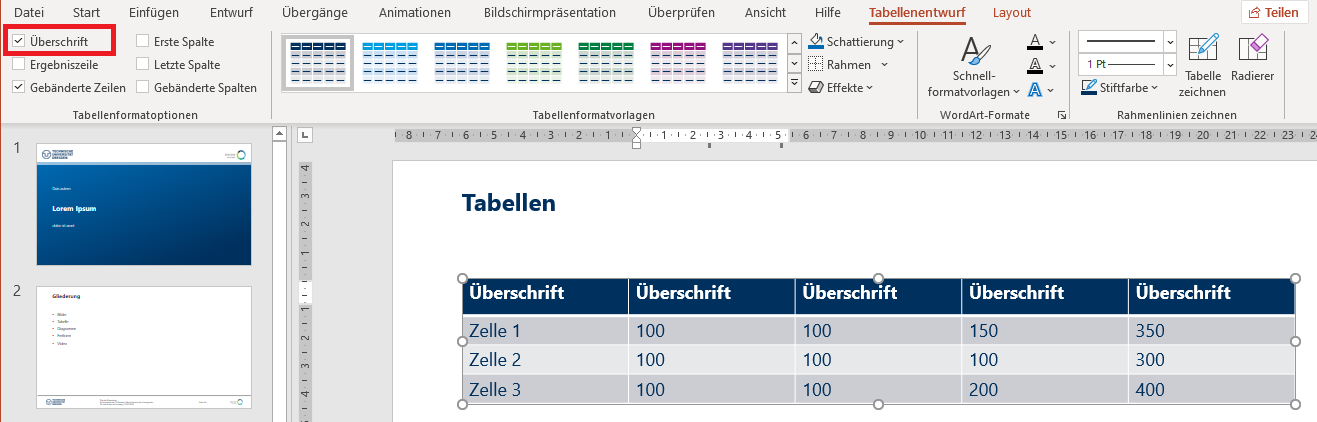
Mark header row as heading:
Menu bar: Table Design > Table Style Options > Header Row
-
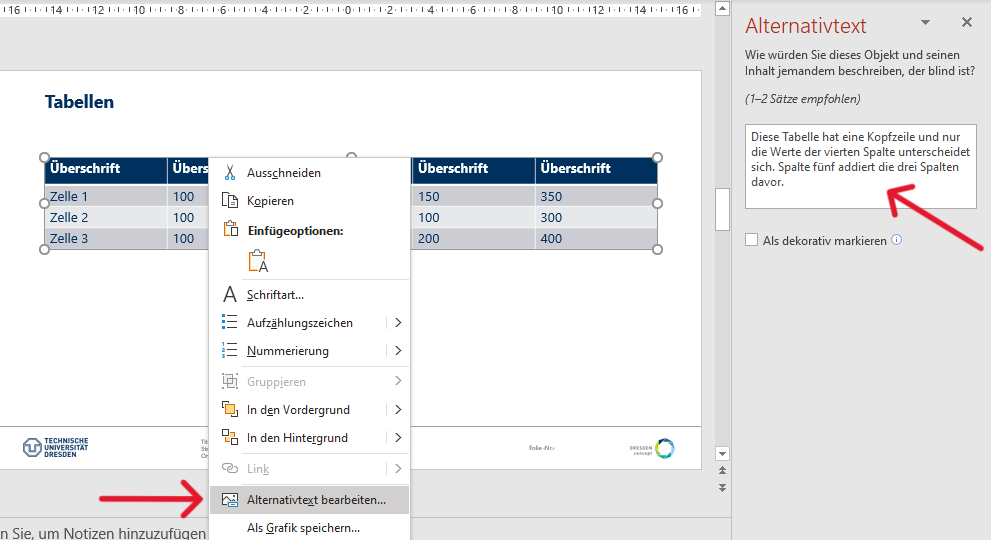
Add alternative text:
Context menu (right click) > View Alt Text > Enter alternative text
Additional Information
BITV-Guidelines
- The tables have a logical structure, understandable headings and contextual information.
- Tables do not contain irregular rows or columns.
- Tables do not contain empty cells.
- No layout tables were used.
Visually impaired and blind users develop an idea of the structure of a table based on headings and other information available in context. To support this, tables need to have a clear structure and unambiguous headings. If headings in headers or columns are marked with structure elements, screen readers can read them aloud when rows or columns are changed.
Tables should not be used to control the layout of your page, because then screenreaders will read out the page in a way that reflects the table structure, not the visual layout.
Markup of Tables
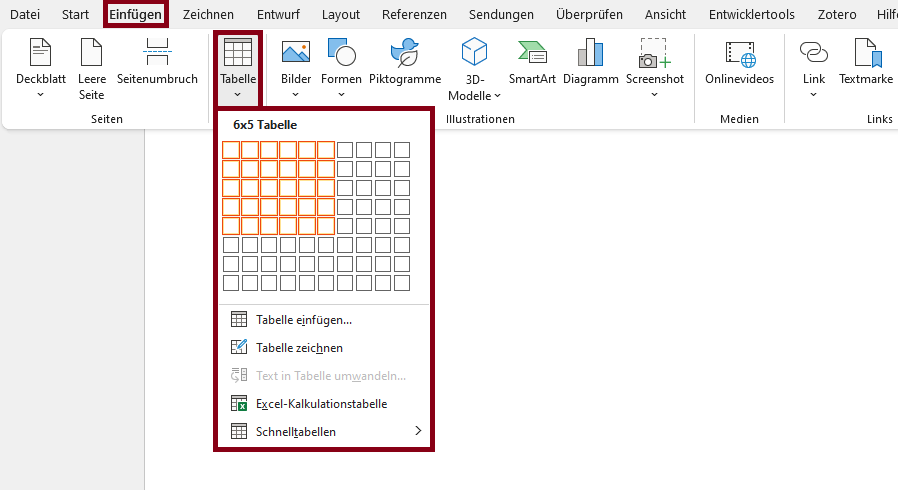
Create Tables
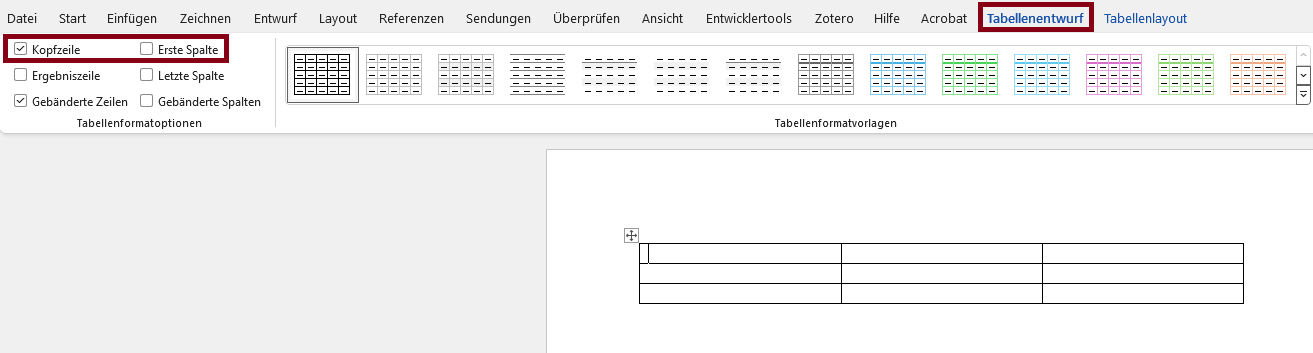
Label Header Rows
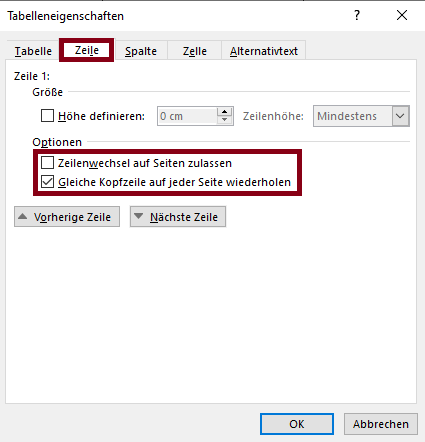
Achtung
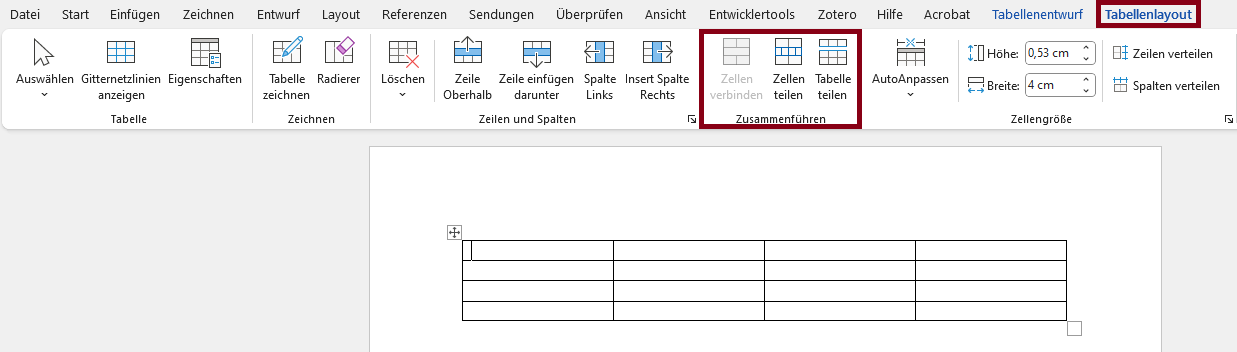
Complex Tables
-
Select the cells you want to split into a separate table.
-
Click in the menu bar: Table Layout > Merge > Split Cells
Create Tables
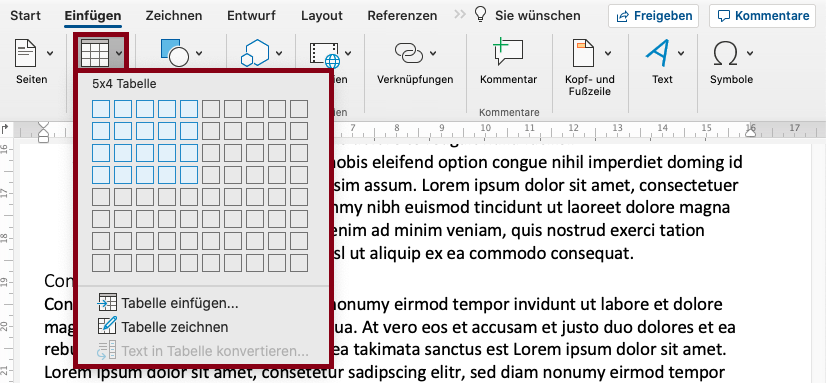
Label Header Rows

Achtung
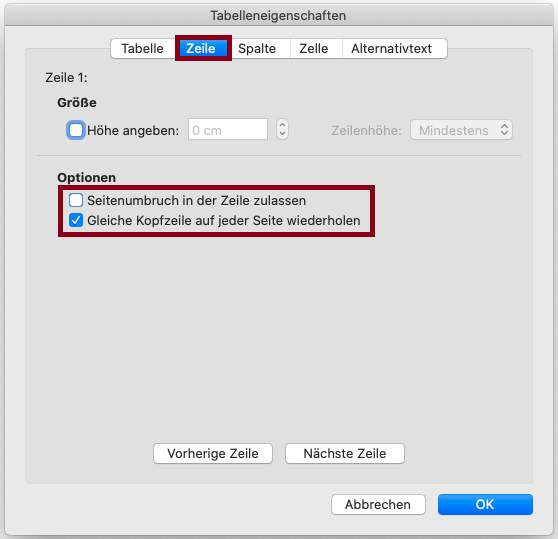
When converting to a PDF document, a multi-page table is marked up as several separate tables. Therefore, it's important that the header row is repeated on each page. Additionally, when using multi-page tables, page breaks in table rows should be disabled to ensure the tables remain easier to read and understand.
Microsoft Word:
Select Table > Right-click in Table > Table Properties… > Select Repeat as header row at the top of each page/Deselect Allow row to break across pages
 Avoid using merged cells to avoid confusion and ambiguity. Using merged cells can make it difficult to correctly assign content to the correct column heading and may result in incorrect output from assistive technology. Check for the presence of merged cells using the Accessibility Checker in Microsoft Word.
- The tables have a logical structure, understandable headings and contextual information.
- Tables do not contain irregular rows or columns.
- Tables do not contain empty cells.
- No layout tables were used.
Visually impaired and blind users develop an idea of the structure of a table based on headings and other information available in context. To support this, tables need to have a clear structure and unambiguous headings. If headings in headers or columns are marked with structure elements, screen readers can read them aloud when rows or columns are changed.
Tables should not be used to control the layout of your page, because then screenreaders will read out the page in a way that reflects the table structure, not the visual layout.