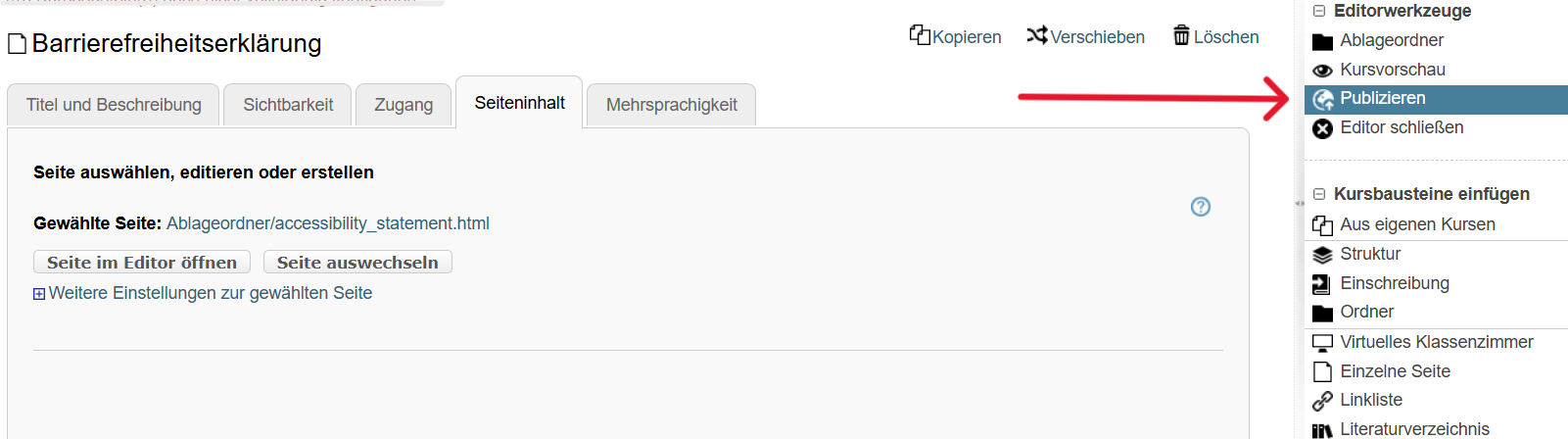
Update Accessibility Statement
-
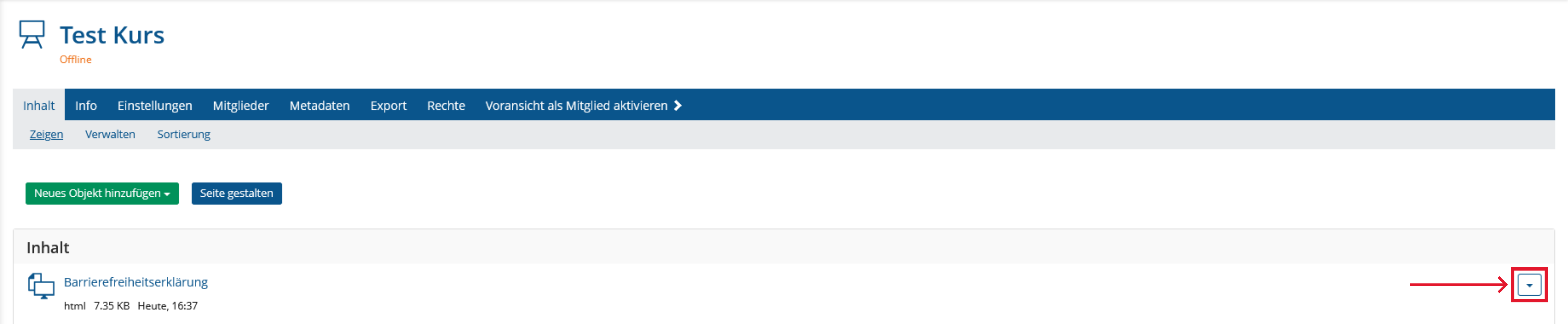
Go to the Home page of your course and select the "Content" tab. Navigate to the Contents list. Click the arrow next to the name of the file you want to update.
-
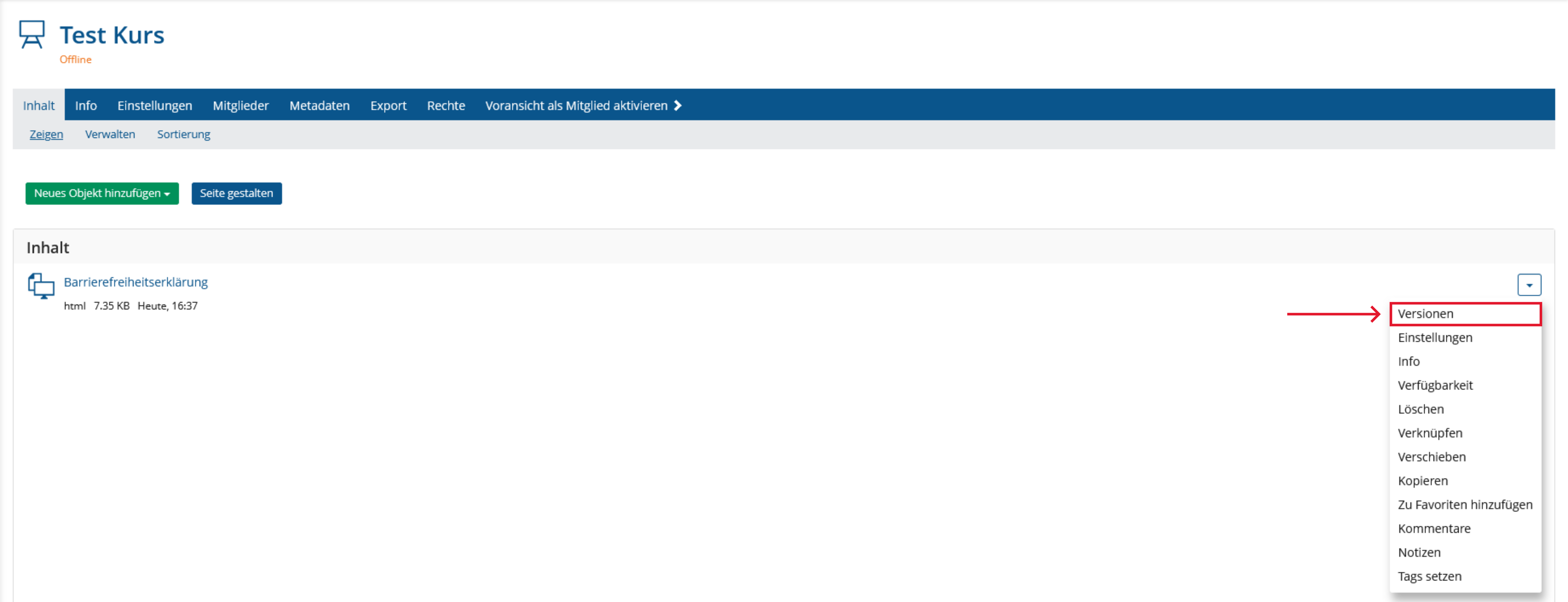
Select "Versions" from the drop-down menu.
-
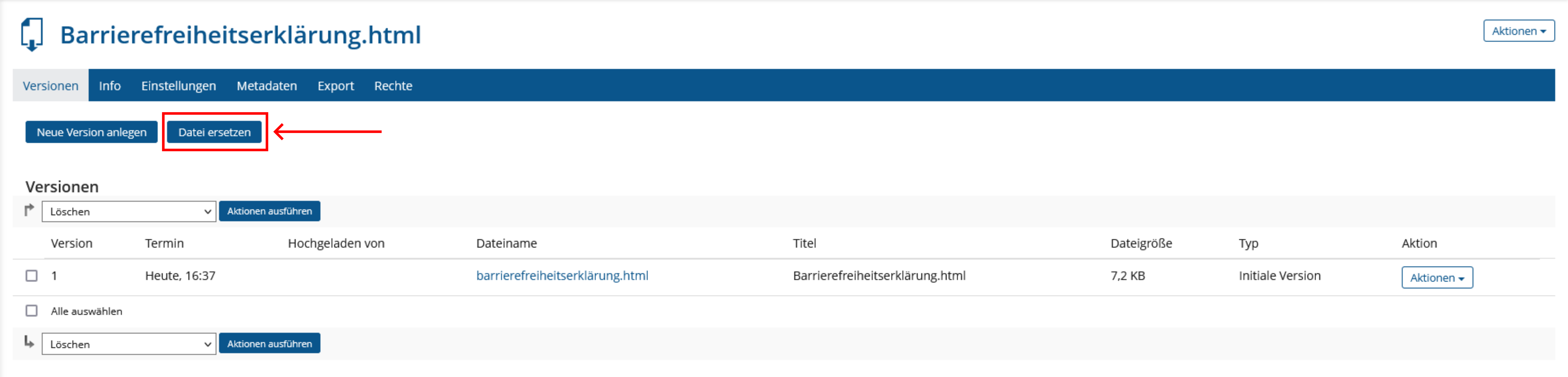
A page with all versions of the file will open. Click "Replace file" to upload a new version.
-
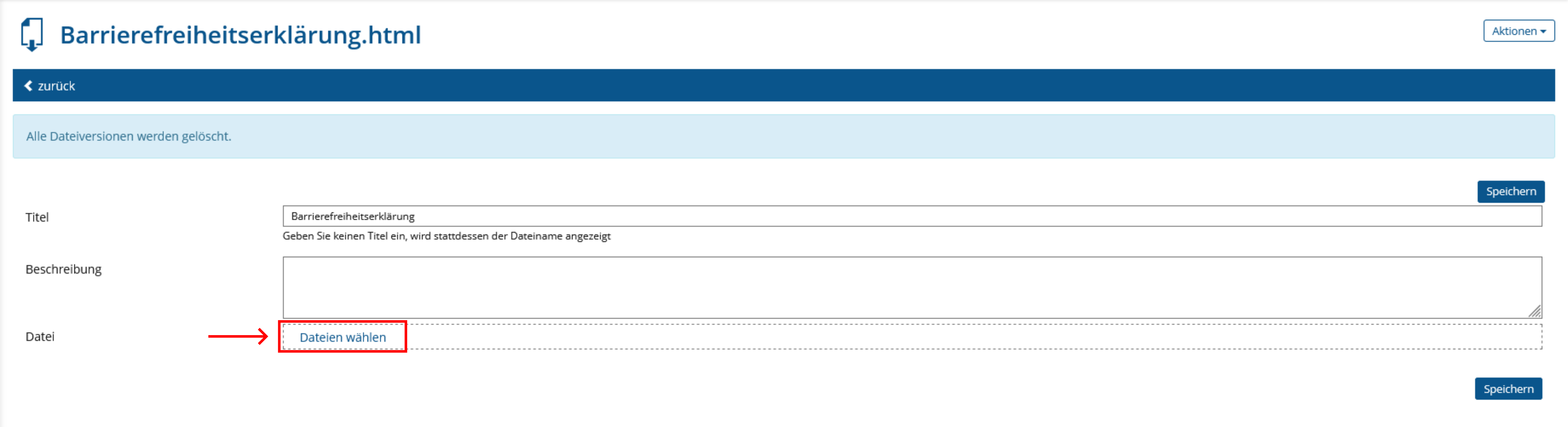
Click on "Select files" and select the new file.
-
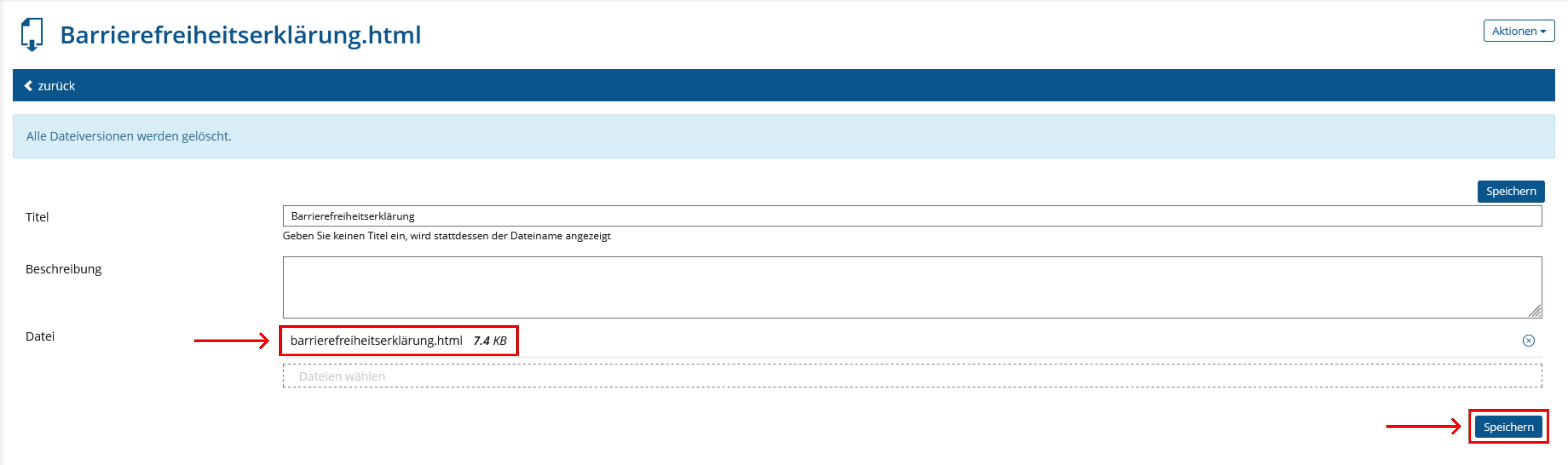
The new file is displayed. If you now click "Save", the old file will be deleted and replaced by the new one.
-
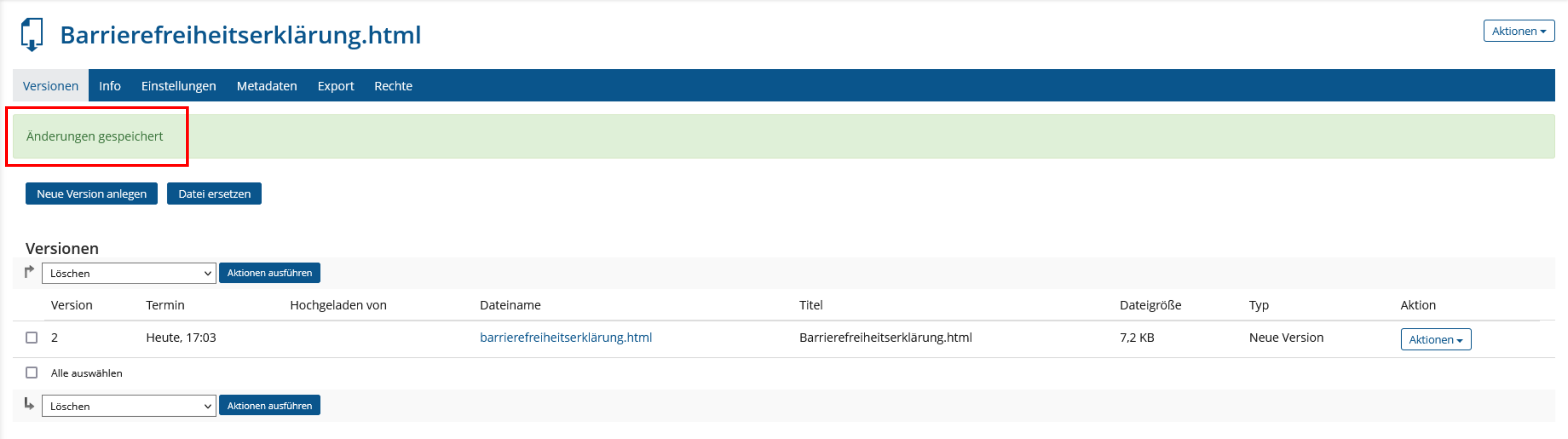
If everything went well, you will see a success message. Your file was successfully updated.
-
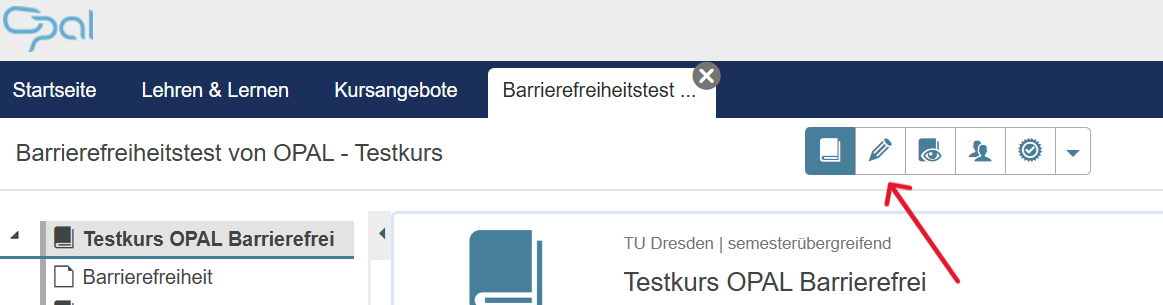
Go to the editor using the pen icon.
-
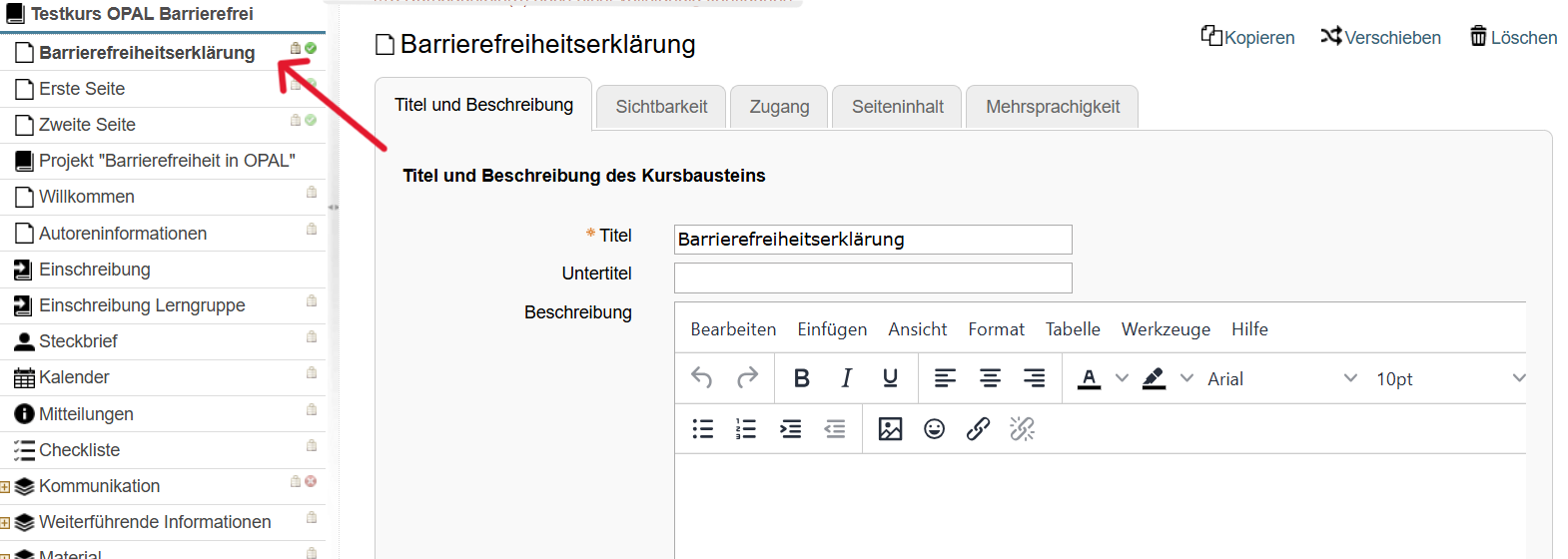
Select the page with the accessibility statement.
-
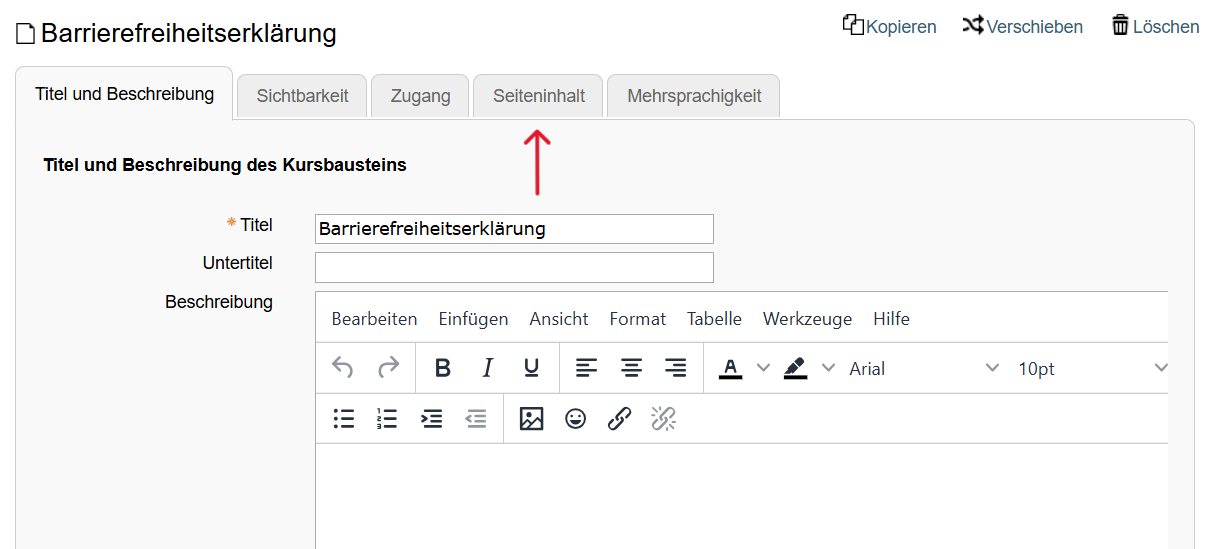
Click on 'Page Content'.
-
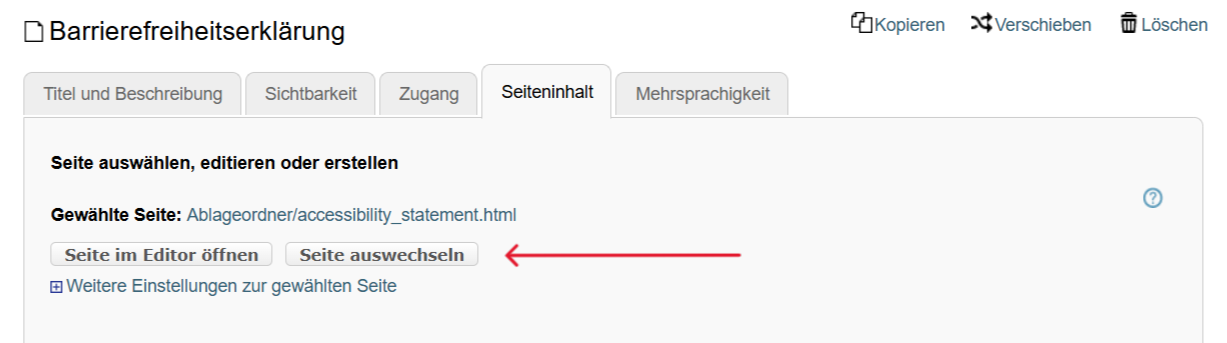
Click on 'Replace page'.
-
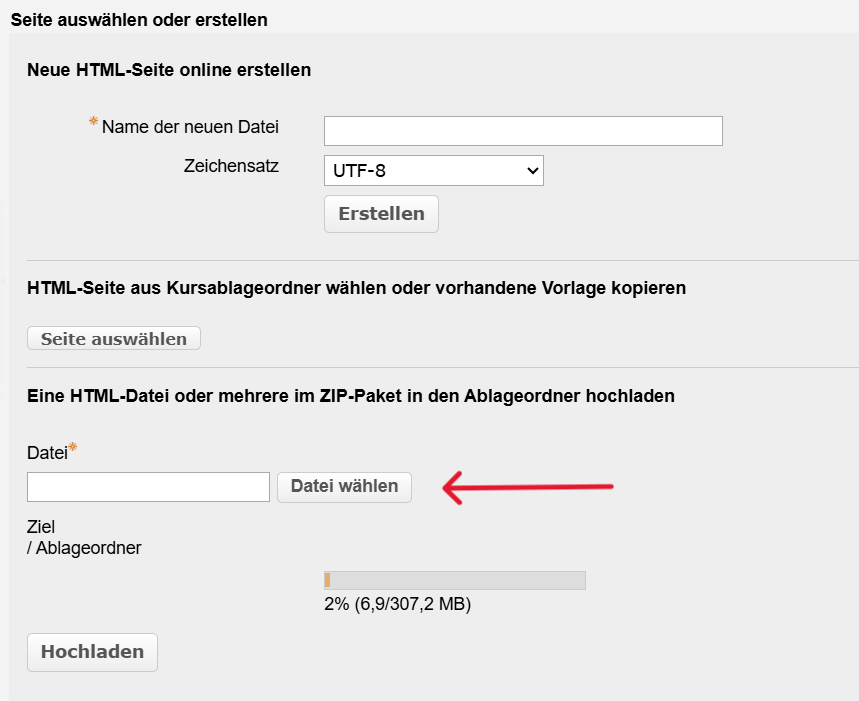
Click on the button 'Select file', choose the file with the accessibility statement and click on 'Upload'.
-
Publish your changes with the Editor tool 'Publish'.